VooV Meeting, known as Tencent Meeting internationally, is a comprehensive video conferencing application developed by Tencent. It enables users to conduct high-quality online meetings, webinars, and virtual collaboration sessions across various devices, including computers, smartphones, and tablets. The app is designed to facilitate seamless communication for businesses, educational institutions, and personal use, integrating smoothly with Tencent's ecosystem and other productivity tools.
Key Features
The application stands out with a robust set of features tailored for modern remote interaction. It supports meetings with a large number of participants, offering high-definition video and crystal-clear audio. Key functionalities include real-time screen sharing, interactive digital whiteboards, and instant messaging within the meeting room. It also provides useful tools like meeting recording, live transcription, and virtual backgrounds to enhance professionalism and engagement during calls.
Pros & Cons
Like any tool, VooV Meeting has its strengths and areas for consideration.
- Pros: It is remarkably easy to set up and join meetings, even for first-time users. The free tier offers substantial functionality, including 60-minute group meetings. Performance is generally stable with low latency, and it integrates well with calendars and Tencent platforms like WeChat. Security features, including password-protected meetings and waiting rooms, are robust.
- Cons: The most advanced features, such as longer meeting durations and cloud storage, require a paid subscription. Some international users might find the primary integration with Chinese services less applicable. Occasional network dependency issues can affect video quality in regions with less optimal connectivity.
Functions
VooV Meeting's functionality extends beyond basic video calls to support comprehensive virtual collaboration.
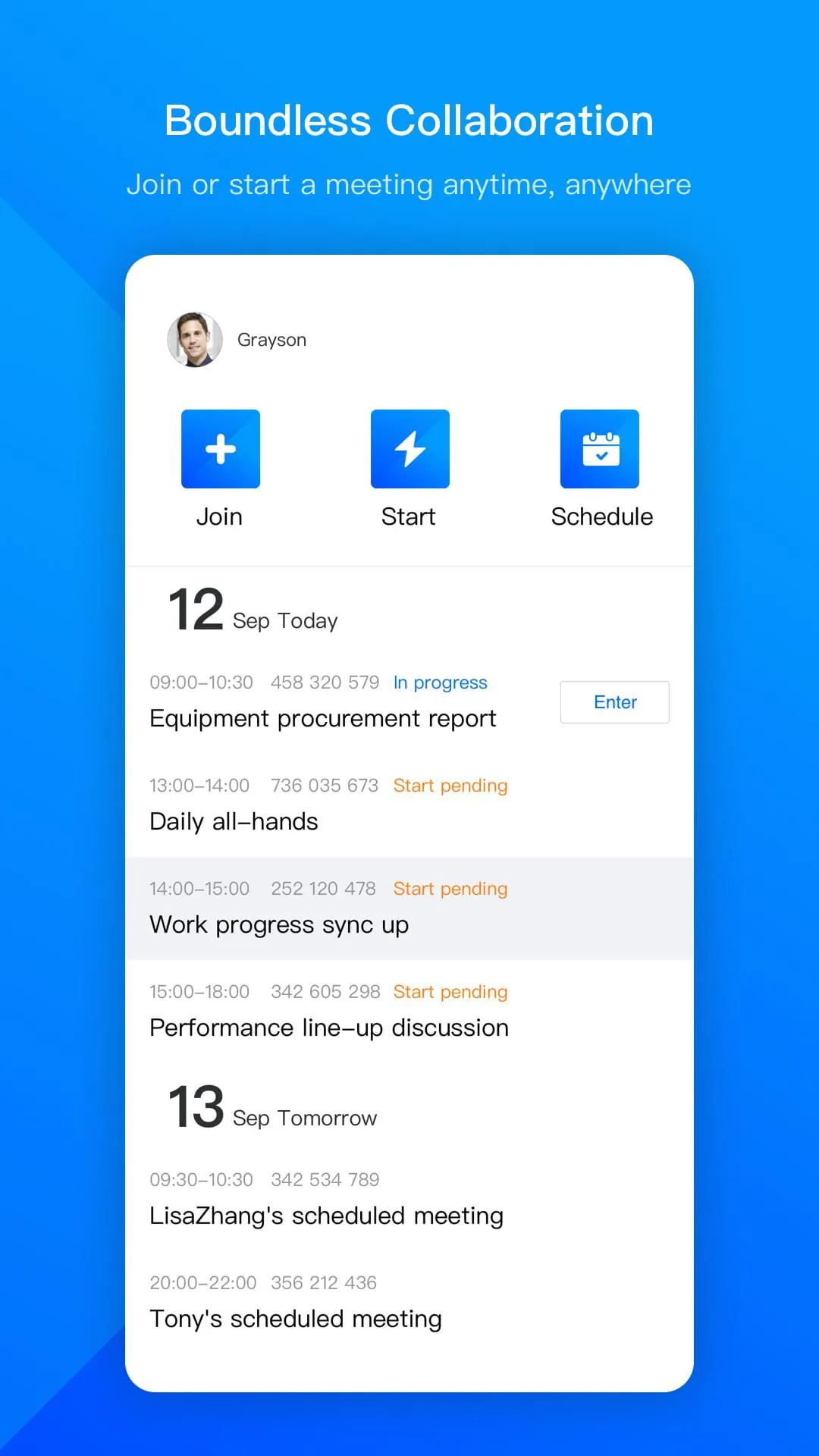
- Host and join scheduled or instant meetings with a simple link or ID.
- Share your entire screen, a specific application window, or a portion of your display.
- Utilize collaborative tools like co-annotation on shared content and a dedicated whiteboard.
- Record meetings locally or to the cloud for later review.
- Manage participants with host controls, including mute, attendee permission settings, and breakout rooms.
- Use AI-powered features such as live captions and meeting minutes generation.
How to Use
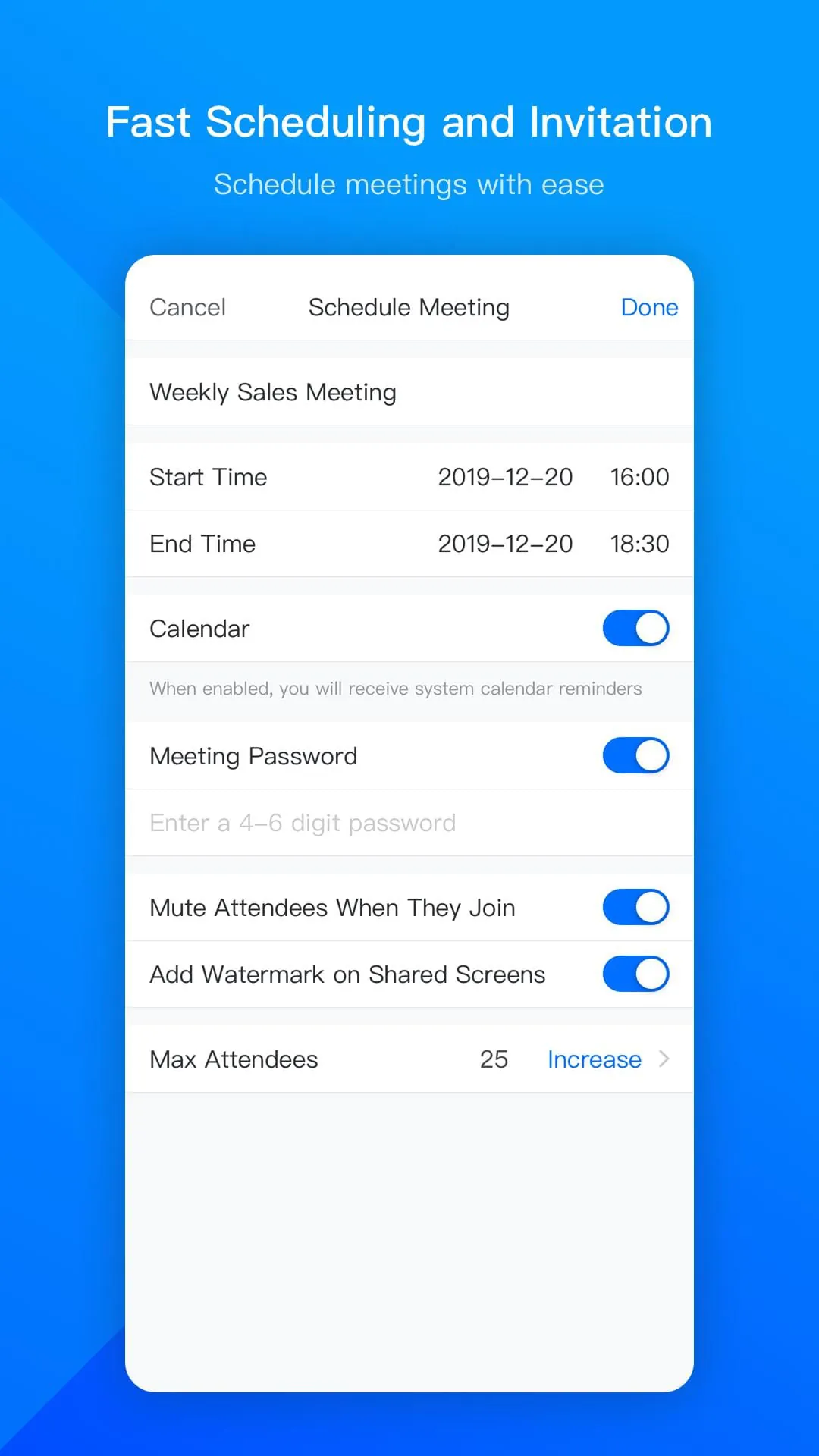
Click the button "Check All Versions" below to download and install it. After installation, you can sign up for an account using your mobile number or email. To start a new meeting, simply click the "Quick Meeting" button, and you can immediately invite others by sharing the meeting link or ID. For scheduled meetings, use the "Schedule" function to set the time, generate an invitation, and add it to your calendar. During a meeting, the control bar at the bottom provides access to features like video/audio toggles, screen sharing, participant management, and more. Exploring the settings menu allows you to configure your audio/video devices and set personal preferences for an optimal experience.





 APK
APK  Google Play
  iOS
iOS  2.70
2.70