



ADVERTISEMENT
ADVERTISEMENT

Zoom Workplace Zoom Workplace
Category
BusinessVersion
V5.14.7.13652
Tag
collaboration | zoom | collaborate
Rate
4.10
★★★★★
Reviews
500 +
Installs
1B +
Developer
zoom.com
Content Rating
Everyone
Work happy with AI Companion
 APK
APK  Google Play
  iOS
iOS  4.10
4.10ADVERTISEMENT
ADVERTISEMENT
Author's Review
appspicked Review
Screenshots

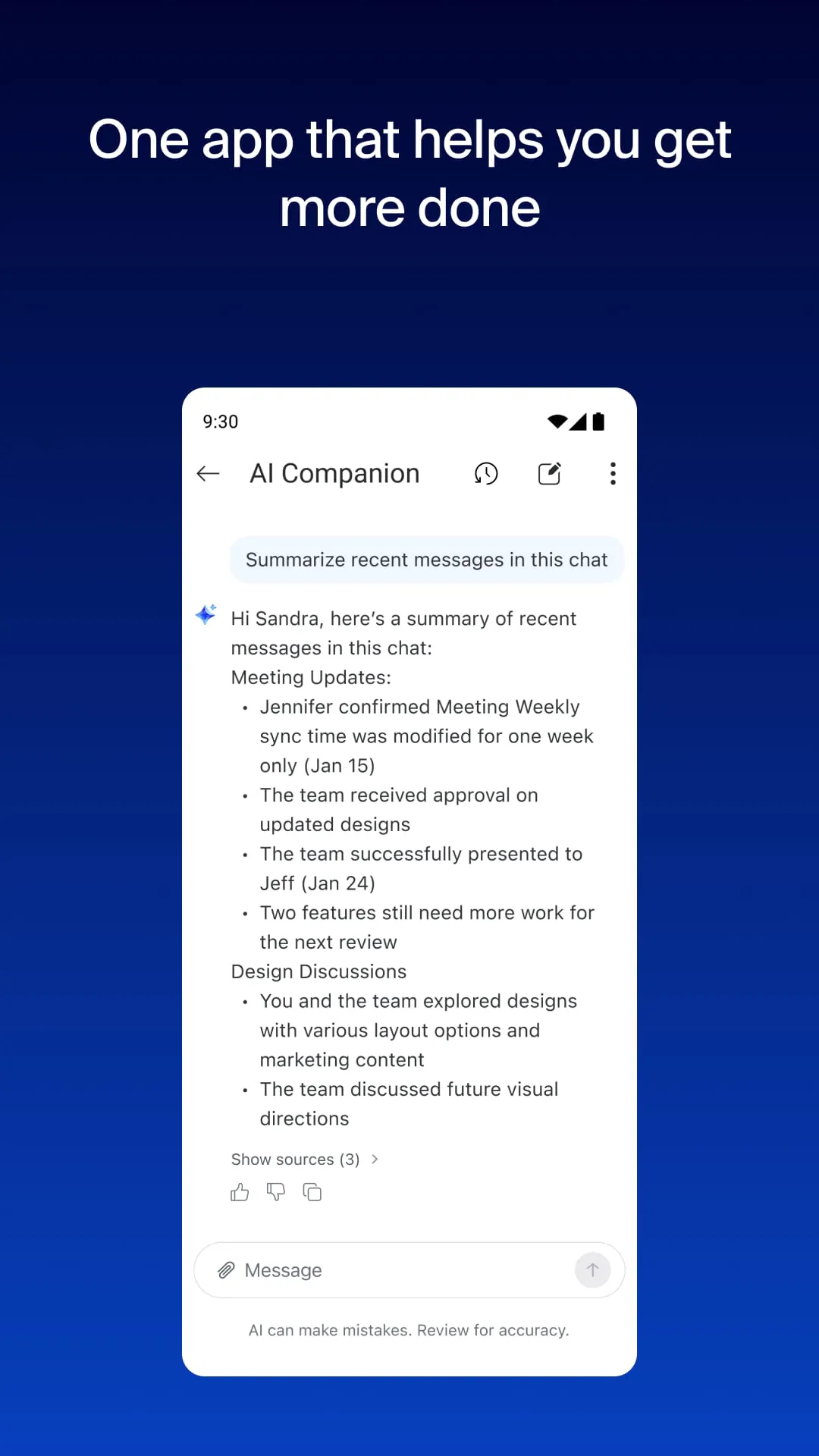


Additional Information
Category
BusinessVersion
V5.14.7.13652
Tag
collaboration | zoom | collaborate
Rate
4.10
★★★★★
Reviews
500 +
Installs
1B +
Developer
zoom.com
Content Rating
Everyone
Work happy with AI Companion
ADVERTISEMENT
ADVERTISEMENT
Previous Versions
ZIP files require a Split APKs Installer (e.g., SAI) from Google Play to install. Steps: 1. Download SAI from Google Play; 2. Open SAI and tap "Install APKs"; 3. Select the ZIP file; 4. Complete installation.
V6.7.2.36107

Package Name
us.zoom.videomeetings
Version Name
V6.7.2.36107
Version Code
V6.7.2.36107
File Size
172.93 MB
Update time
2026-2-10
V6.7.0.35747
Package Name
us.zoom.videomeetings
Version Name
V6.7.0.35747
Version Code
V6.7.0.35747
File Size
316.23 MB
Update time
2025-12-20
V6.0.2.21283
Package Name
us.zoom.videomeetings
Version Name
V6.0.2.21283
Version Code
V6.0.2.21283
File Size
190.73 MB
Update time
2024-4-19
V5.17.10.20124
Package Name
us.zoom.videomeetings
Version Name
V5.17.10.20124
Version Code
V5.17.10.20124
File Size
304.5 MB
Update time
2024-2-27
V5.17.1.18472
Package Name
us.zoom.videomeetings
Version Name
V5.17.1.18472
Version Code
V5.17.1.18472
File Size
299.18 MB
Update time
2023-12-27
V5.16.10.17646
Package Name
us.zoom.videomeetings
Version Name
V5.16.10.17646
Version Code
V5.16.10.17646
File Size
279.72 MB
Update time
2023-11-20
V5.16.2.16495
Package Name
us.zoom.videomeetings
Version Name
V5.16.2.16495
Version Code
V5.16.2.16495
File Size
272.96 MB
Update time
2023-9-30
V5.15.3.14879
Package Name
us.zoom.videomeetings
Version Name
V5.15.3.14879
Version Code
V5.15.3.14879
File Size
281.13 MB
Update time
2023-7-10
V5.15.2.14613
Package Name
us.zoom.videomeetings
Version Name
V5.15.2.14613
Version Code
V5.15.2.14613
File Size
281.12 MB
Update time
2023-6-27
V5.15.0.14500
Package Name
us.zoom.videomeetings
Version Name
V5.15.0.14500
Version Code
V5.15.0.14500
File Size
281.12 MB
Update time
2023-6-20
V5.14.10.14212
Package Name
us.zoom.videomeetings
Version Name
V5.14.10.14212
Version Code
V5.14.10.14212
File Size
270.07 MB
Update time
2023-6-5
V5.14.7.13652
Package Name
us.zoom.videomeetings
Version Name
V5.14.7.13652
Version Code
V5.14.7.13652
File Size
44.51 MB
Update time
2023-5-9
V5.12.9.10320
Package Name
us.zoom.videomeetings
Version Name
V5.12.9.10320
Version Code
V5.12.9.10320
File Size
242.32 MB
Update time
2022-11-28
V5.11.4.7276
Package Name
us.zoom.videomeetings
Version Name
V5.11.4.7276
Version Code
V5.11.4.7276
File Size
171.57 MB
Update time
2022-8-24
V5.8.0.2282
Package Name
us.zoom.videomeetings
Version Name
V5.8.0.2282
Version Code
V5.8.0.2282
File Size
141.4 MB
Update time
2021-9-24
ADVERTISEMENT
You Might Like









