



ADVERTISEMENT
ADVERTISEMENT

Tango Tango
Category
SocialVersion
V8.20.1669902000
Tag
streaming | Live social community | Real-time video chat | Community building | Content discovery
Rate
4.30
★★★★★
Reviews
500 +
Installs
100M +
Developer
Tango
Content Rating
Everyone
Live Chat & Match! Explore Real-Time Dating and Make Friends!
 APK
APK  Google Play
  iOS
iOS  4.30
4.30ADVERTISEMENT
ADVERTISEMENT
Author's Review
appspicked Review
Screenshots
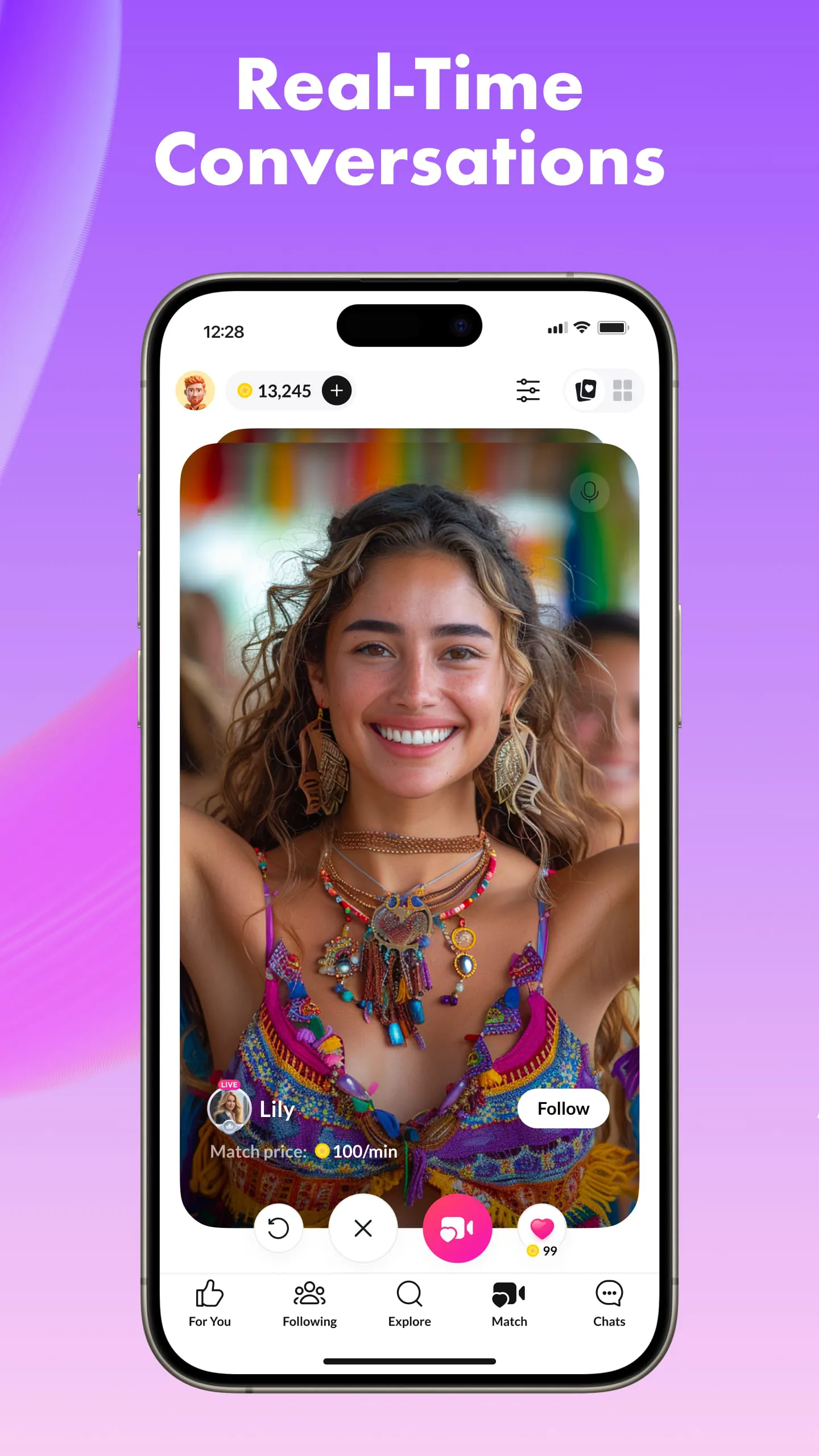

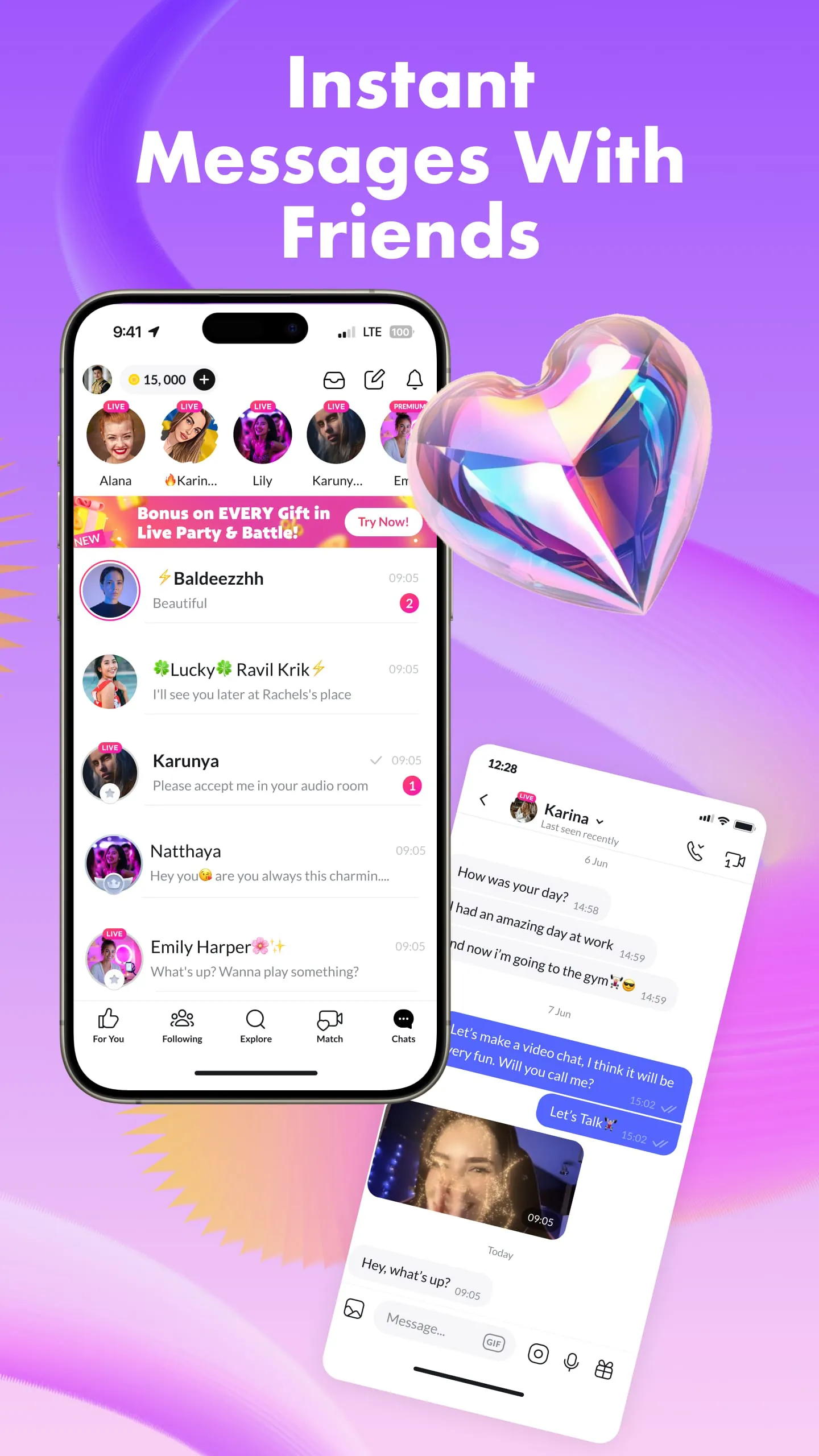
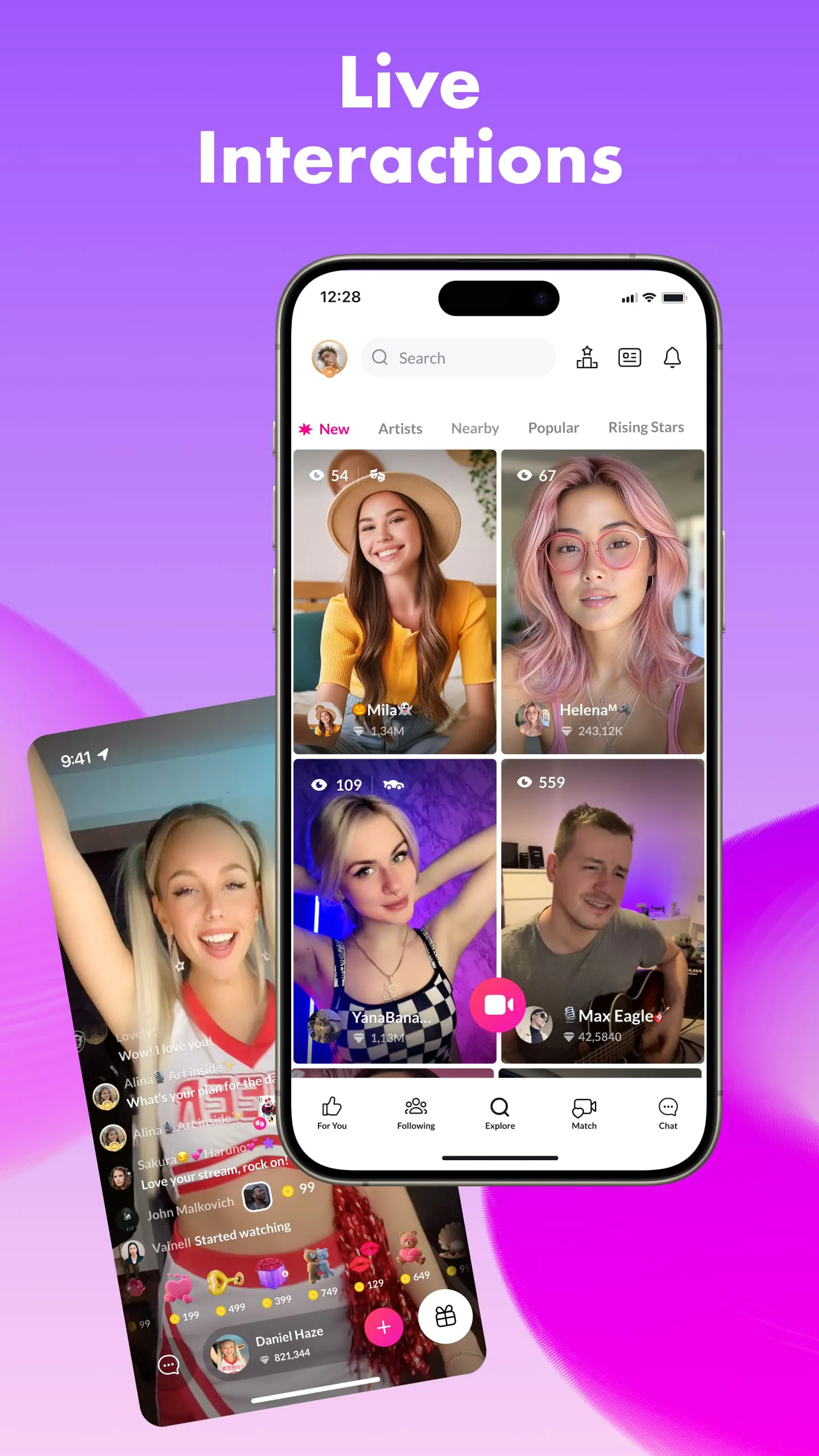
Additional Information
Category
SocialVersion
V8.20.1669902000
Tag
streaming | Live social community | Real-time video chat | Community building | Content discovery
Rate
4.30
★★★★★
Reviews
500 +
Installs
100M +
Developer
Tango
Content Rating
Everyone
Live Chat & Match! Explore Real-Time Dating and Make Friends!
ADVERTISEMENT
ADVERTISEMENT
Previous Versions
ZIP files require a Split APKs Installer (e.g., SAI) from Google Play to install. Steps: 1. Download SAI from Google Play; 2. Open SAI and tap "Install APKs"; 3. Select the ZIP file; 4. Complete installation.
V9.38.7

Package Name
com.sgiggle.production
Version Name
V9.38.7
Version Code
V9.38.7
File Size
84.69 MB
Update time
2026-1-7
V8.48.1706295351
Package Name
com.sgiggle.production
Version Name
V8.48.1706295351
Version Code
V8.48.1706295351
File Size
93.16 MB
Update time
2024-1-26
V8.43.1698771630
Package Name
com.sgiggle.production
Version Name
V8.43.1698771630
Version Code
V8.43.1698771630
File Size
151.73 MB
Update time
2023-10-31
V8.37.1690908928
Package Name
com.sgiggle.production
Version Name
V8.37.1690908928
Version Code
V8.37.1690908928
File Size
157.6 MB
Update time
2023-8-3
V8.37.1691073917
Package Name
com.sgiggle.production
Version Name
V8.37.1691073917
Version Code
V8.37.1691073917
File Size
165.23 MB
Update time
2023-8-3
V8.34.1687096679
Package Name
com.sgiggle.production
Version Name
V8.34.1687096679
Version Code
V8.34.1687096679
File Size
167.3 MB
Update time
2023-6-18
V8.32.1684961018
Package Name
com.sgiggle.production
Version Name
V8.32.1684961018
Version Code
V8.32.1684961018
File Size
157.46 MB
Update time
2023-5-25
V8.20.1669902000
Package Name
com.sgiggle.production
Version Name
V8.20.1669902000
Version Code
V8.20.1669902000
File Size
178.82 MB
Update time
2022-12-1
ADVERTISEMENT
You Might Like









