Samsung Flow is a proprietary application developed by Samsung to create a seamless and secure ecosystem between Samsung Galaxy devices and Windows PCs. Its core function is to establish a connected experience, allowing for notifications, calls, messages, and file sharing to flow effortlessly between your phone and computer, thereby enhancing productivity and convenience for users within the Samsung ecosystem.
Key Features
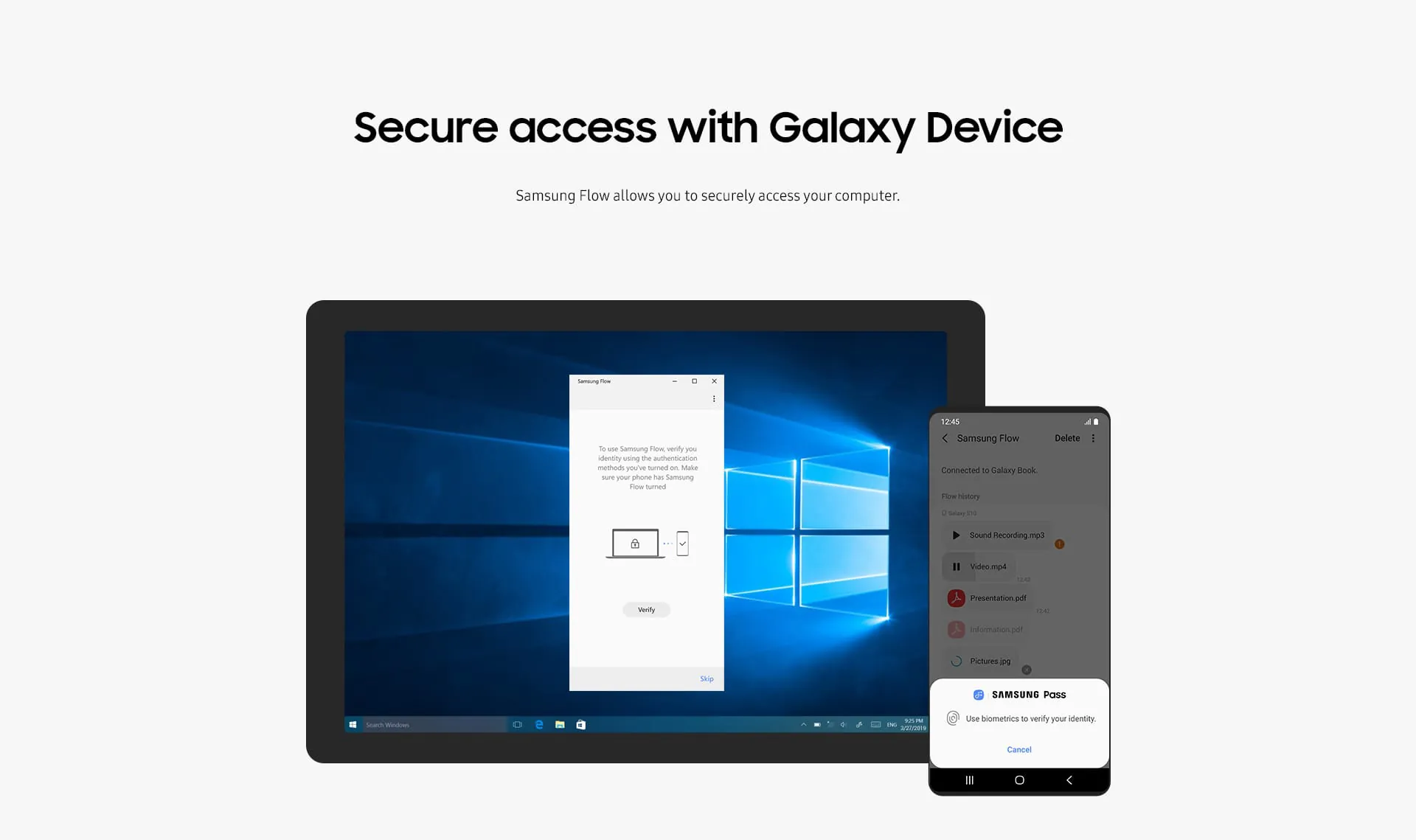
The application stands out by integrating several smart functionalities that bridge the gap between mobile and desktop computing. It goes beyond simple file sharing to offer a unified workflow. Key aspects include secure unlocking of your PC using your phone's biometric authentication, mirroring phone notifications directly on the desktop, and relaying SMS messages. It also provides a robust platform for transferring content without size limits over a Wi-Fi direct connection, maintaining a high level of security through Samsung's Knox platform.
Pros & Cons
Like any software, Samsung Flow presents a balanced set of advantages and limitations.
- Pros: Offers a highly secure connection leveraging Samsung Knox. The ability to unlock a PC with a phone is incredibly convenient. Notification mirroring and call alerts help maintain focus on one screen. File transfer is fast and does not rely on internet data usage once connected.
- Cons: The ecosystem is largely restricted to Samsung Galaxy devices and select Samsung or Windows 10/11 PCs, limiting its appeal to users of other Android brands or operating systems. Some advanced features may require specific, newer device models. Initial setup, while straightforward, can be slightly more involved than universal solutions.
Functions
Samsung Flow encompasses a suite of interconnected functions designed to streamline your digital life.
- Smart Switch: Unlock your Windows PC automatically when your paired Samsung phone is nearby and locked.
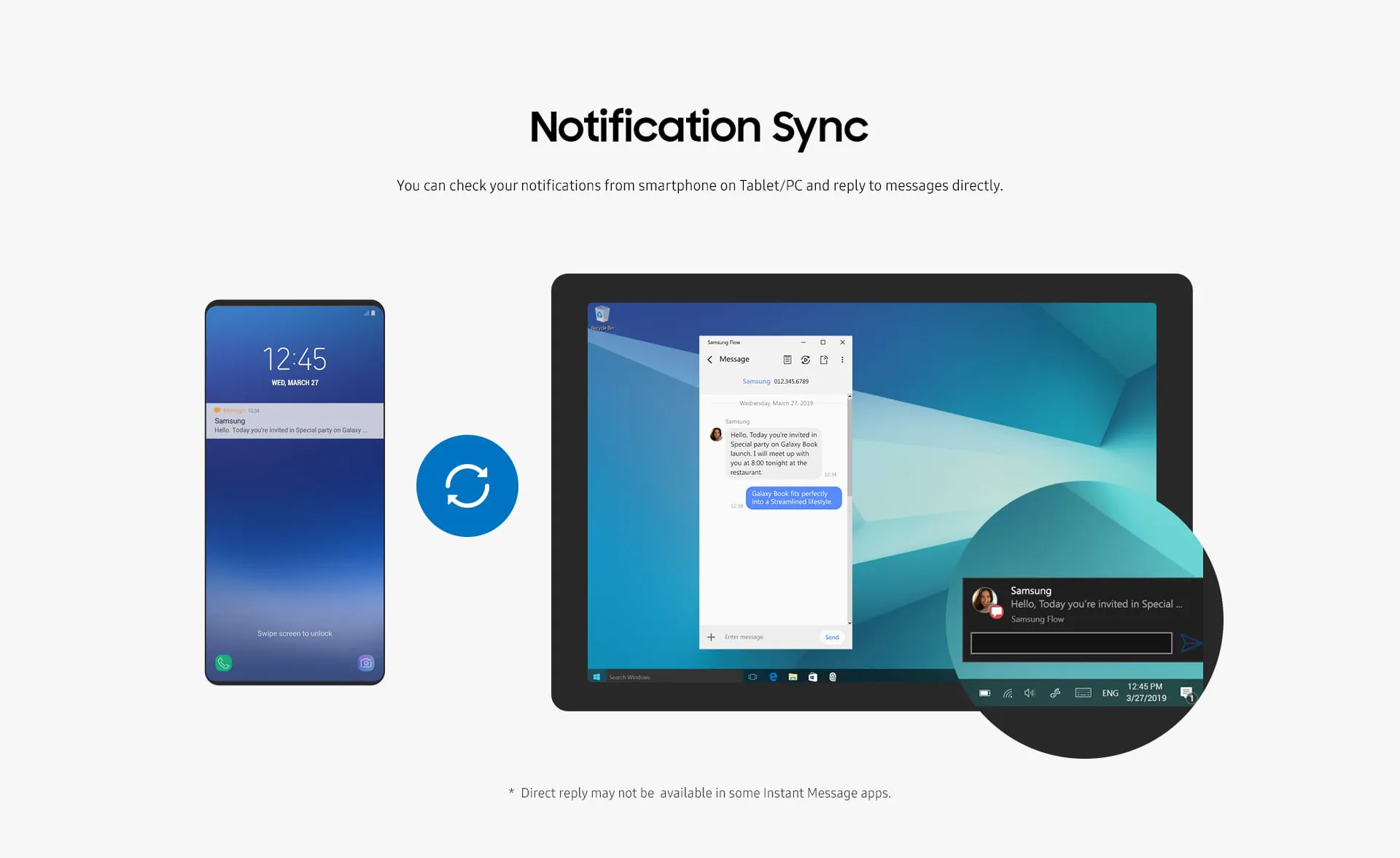
- Notification Sync: Receive and interact with smartphone notifications—such as messages, emails, and app alerts—directly on your PC.
- Call & Message Management: See incoming call information and send/reply to SMS text messages from the computer interface.
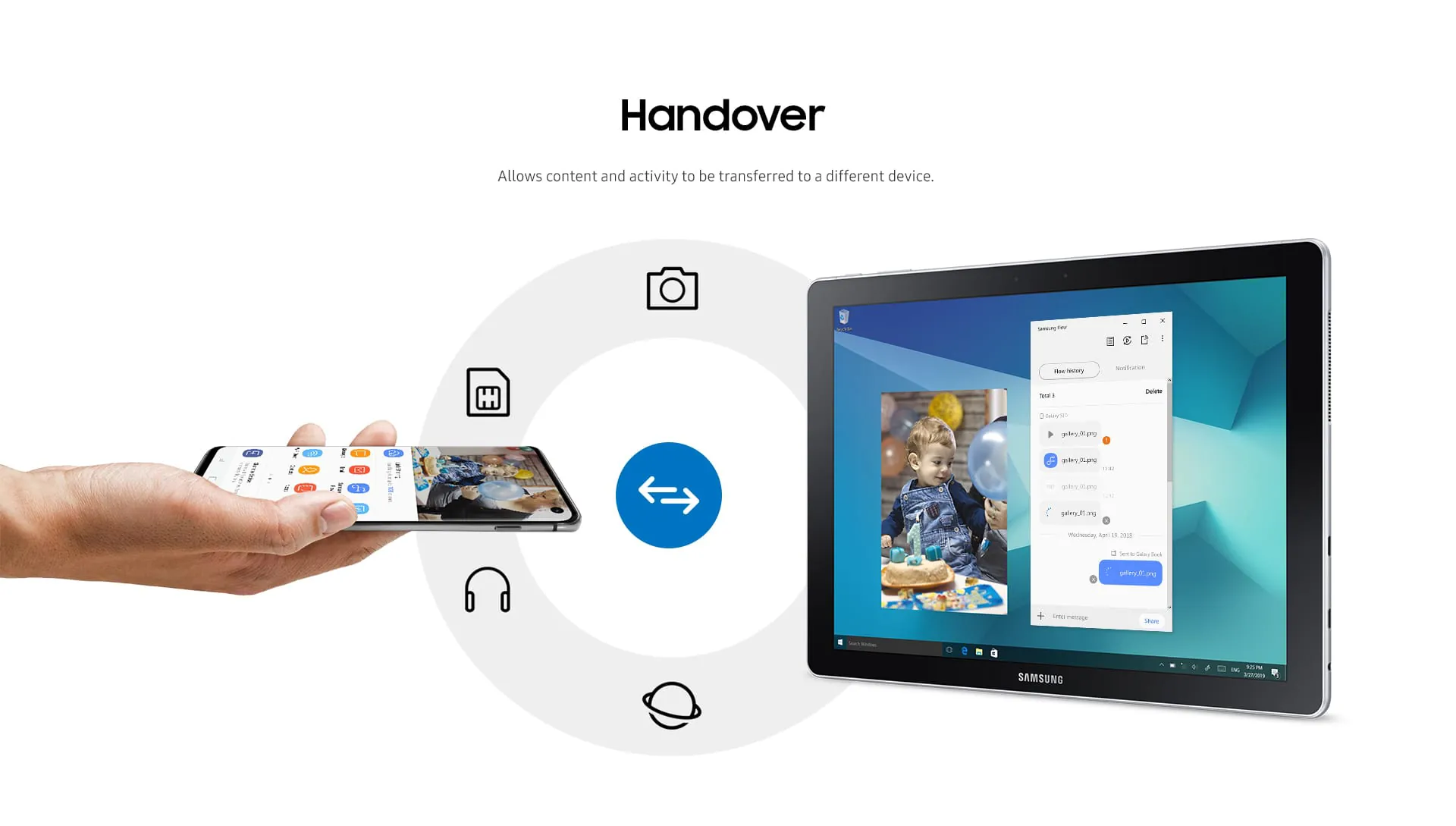
- File Transfer: Drag and drop files between devices quickly over a direct wireless link, without uploading to the cloud.
- Clipboard Sharing: Copy text or images on one device and paste them on the other seamlessly.
- Mobile Hotspot: Instantly share your phone's internet connection with your PC with a single click from the app.
How to Use
Click the button "Check All Versions" below to download and install it. To begin using Samsung Flow, first ensure you have the app installed on both your Samsung Galaxy smartphone and your Windows computer. On your phone, open the app and follow the prompts to turn on necessary permissions like Bluetooth and Location. On your PC, launch the Samsung Flow application from the Start menu. The apps will guide you through the pairing process, which typically involves scanning a QR code displayed on the PC with your phone's camera. Once paired, you can navigate the PC application's sidebar to customize which notifications you want to see, access your phone's recent photos for quick transfer, and configure the auto-lock/unlock settings to your preference. The intuitive interface makes it easy to manage the connection and all the shared functionalities.





 APK
APK  Google Play
  iOS
iOS  3.40
3.40