Remote Mouse is a versatile utility application that transforms your smartphone or tablet into a convenient wireless remote control for your computer, allowing you to operate your desktop or laptop from a distance using your mobile device’s touchscreen, motion sensors, and keyboard inputs over a shared Wi-Fi network, effectively eliminating the need for a physical mouse or keyboard during presentations, media playback, or casual browsing.
Key Features
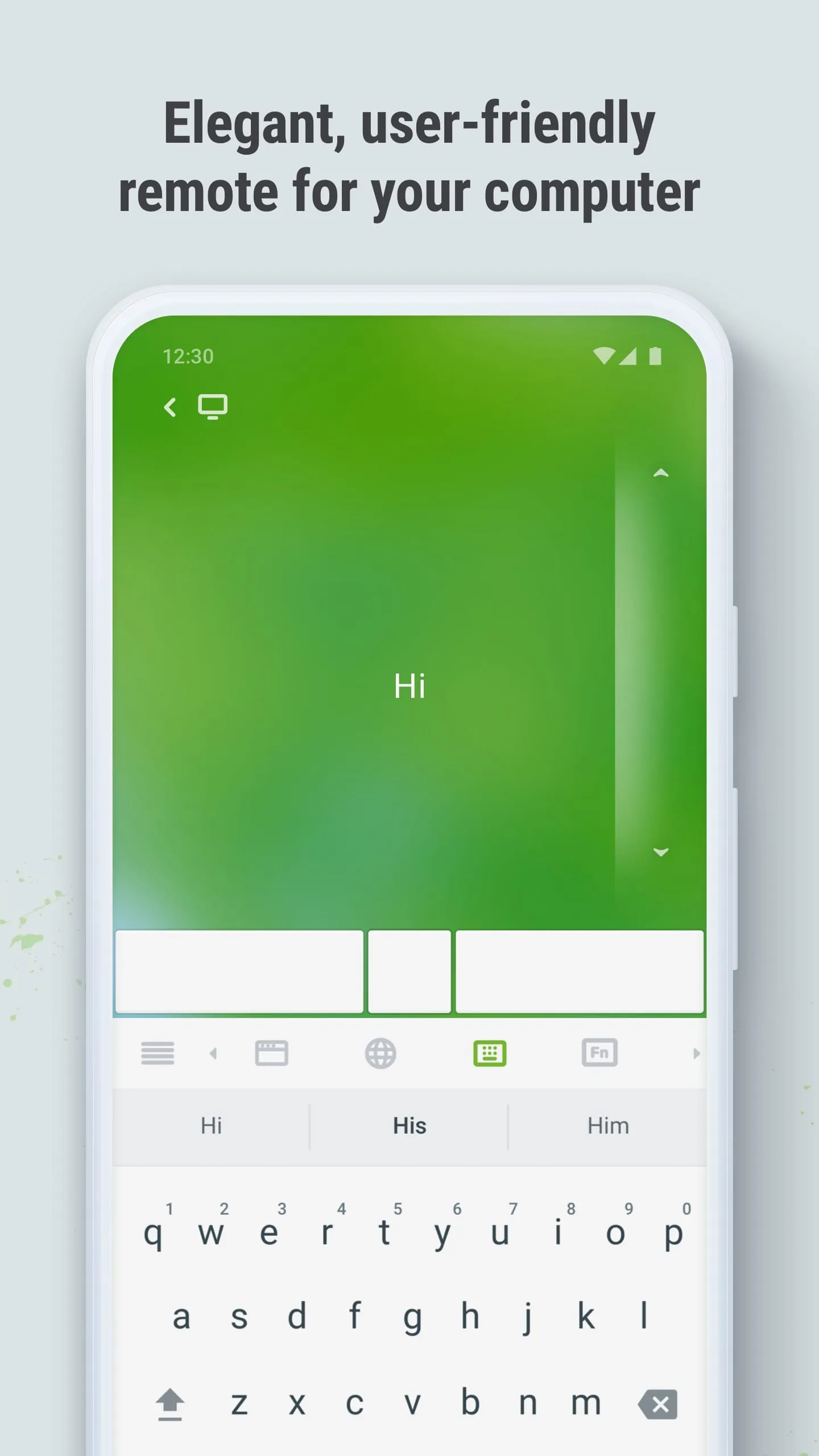
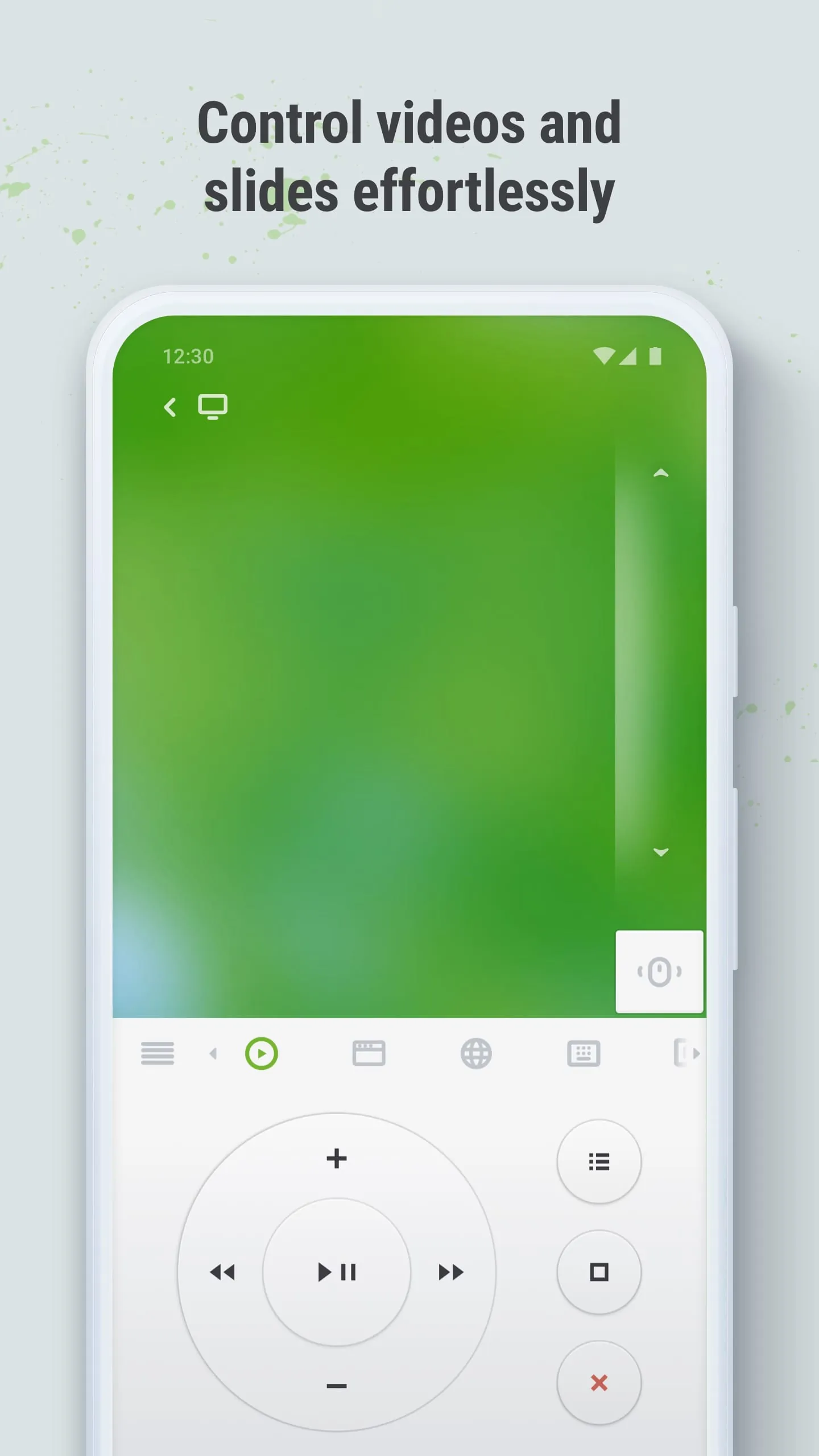
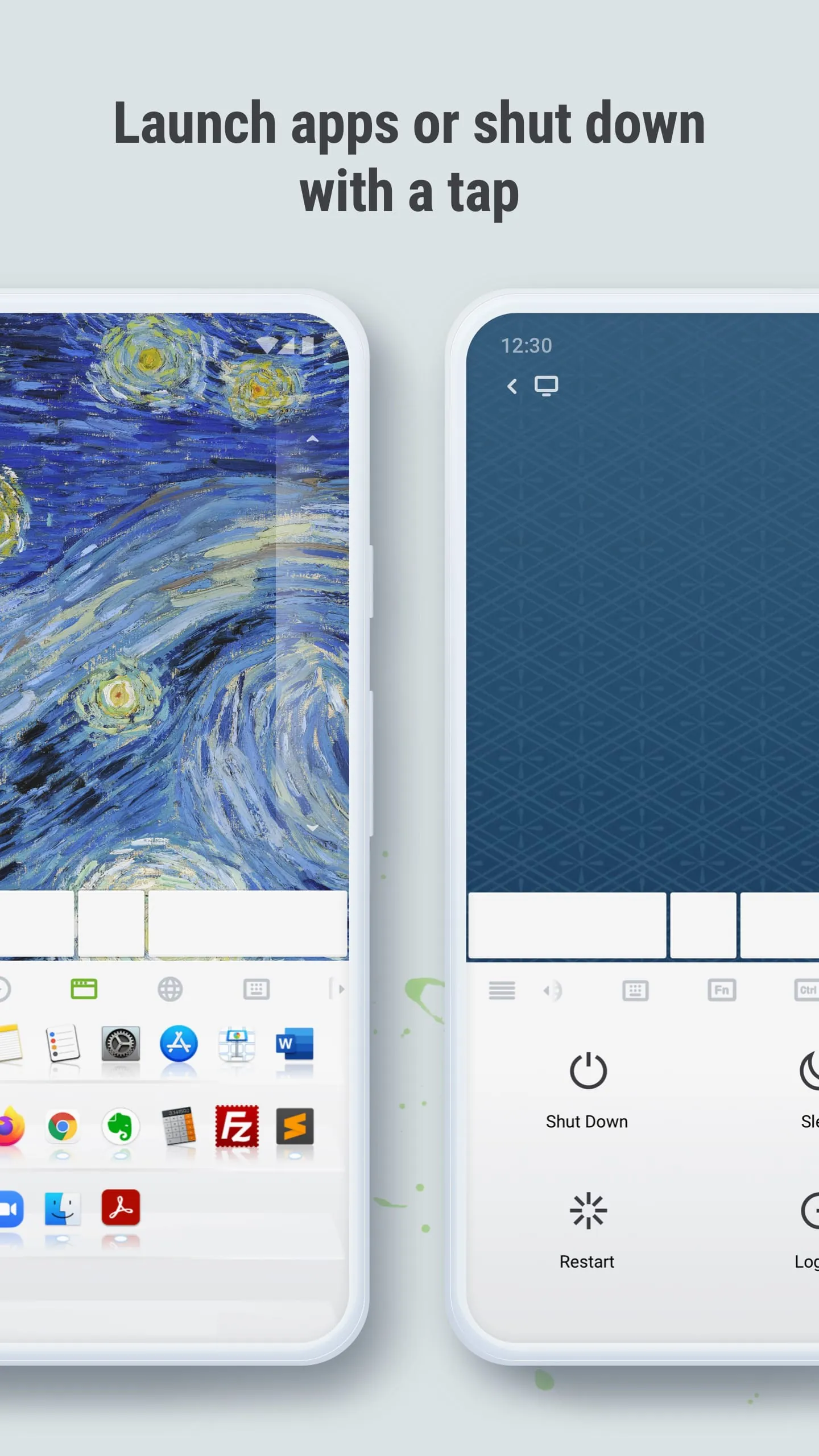
The application stands out with a rich set of capabilities designed for seamless remote interaction. Its primary appeal lies in the fluid simulation of mouse cursor movement and clicks via the mobile device's screen. Beyond basic control, it offers a fully functional touch keyboard, specialized panels for media control and presentation slide navigation, and the ability to launch applications directly from the remote. A unique feature is the use of the phone’s accelerometer for an air mouse mode, and it also supports voice commands for search and control functions, alongside customizable shortcut buttons for personalized efficiency.
Pros & Cons
When evaluating Remote Mouse, users will encounter several advantages and a few limitations to consider.
- It provides exceptional convenience for controlling a computer from a couch or during a presentation, reducing physical clutter.
- The interface is generally intuitive and user-friendly, requiring minimal setup.
- It supports multiple platforms, including Windows, macOS, and Android.
- The basic version offers substantial functionality for free.
However, there are some drawbacks.
- Both devices must be on the same Wi-Fi network, which can be a limitation in some environments.
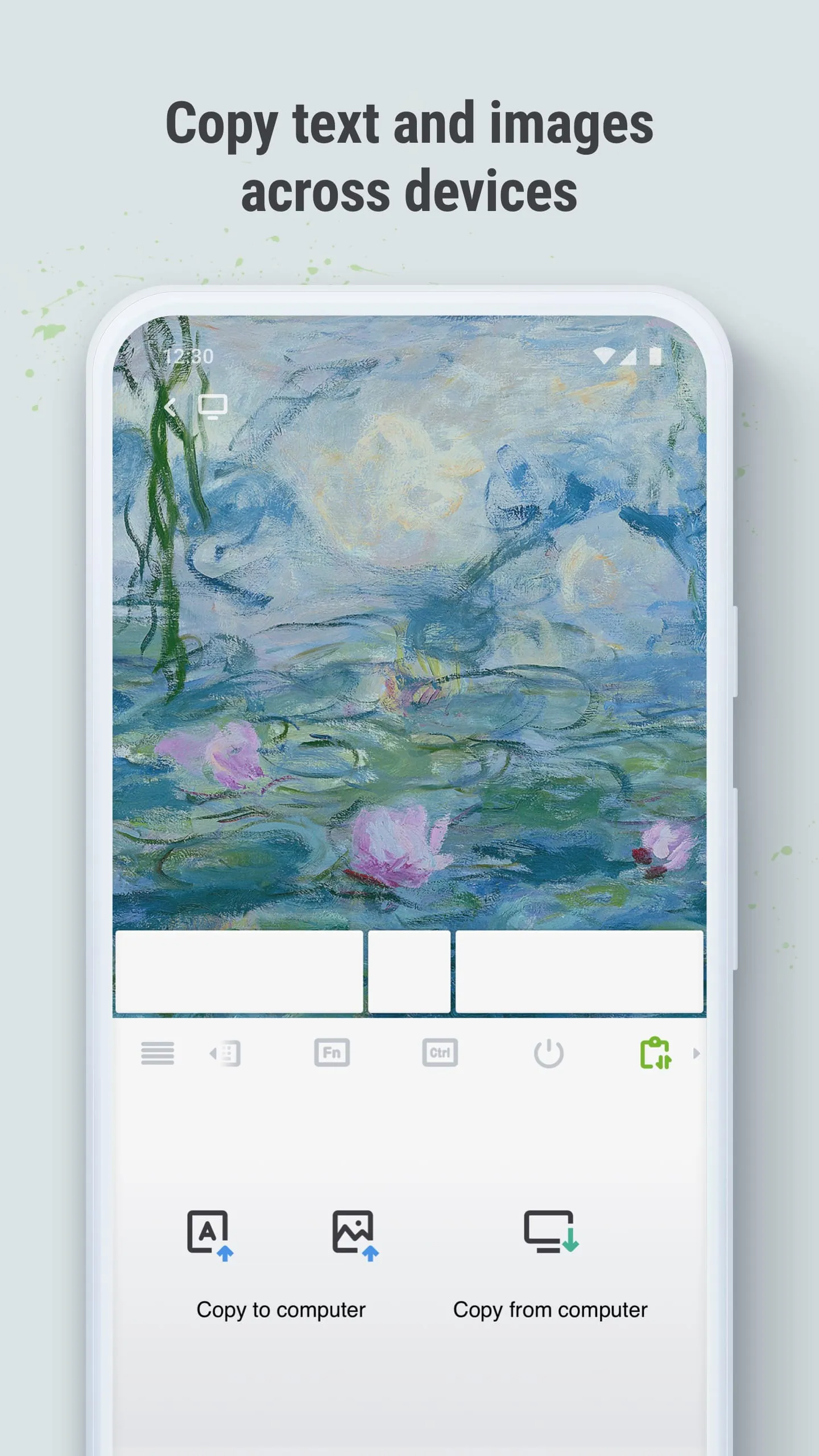
- Advanced features, such as file transfer or a numeric keypad, are locked behind a paid premium version.
- Occasional latency or connection drops can occur if the network is unstable.
- The free version includes banner ads, which some users may find intrusive.
Functions
Remote Mouse is packed with practical functions that extend beyond simple cursor movement. It accurately replicates the core HID (Human Interface Device) functions of a physical mouse, including left/right click, scroll, and drag-and-drop. The integrated keyboard supports text entry, hotkeys, and system commands. For entertainment, it provides dedicated controllers for media players like VLC, Spotify, and Windows Media Player. Presenters benefit from dedicated buttons for PowerPoint and Keynote navigation. Additional utility functions include a trackpad mode, screenshot capture, shutdown/restart commands, and application launchers for quick access to frequently used software.
How to Use
Click the button "Check All Versions" below to download and install it. Begin by installing the Remote Mouse server application on your computer from the official website, ensuring you select the correct version for your operating system. Next, install the free Remote Mouse client app on your mobile device from the Google Play Store or Apple App Store. Launch the applications on both devices, making sure your computer and phone are connected to the same local Wi-Fi network. The mobile app will automatically scan for and display your computer’s name; simply tap on it to establish a connection. Once paired, your mobile screen will transform into a control interface, allowing you to immediately start navigating your computer remotely.




 APK
APK  Google Play
  iOS
iOS  4.20
4.20