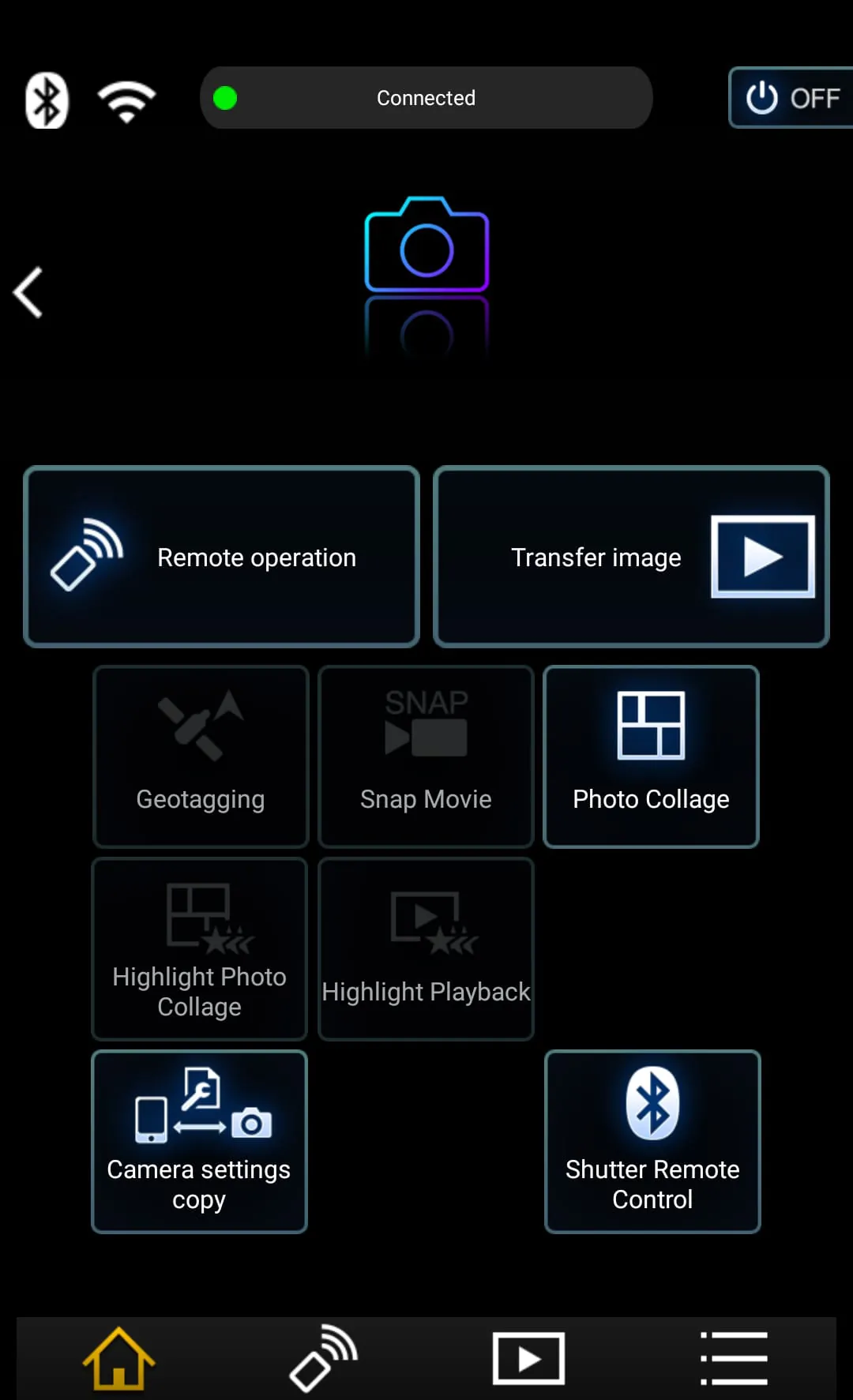
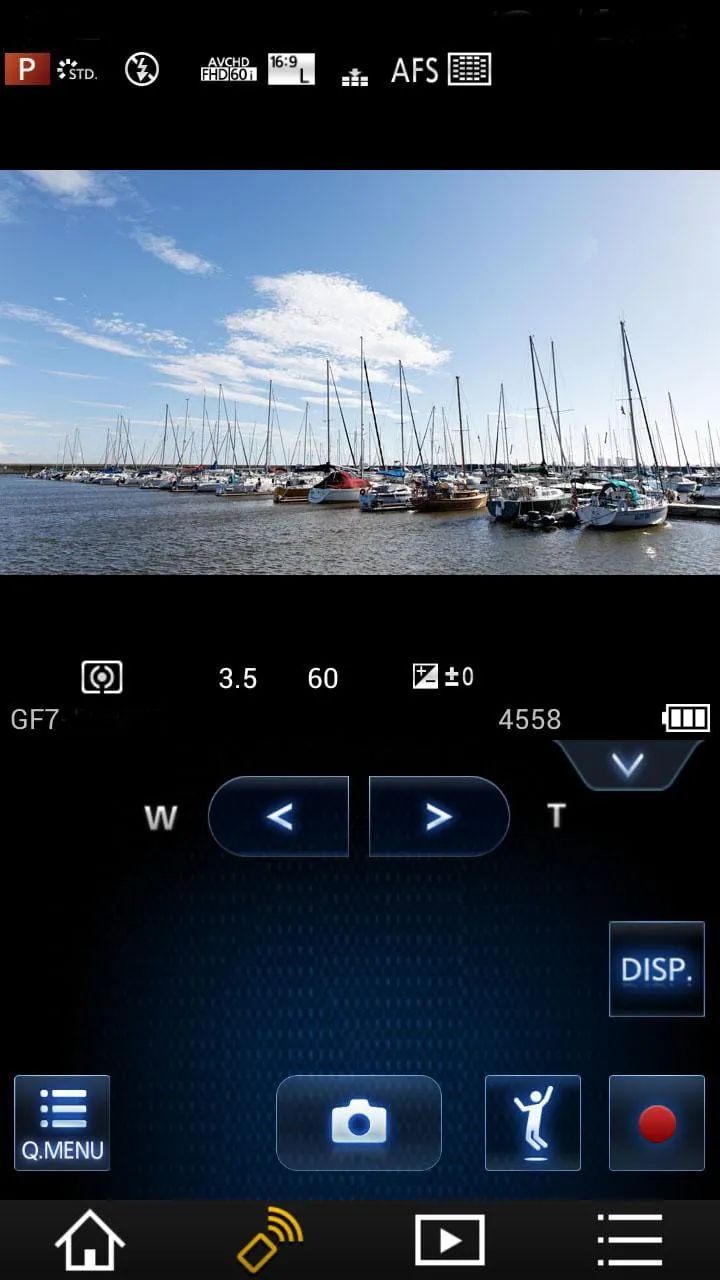
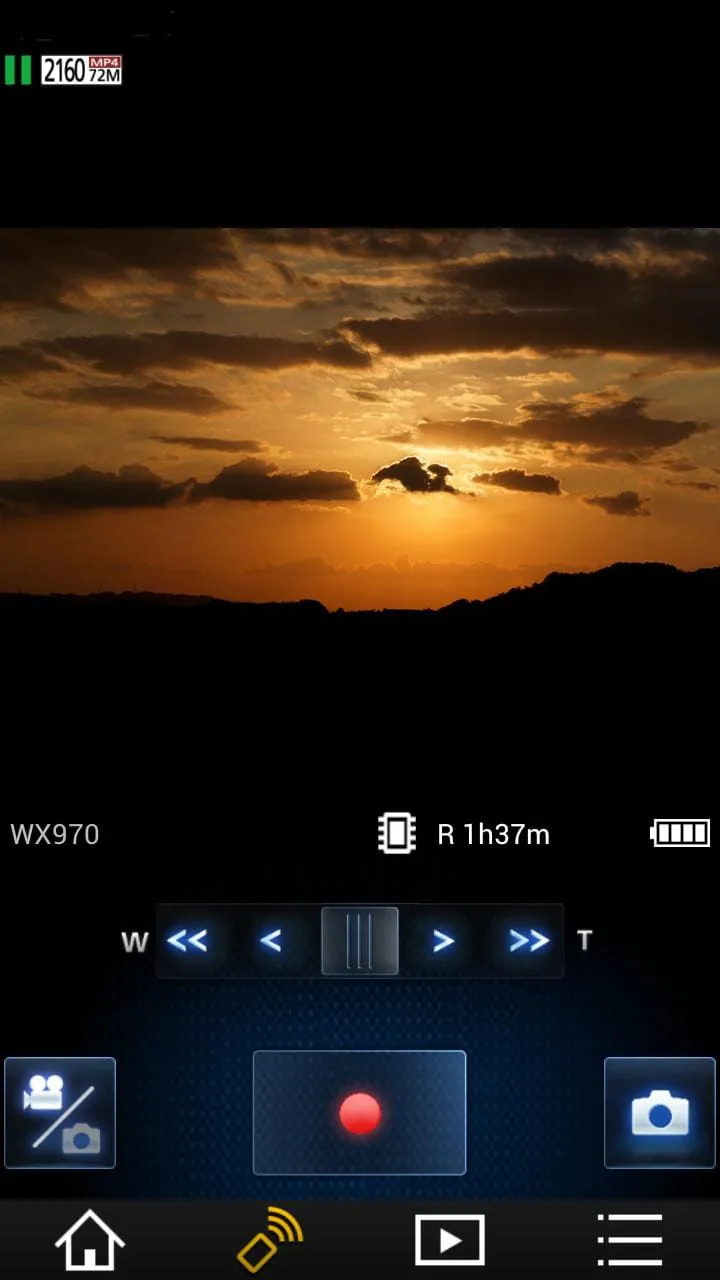
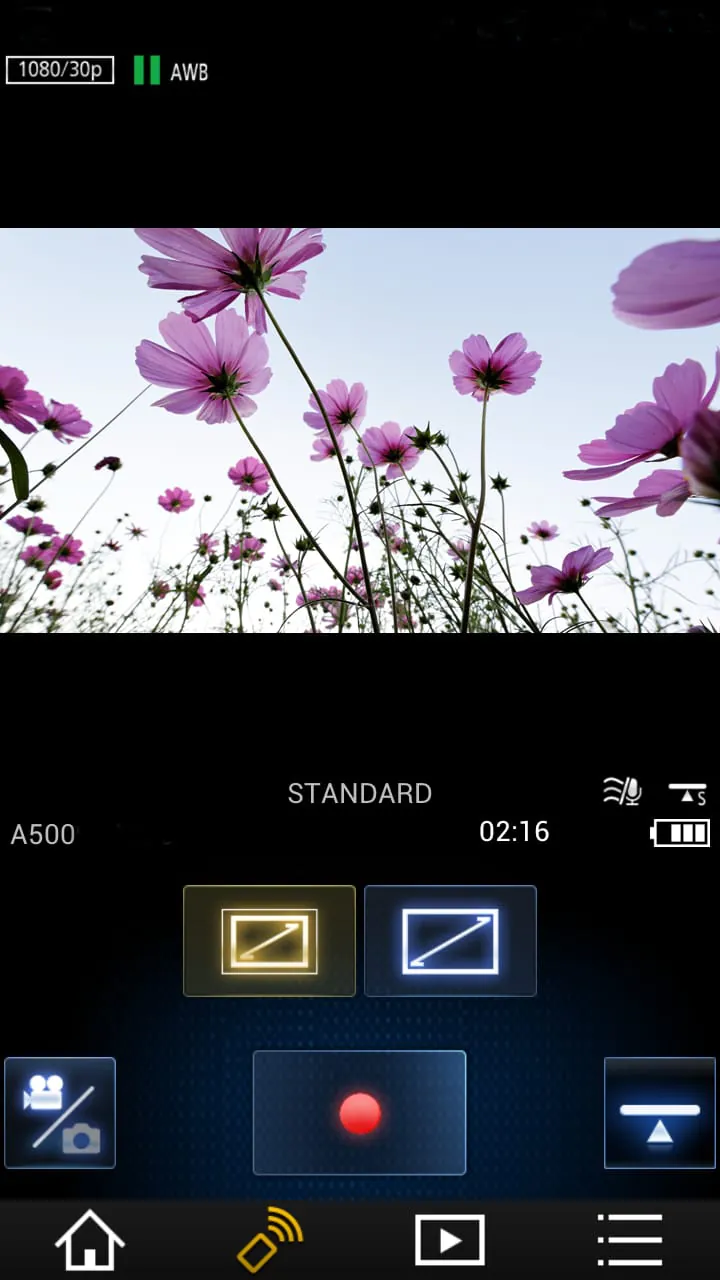
The Panasonic Image App is a dedicated mobile application developed by Panasonic to serve as a wireless bridge between your compatible Lumix camera and your smartphone or tablet, enabling seamless photo and video transfer, remote camera control, and efficient management of your captured media directly on your mobile device.
Key Features
This application is designed to enhance the Lumix user's workflow significantly. Its core revolves around liberating your photos from the camera by providing a robust set of connectivity tools. Beyond simple file transfer, it empowers you to use your phone as a sophisticated remote shutter release and live view monitor, which is particularly valuable for vlogging, self-portraits, and shooting from unique angles. The app also facilitates automatic background transfer of your shots and offers basic geo-tagging functions.
Pros & Cons
Using the Panasonic Image App comes with distinct advantages and some noted drawbacks.
- Pros: The app provides genuine convenience for wireless transfer, eliminating the need for cables or card readers. The remote control functionality is feature-rich, allowing adjustment of key settings like shutter speed, aperture, and ISO. The live view on your phone is stable and can be crucial for framing shots.
- Cons: Connection stability can occasionally be inconsistent, with some users experiencing dropouts. The setup process, while improved, can still be finicky for first-time users. The interface and transfer speeds are sometimes viewed as lagging behind competitors' solutions.
Functions
The Panasonic Image App consolidates several essential functionalities into one tool.
- Wireless Transfer: Browse, select, and import still images and videos from your camera to your phone for quick editing and sharing on social media.
- Remote Shooting: Control your camera remotely with a live view display, adjusting shooting parameters and capturing photos or recording videos.
- Auto Transfer: Set the app to automatically send photos to your device in the background as you shoot, creating an instant backup.
- Geotagging: Use your smartphone's GPS data to add location information to photos on your camera.
- Camera Management: Update your camera's firmware directly through the app and customize some camera settings remotely.
How to Use
Click the button "Check All Versions" below to download and install it. To begin, ensure your Lumix camera has the Wi-Fi function enabled. Open the app on your mobile device and select your camera model from the list to establish a connection, typically by connecting your phone to the camera's own Wi-Fi network. Once paired, the app's main interface will present clear icons for remote shooting, image browsing, and auto transfer settings. Navigate through these menus to start controlling your camera wirelessly or selecting photos for import. For a smooth experience, it is recommended to keep both your camera firmware and the app updated to the latest versions.




 APK
APK  Google Play
  iOS
iOS  2.90
2.90