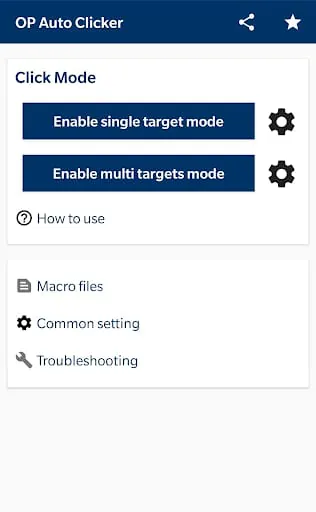
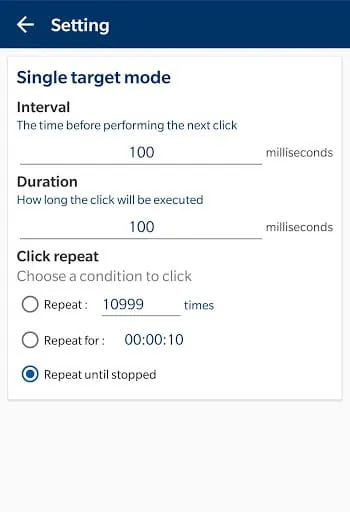
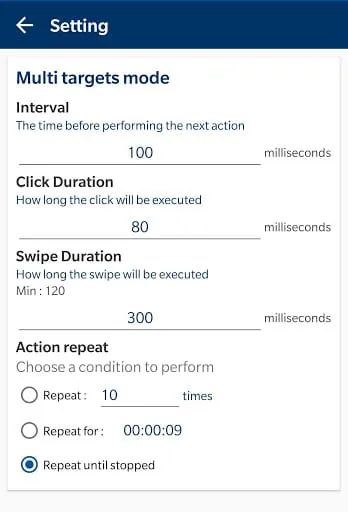
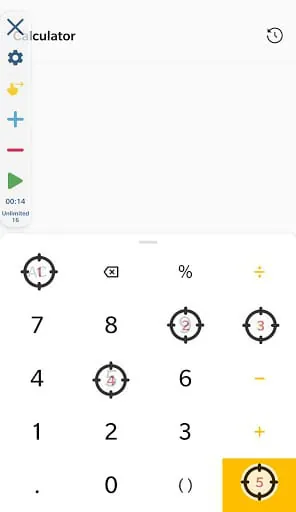
OP Auto Clicker is a versatile and user-friendly automation software designed primarily for Windows PCs, which allows users to automate repetitive mouse clicking tasks. By simulating mouse clicks at predefined positions, intervals, and durations, it can significantly enhance efficiency in various scenarios such as gaming, data entry, software testing, or any other activity that requires sustained or rapid clicking, thereby saving users considerable time and effort while reducing physical strain.
Key Features
The application stands out due to its robust set of features tailored for both simple and complex automation needs. It offers a high degree of customization for click operations, supporting different mouse buttons and click modes. Users will find its intuitive interface easy to navigate, requiring no prior programming knowledge. Key aspects include:
- Fully customizable click intervals and locations.
- Support for both single and recorded clicking sequences.
- Hotkey functionality for instant activation and termination.
- Minimal system resource usage, running efficiently in the background.
Pros & Cons
Like any tool, OP Auto Clicker presents a balanced mix of advantages and limitations that users should consider. Its primary strength lies in its simplicity and zero cost, making automation accessible to everyone. However, its utility can be context-dependent.
- Pros: It is completely free, incredibly lightweight, and features a straightforward setup. The ability to set unlimited clicking points and complex patterns offers great flexibility.
- Cons: It is typically limited to the Windows operating system. Over-reliance in online games might contravene some platforms' terms of service, and it lacks built-in macro recording for intricate mouse movements.
Functions
The core functionality of OP Auto Clicker revolves around automating mouse input with precision and reliability. It goes beyond simple repetitive clicking to handle more sophisticated tasks. The software allows you to set specific coordinates on the screen for targeted actions or use the current cursor position. You can define the exact delay between clicks, choose between single or double-click actions, and specify which mouse button (left, right, or middle) to simulate. Furthermore, it can execute recorded sequences of clicks, making it possible to automate multi-step processes without any manual intervention once started.
How to Use
Click the button "Check All Versions" below to download and install it. After a successful installation, launch the application to see its clean main interface. The process to set up an automated clicking task is quite intuitive. Begin by selecting your desired click point, either by entering precise screen coordinates or by using the hotkey to capture your mouse's current location. Then, configure the click parameters in the control panel.
- Set the interval between clicks in milliseconds.
- Choose the mouse button and the type of click (e.g., single, double, hold).
- Assign a convenient hotkey to start and stop the automation sequence.
- Once all settings are configured, simply press your assigned start hotkey to initiate the automated clicking. The process will continue until you press the stop hotkey.





 APK
APK  Google Play
  iOS
iOS  3.80
3.80