Voicemod is a real-time voice changer and soundboard application primarily designed for gamers, content creators, and online communicators, allowing users to modify their voices during live streams, video calls, or gaming sessions with a vast library of humorous, creative, and high-quality voice filters and audio effects.
Key Features
The application stands out through its extensive and ever-growing sound library and seamless integration. It offers a rich selection of voice filters, from robotic and alien tones to celebrity impersonations. The soundboard function lets users play sound clips and memes instantly. Crucially, it works in real-time with almost any communication or broadcasting software, such as Discord, Zoom, Skype, OBS, and popular games, making voice modulation effortless and immediate.
Pros & Cons
When considering Voicemod, users will find several advantages and a few limitations.
- Pros: Vast and frequently updated library of voices and sounds; extremely low latency for real-time use; user-friendly interface; robust compatibility with most apps and games; powerful soundboard and custom sound upload features.
- Cons: Many premium voices and features require a paid subscription; the free version is quite limited; it can occasionally conflict with other audio drivers; some advanced settings may be complex for beginners.
Functions
Voicemod’s functionality extends beyond simple voice changing to create a comprehensive audio entertainment toolkit.
- Real-Time Voice Changer: Apply and switch between hundreds of voice filters with a single click while you speak.
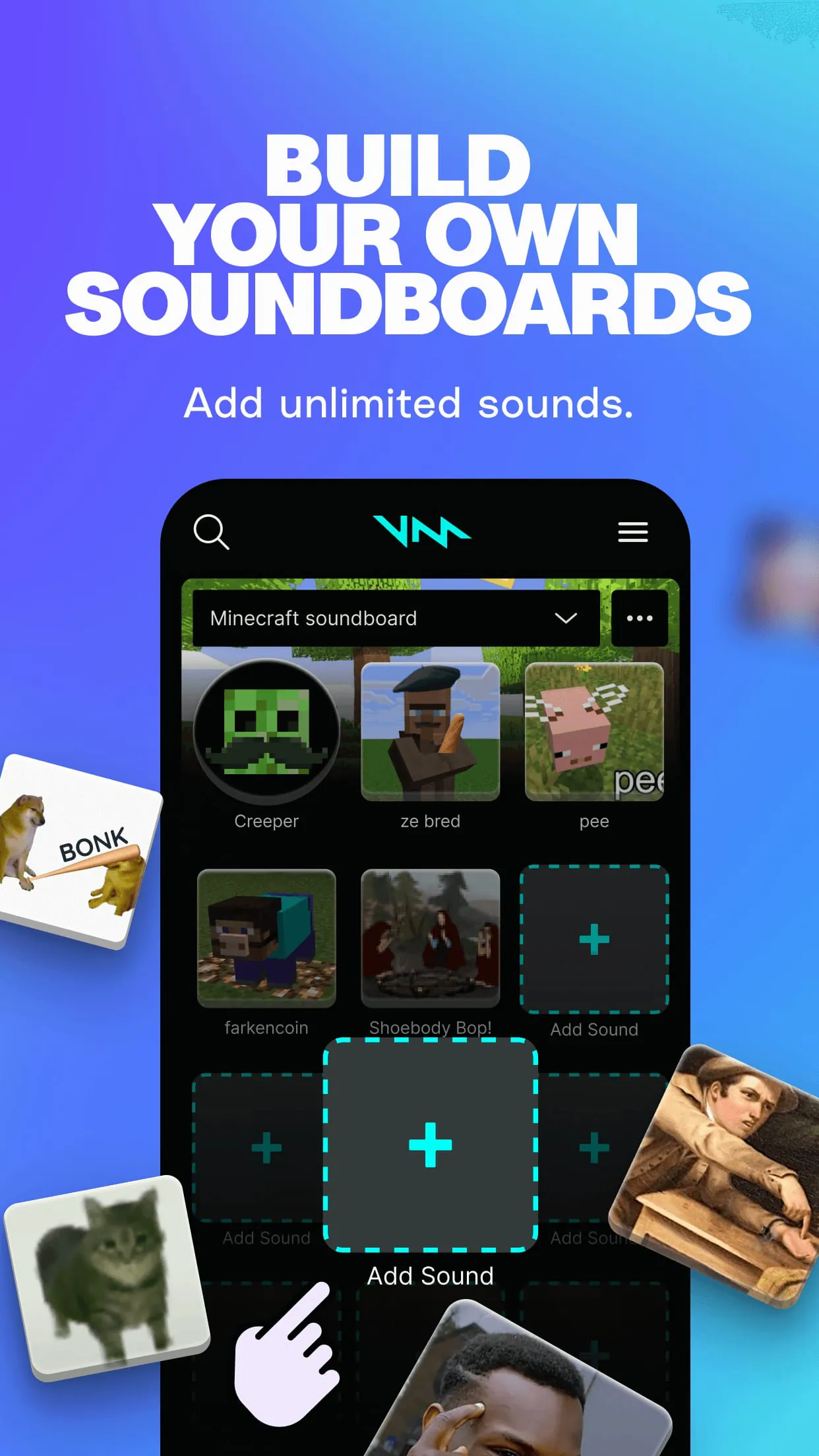
- Soundboard: Create and trigger sound clips, memes, and audio reactions using customizable hotkeys.
- Voice Lab: An advanced editor to create, mix, and fine-tune your own unique voice filters from scratch.
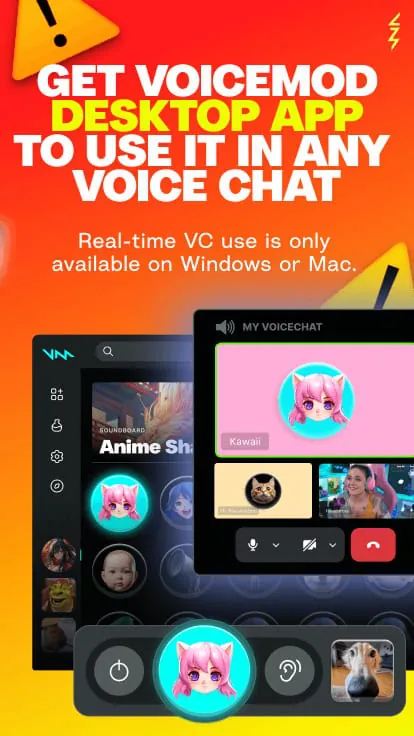
- Integration: Built-in compatibility with major platforms like Discord, OBS Studio, Elgato Stream Deck, and more for streamlined workflow.
- Background Music & Effects: Layer ambient sounds and music into your audio output to enhance the atmosphere of your stream or call.
How to Use
Click the button "Check All Versions" below to download and install it. After installation, launch Voicemod and set it as your default microphone in your system's sound settings. Then, within the app, browse and select your desired voice filter. You can test it instantly by speaking. To use it in another program like Discord, simply ensure that the "Voicemod Virtual Audio Device" is selected as the input device within that program's audio settings. For the soundboard, import your audio files, assign them to buttons, and set up keyboard hotkeys for instant playback during your activities.




 APK
APK  Google Play
  iOS
iOS  4.20
4.20

 Download








