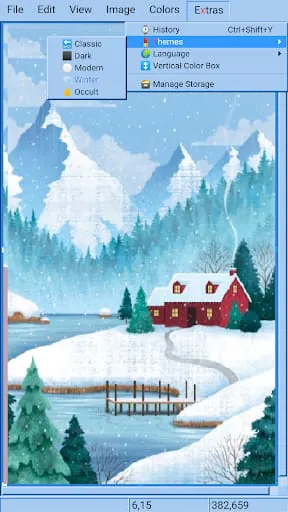
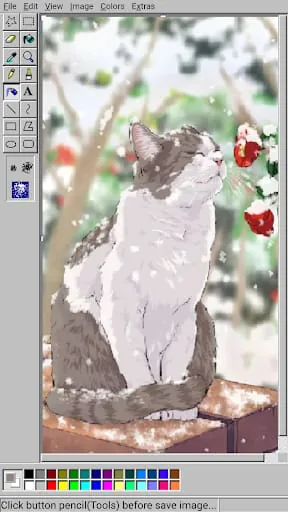
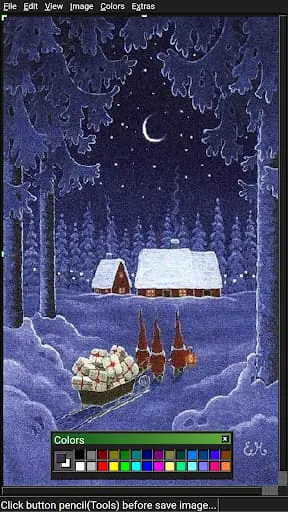
MS Paint, also known as Microsoft Paint, is a classic raster graphics editor that has been a fundamental part of the Windows operating system for decades. It provides users with a straightforward and accessible platform for creating simple drawings, editing basic images, and engaging in digital creativity without the complexity of professional-grade software. Its enduring presence has made it a familiar and often nostalgic application for millions.
Key Features
MS Paint is equipped with a suite of basic yet practical tools designed for everyday image manipulation. Its charm lies in its simplicity and immediate usability. The interface presents all options clearly, making it easy for anyone to start a new project or modify an existing picture without a steep learning curve. It supports essential file formats and offers just enough functionality for casual use.
Pros & Cons
The application has distinct advantages and limitations shaped by its design purpose.
- Pros: It is completely free and pre-installed on Windows, ensuring wide accessibility. The interface is incredibly intuitive and user-friendly, perfect for beginners or quick edits. It has a very small file size and uses minimal system resources.
- Cons: It lacks advanced features like layers, advanced filters, or sophisticated color management. The toolset is quite limited for anything beyond basic graphics. Its development has been inconsistent, with features being added and removed across different Windows versions.
Functions
The core functions of MS Paint are centered around basic image creation and editing.
- It provides a set of drawing tools, including a pencil, brush, eraser, and shapes like lines, curves, rectangles, and ellipses.
- Users can fill areas with color using the paint bucket tool and select colors with the eyedropper.
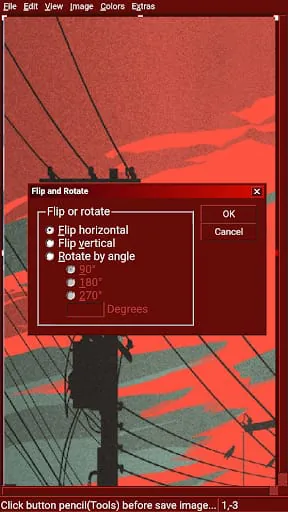
- Basic image editing functions are available, such as cropping, resizing, rotating, and flipping images.
- It includes text insertion for adding labels or captions to images, albeit with limited formatting options.
How to Use
Click the button "Check All Versions" below to download and install it. Once launched, you can start a new canvas or open an existing image file. Select tools from the toolbar at the top to draw, paint, or add shapes. Use the color palette to choose your preferred colors for the foreground and background. To edit an image, use the selection tools to isolate an area, then apply commands from the "Image" menu to resize, skew, or rotate it. Remember to save your work frequently in your desired format, such as PNG, JPEG, or BMP.




 APK
APK  Google Play
  iOS
iOS  2.70
2.70