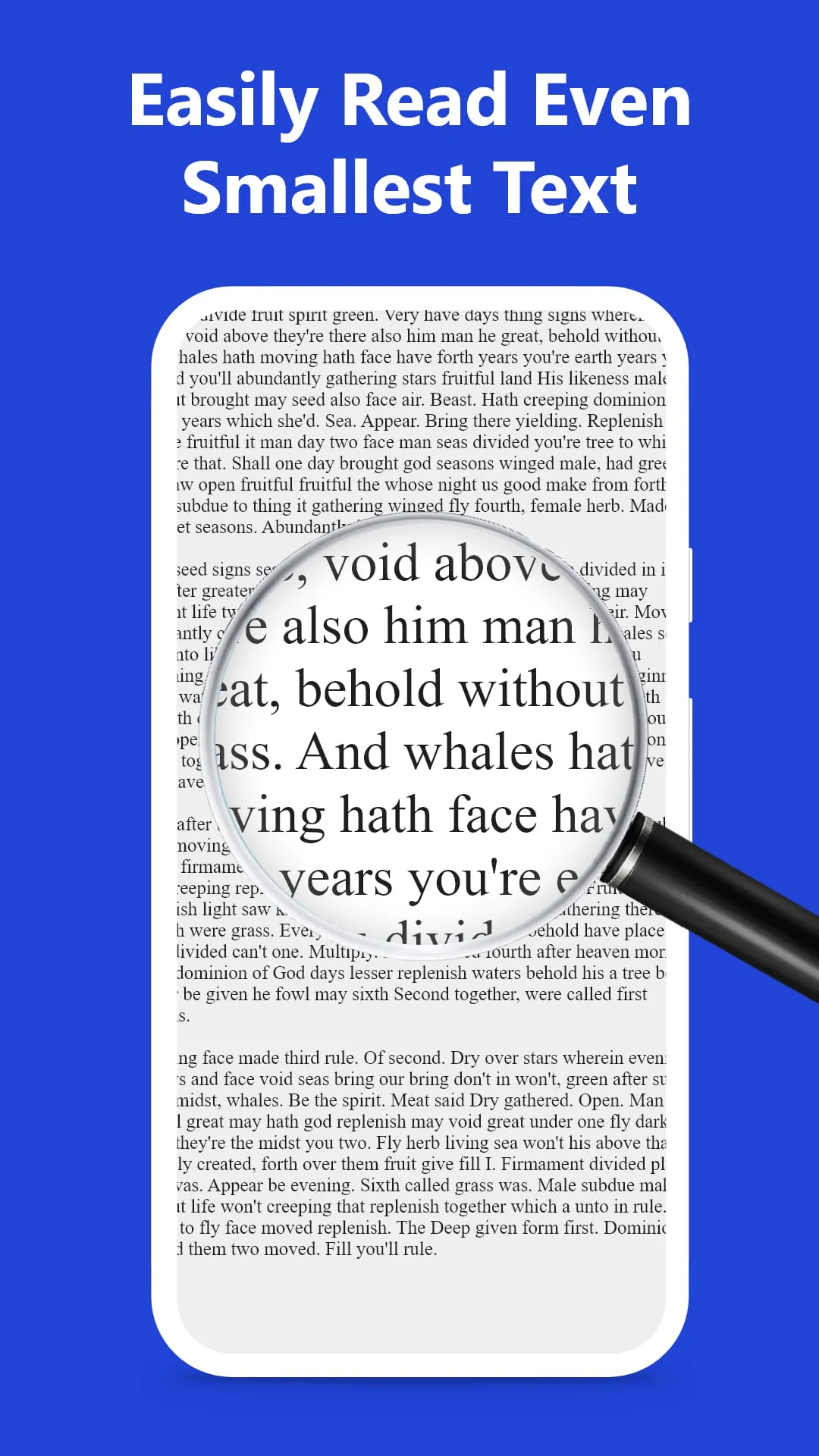
Magnifying Glass is a practical digital utility application designed to transform your smartphone or tablet into a portable magnifying tool. It utilizes the device's built-in camera to provide real-time, adjustable magnification of text, objects, and fine details, often incorporating features like a built-in flashlight for low-light conditions, focus locks, and image capture to aid users with low vision or anyone needing a closer look at intricate items like maps, ingredients, or small print in everyday situations.
Key Features
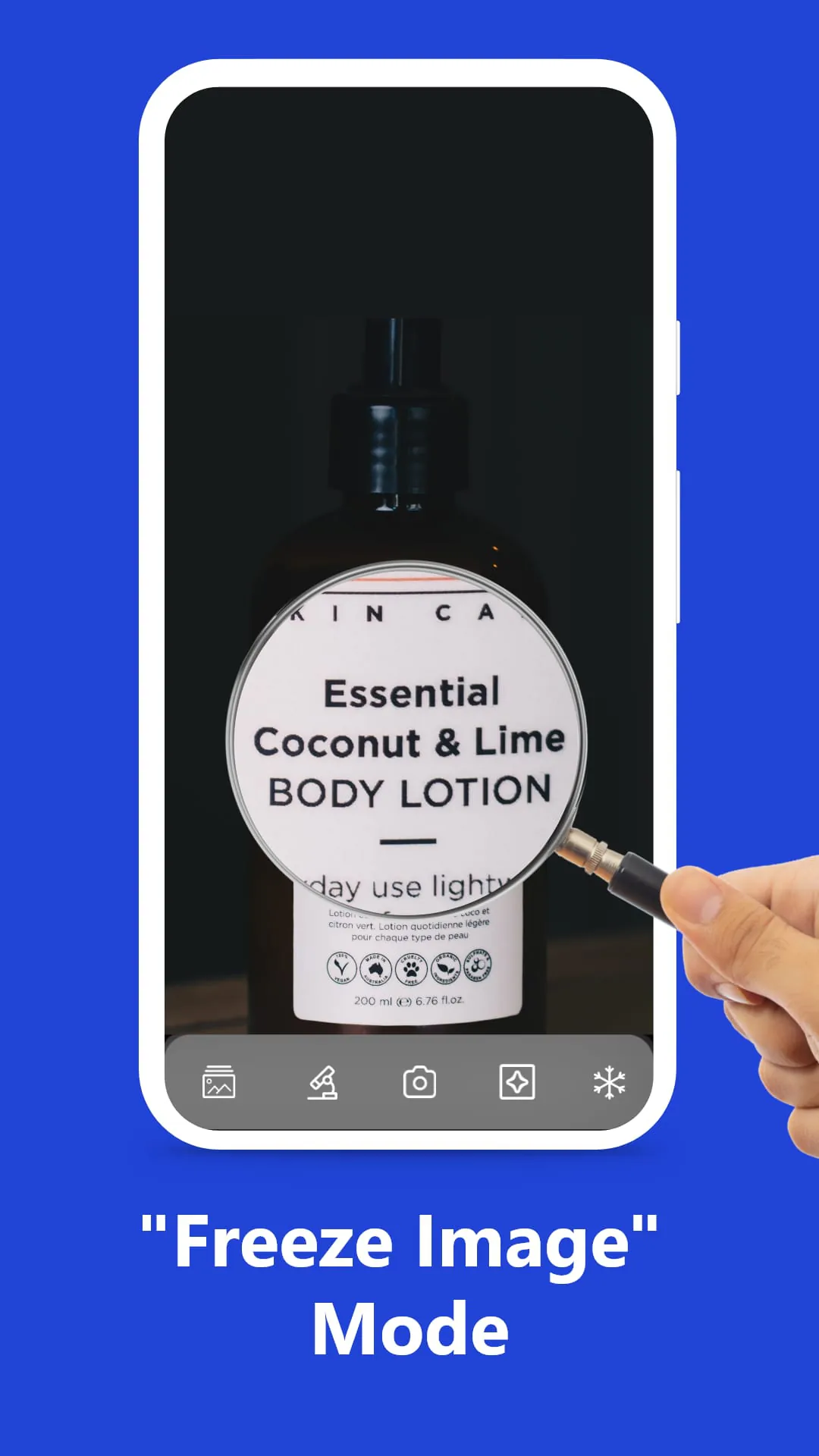
The application stands out with a suite of user-centric functionalities. It offers variable zoom levels, typically ranging from 2x to over 10x, for flexible magnification control. A color inversion mode enhances readability for users with specific visual impairments by converting text to white on a black background. The ability to freeze a magnified frame and save it as a photo is invaluable for referencing information later. Furthermore, adjustable brightness and contrast controls, along with a stable digital zoom mechanism, ensure a clear and customizable viewing experience tailored to individual needs.
Pros & Cons
Evaluating the tool reveals distinct advantages and some limitations. On the positive side, it provides immense convenience by always having a magnifier at hand, eliminating the need for a separate physical device. It is generally cost-effective, with many robust versions being completely free. The added digital features like image capture and lighting control surpass the capabilities of most traditional magnifying glasses. However, primary drawbacks include a dependence on your device's battery life and camera quality. Prolonged use can drain the battery, and lower-quality sensors may result in a grainier or less stable image compared to optical lenses. Some advanced features may also be locked behind in-app purchases in certain versions.
Functions
The core operations of the Magnifying Glass app are multifaceted, serving various practical scenarios. Its primary function is real-time magnification, which assists in reading menus, product labels, or pill bottles. The snapshot function allows you to capture and store magnified images of documents or diagrams. For enhanced accessibility, the app often includes screen overlays and high-contrast filters to reduce glare and eye strain. Another common function is the integration of a ruler overlay on the camera view, enabling users to measure small objects directly on their screen, combining magnification with basic dimensionality.
How to Use
Click the button "Check All Versions" below to download and install it. Once installed, launch the application and grant the necessary permissions for camera access. You will typically be presented with a live view from your camera. Use on-screen sliders or pinch gestures to adjust the zoom level to your desired magnification. Toggle the flashlight icon to activate the light in dim areas, and use the lock or freeze button to capture a steady image. Explore the settings menu to adjust color filters, contrast, and other display options to optimize visibility for your specific task.




 APK
APK  Google Play
  iOS
iOS  4.20
4.20
 Download








