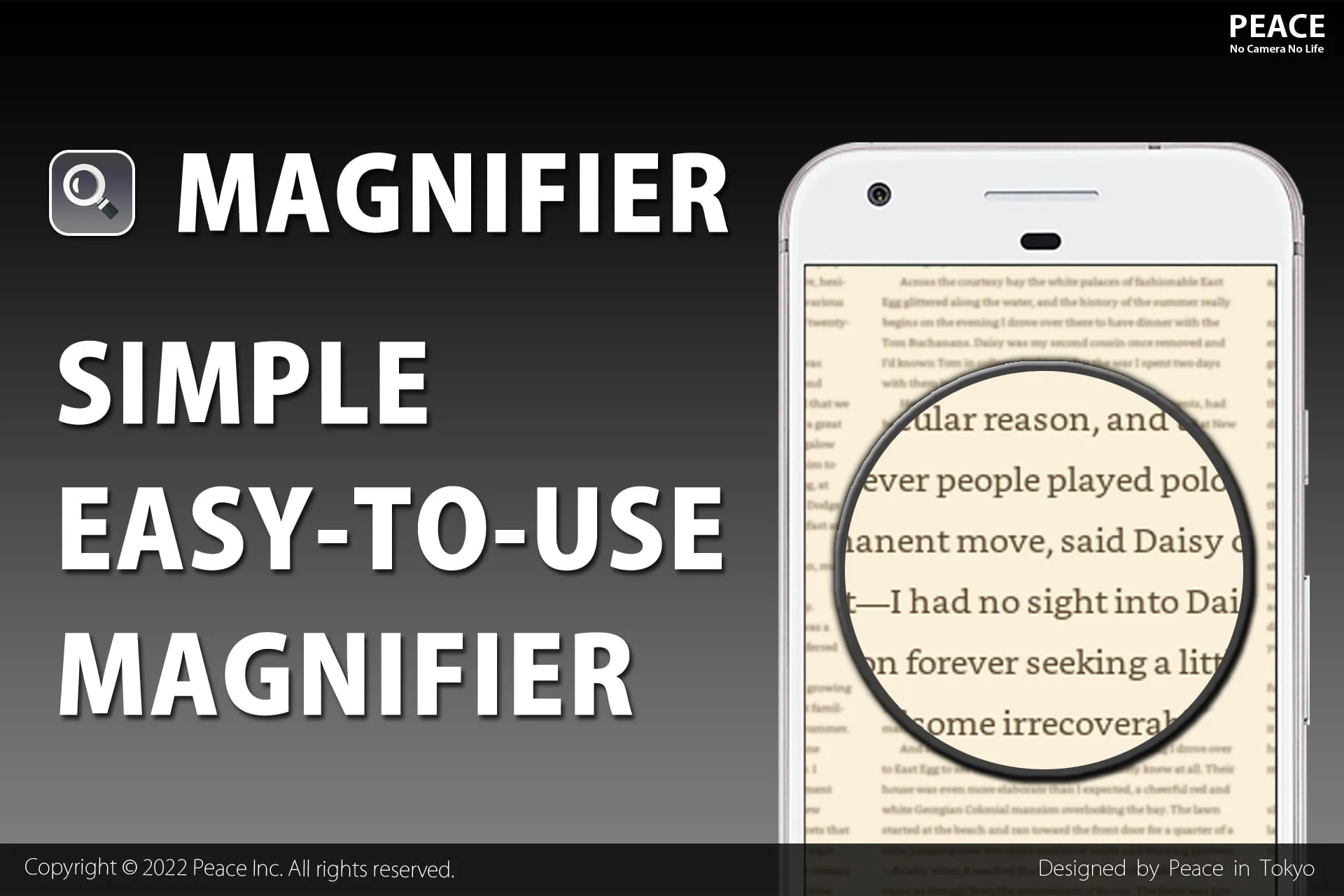
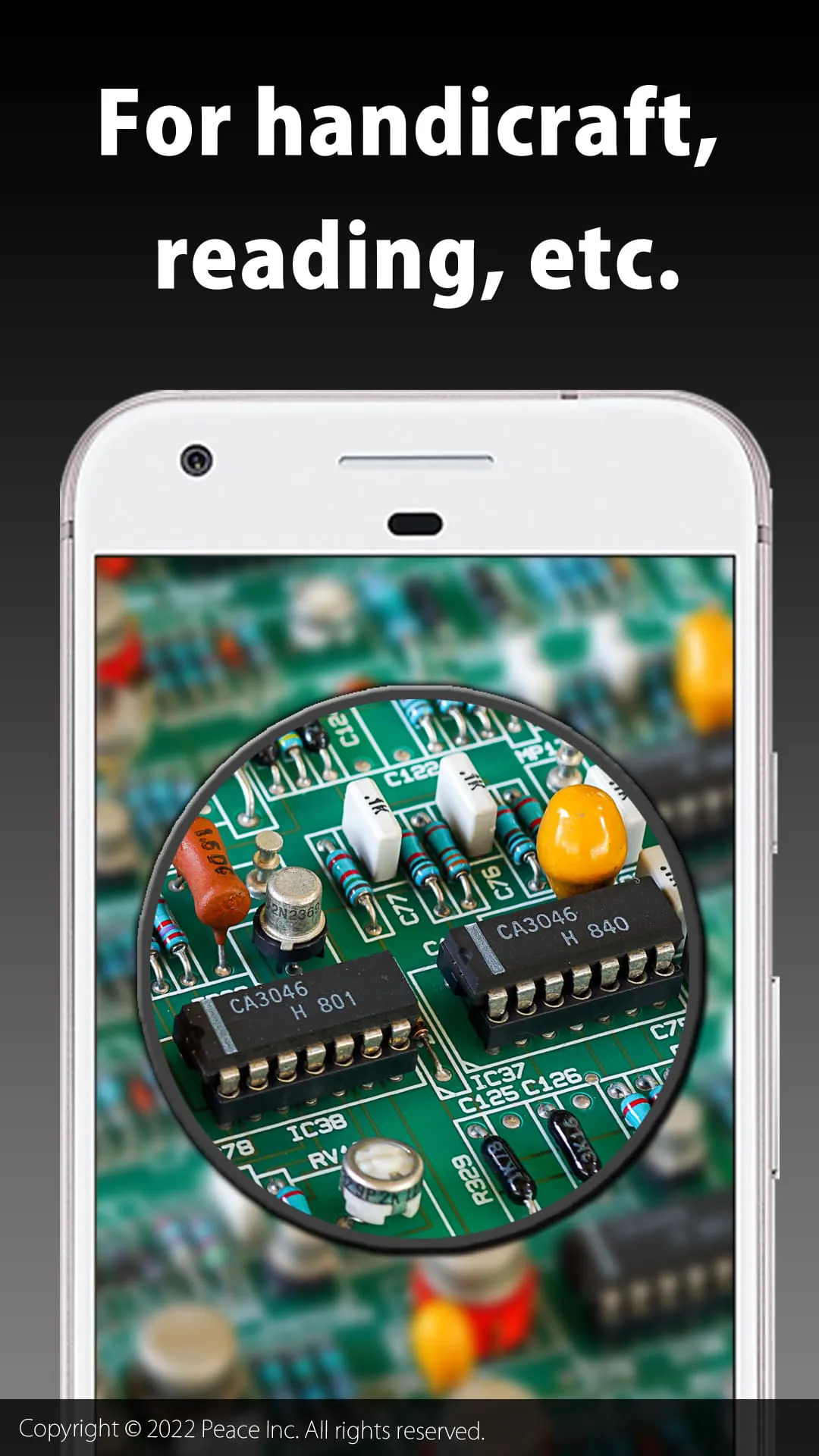
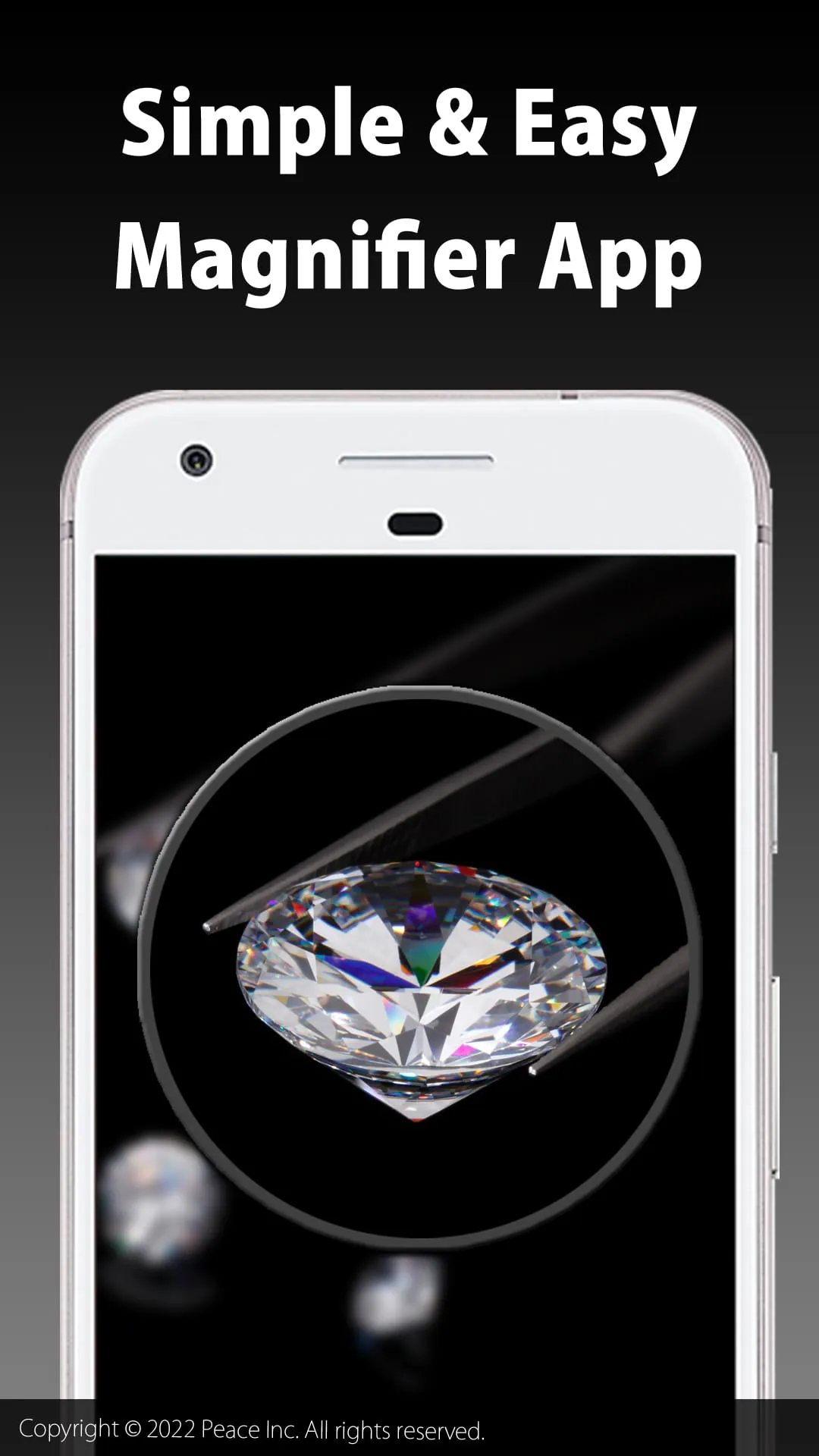
Magnifier is a powerful and user-friendly screen magnification application designed to assist individuals with low vision by enlarging specific portions of their computer display in real-time, making text, images, and interface elements easier to see and interact with, thereby enhancing digital accessibility and reducing eye strain for a broader range of users.
Key Features
The application stands out due to its comprehensive set of features tailored for accessibility. It offers multiple magnification modes, including full-screen, lens, and docked views, providing flexibility for different tasks. Users can adjust magnification levels, color inversion, and contrast settings on the fly to suit their visual preferences. Additionally, it includes a crosshair pointer and smooth tracking options to follow cursor or text input seamlessly, ensuring a stable and comfortable viewing experience.
Pros & Cons
Evaluating the tool reveals several advantages and some limitations. On the positive side, it significantly improves computer accessibility for visually impaired users, is highly customizable, and operates with minimal system resource usage. However, potential downsides may include a learning curve for exploring all advanced settings and the possibility of screen distortion at very high zoom levels depending on the original display resolution.
Functions
The core functions of Magnifier are centered around visual enhancement and user control. Primary functionalities include:
- Real-time screen magnification with adjustable zoom power.
- Color filtering and contrast enhancement modes for better readability.
- Customizable lens size and shape for focused area enlargement.
- Freeze-frame feature to pause the magnified view for detailed inspection.
- Text cursor and mouse pointer highlighting for easy tracking.
These integrated functions work together to provide a robust visual aid directly within the operating system.
How to Use
Click the button "Check All Versions" below to download and install it. Once installed, launch the application from your start menu or desktop shortcut. You can typically activate the magnifier by pressing a designated shortcut key, such as the Windows key and the plus sign. Use the settings menu to configure your preferred magnification level, choose between full-screen or lens mode, and adjust color filters. For daily use, practice using the keyboard shortcuts to quickly zoom in and out or freeze the display as needed for reading documents or viewing detailed graphics.





 APK
APK  Google Play
  iOS
iOS  4.40
4.40