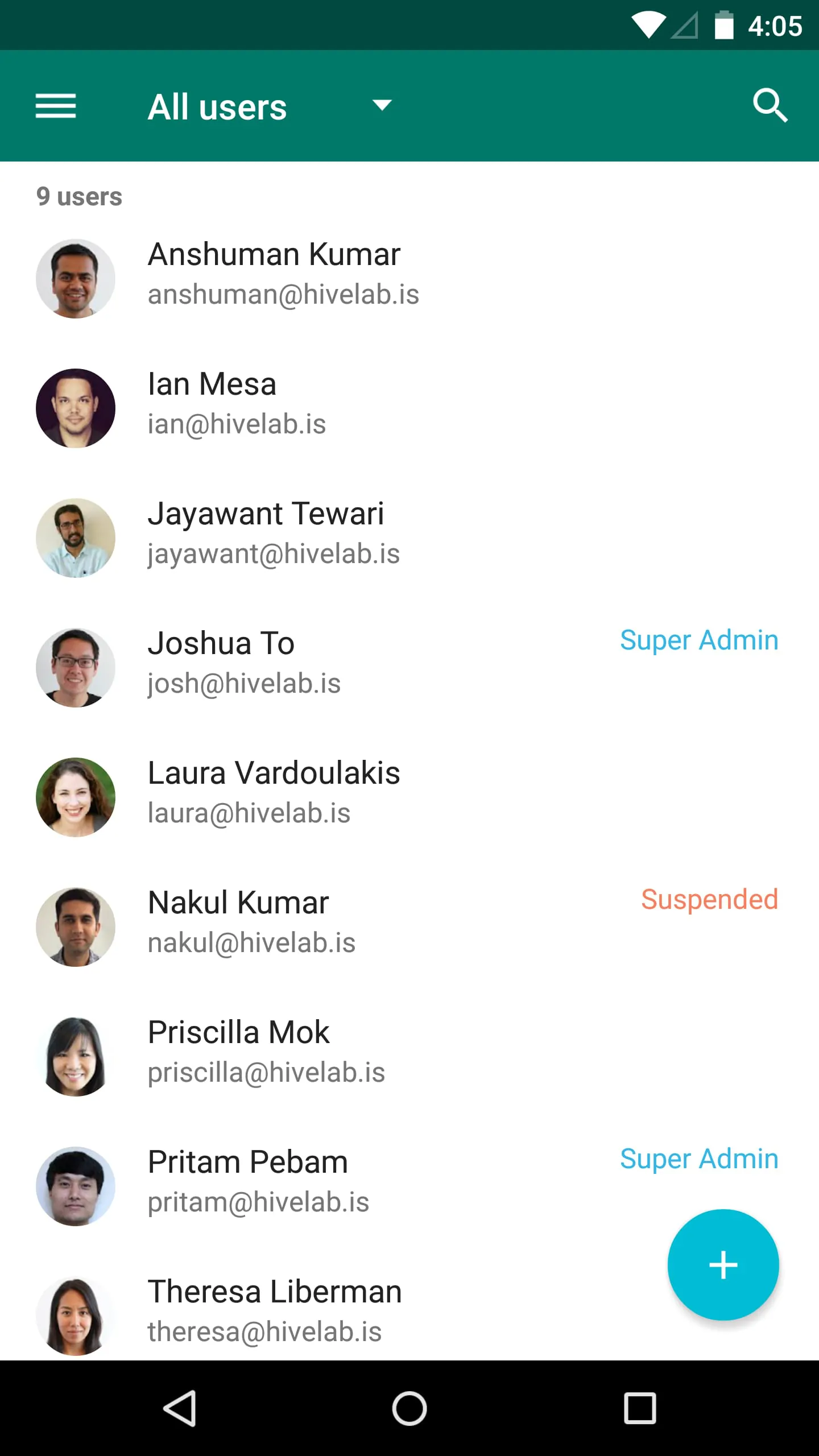
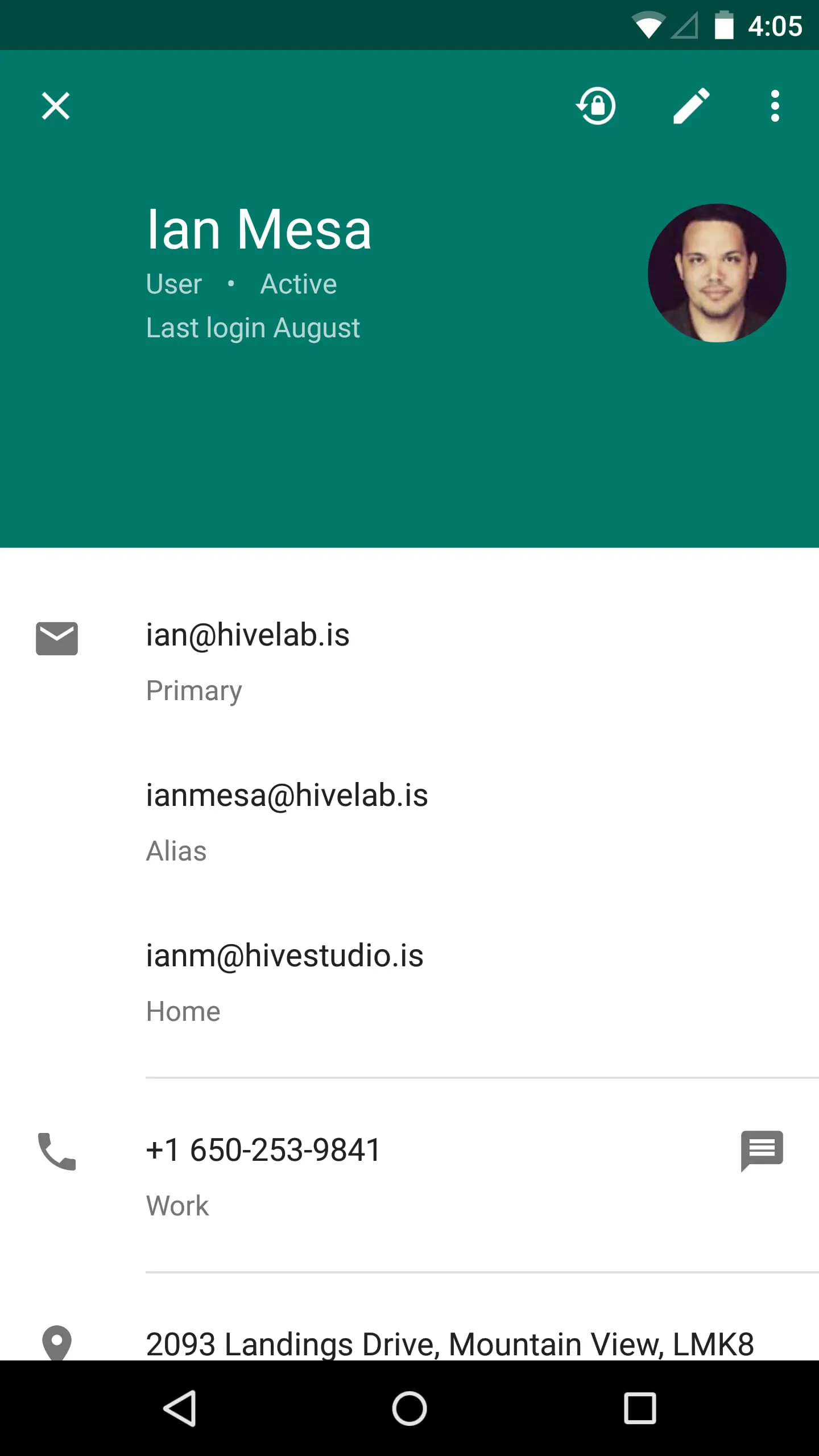
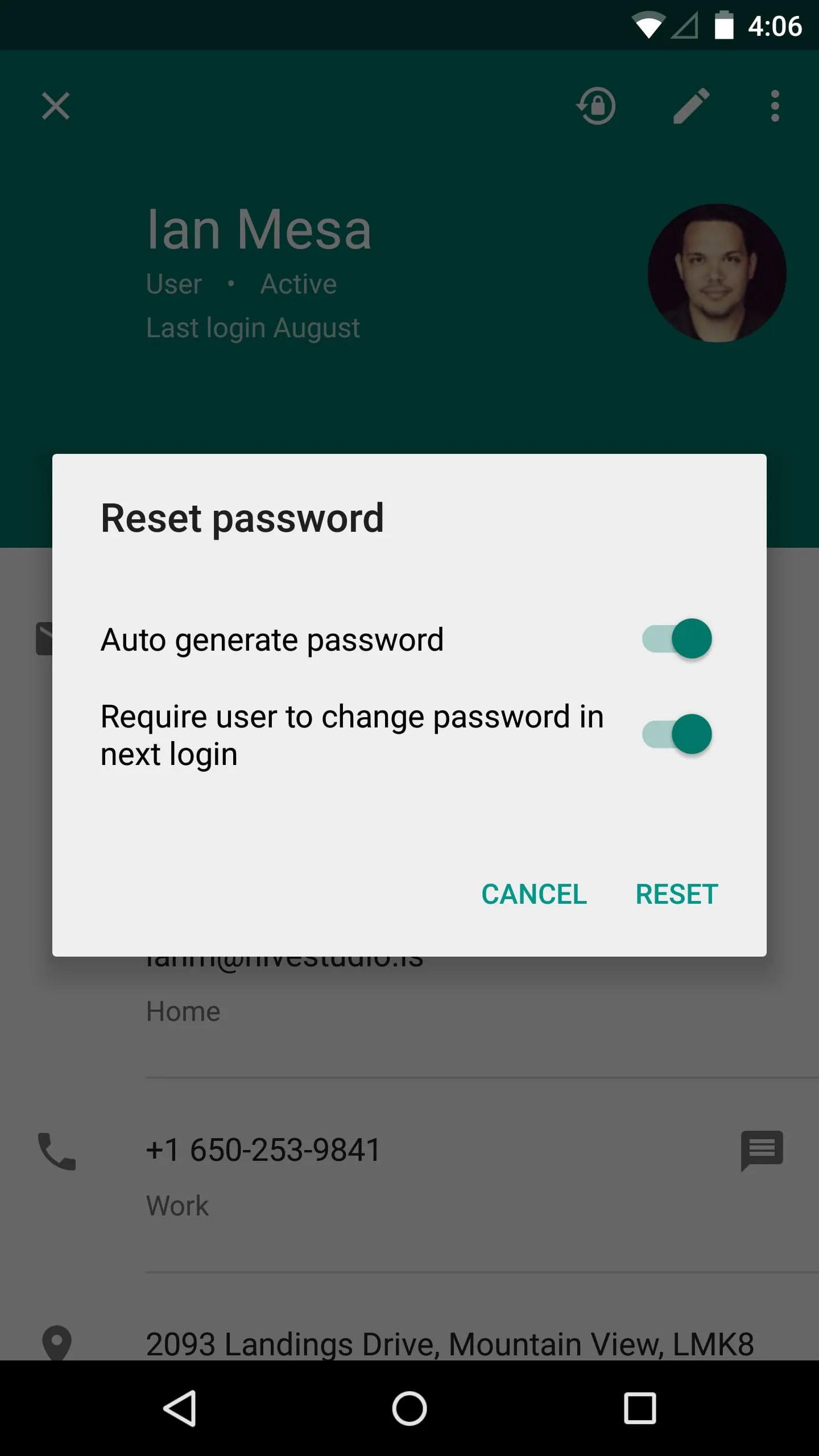
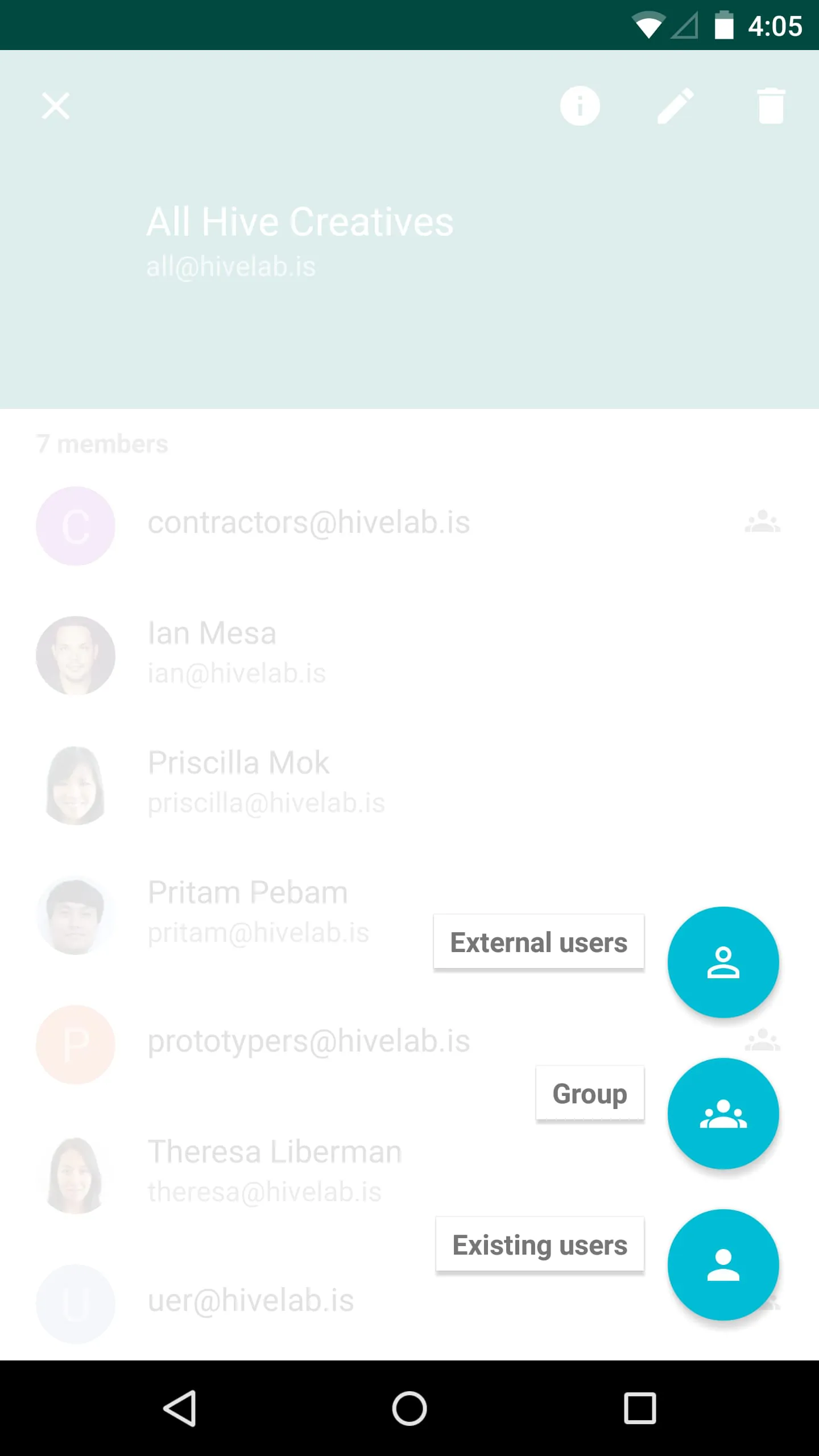
Google Admin is a powerful mobile application developed by Google that allows administrators of Google Workspace (formerly G Suite) to manage their organization’s users, devices, and services directly from a smartphone or tablet. Designed for IT admins and business leaders, this app provides secure, real-time control over critical administrative functions without needing to log in via desktop, making it ideal for handling urgent tasks while on the go.
Key Features
- Manage users and groups with ease, including adding, suspending, or deleting accounts.
- Reset passwords and unlock user accounts instantly.
- Oversee device management for both Android and iOS across your organization.
- View audit logs and track recent admin activities.
- Control organizational units and apply specific settings per group.
- Enable or disable services such as Gmail, Drive, Meet, and Calendar.
- Receive alerts and notifications for suspicious activity or service outages.
Pros & Cons
- Pros:
- Convenient mobile access to essential admin controls anytime, anywhere.
- Clean, intuitive interface designed for quick navigation.
- Secure login with two-factor authentication support.
- Real-time updates keep data accurate and current.
- Helps resolve urgent issues without requiring a desktop computer.
- Cons:
- Limited advanced configuration options compared to the web console.
- Occasional delays in syncing large-scale changes.
- Some features may require higher admin privileges not available to all roles.
- Mobile-only workflow can feel restrictive for complex setups.
Functions
- User account administration: create, modify, or deactivate accounts efficiently.
- Device policy enforcement: approve, block, or wipe devices remotely.
- Service status monitoring: check Google Workspace service health and downtime alerts.
- Role-based access control: assign different admin roles to team members.
- Audit and reporting tools: review logs for security compliance and troubleshooting.
- Domain management: verify domains and manage DNS-related settings.
How to Use
Click the button "Check All Versions" below to download and install it. After installation, open the app and sign in using your Google Workspace administrator credentials. Once logged in, you will see an overview dashboard displaying active users, devices, and recent alerts. From here, tap “Users” to manage individual accounts, or select “Devices” to monitor mobile endpoints connected to your organization. Use the search bar at the top to quickly locate users or devices by name, email, or ID. To adjust settings, navigate to “Organizations” where you can fine-tune permissions and service availability. Always ensure you have the necessary admin privileges before making changes, and review audit logs regularly to maintain security and compliance.





 APK
APK  Google Play
  iOS
iOS  3.60
3.60