



ADVERTISEMENT
ADVERTISEMENT

Xbox Family Settings Xbox Family Settings
Category
LifestyleVersion
V20240315.240315.1
Tag
settings | xbox | family
Rate
2.90
★★★★★
Reviews
500 +
Installs
1M +
Developer
Microsoft Corporation
Content Rating
Everyone
Simple tools to manage your family’s gaming activities.
 APK
APK  Google Play
  iOS
iOS  2.90
2.90ADVERTISEMENT
ADVERTISEMENT
Author's Review
appspicked Review
Screenshots
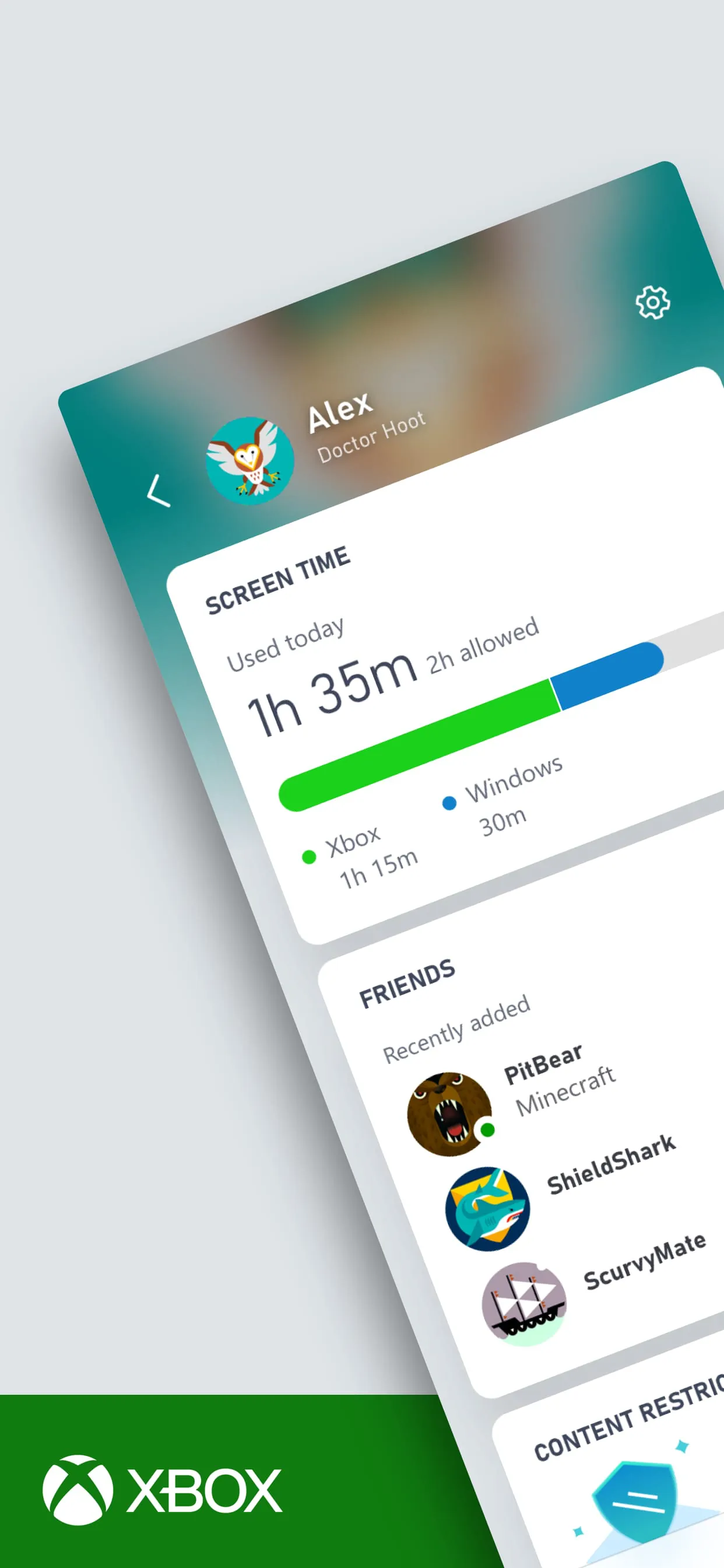
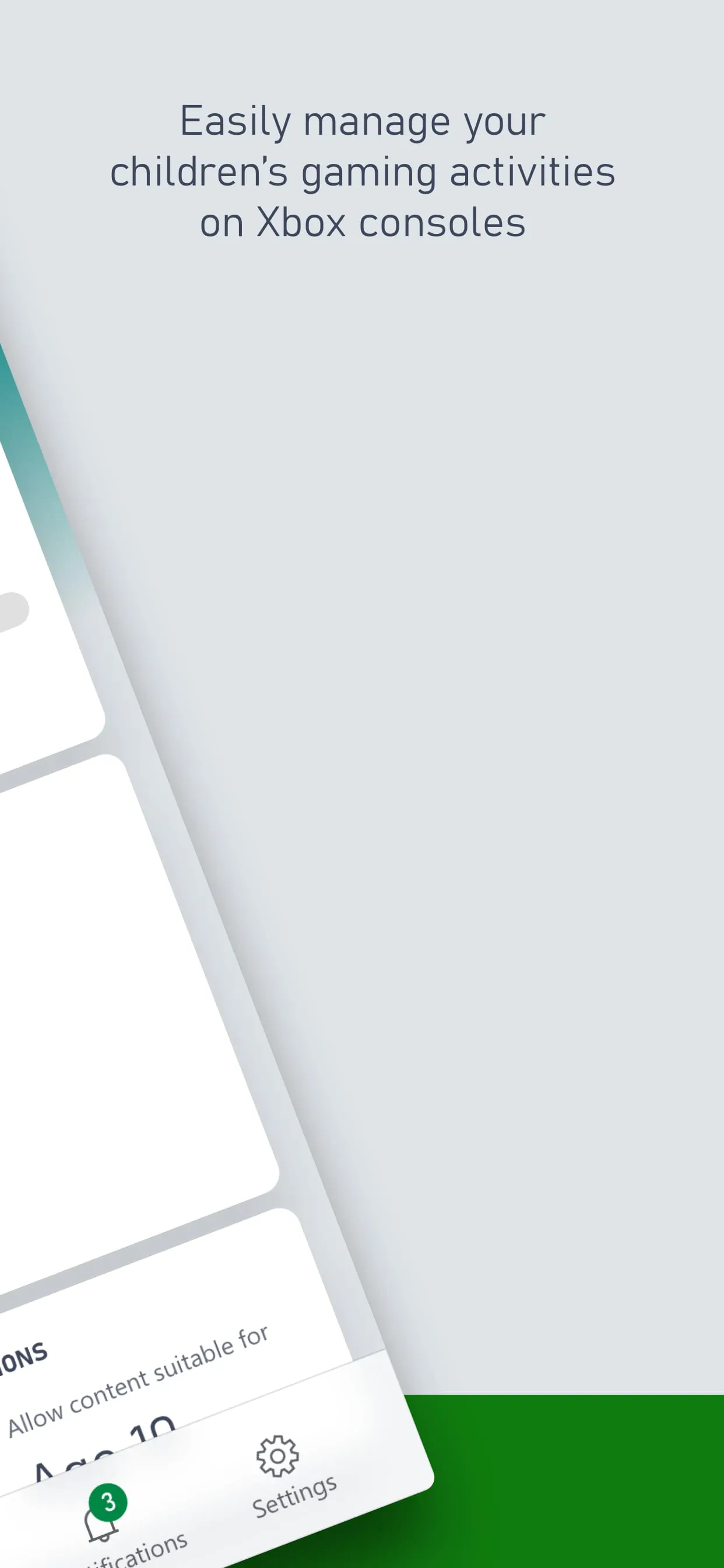
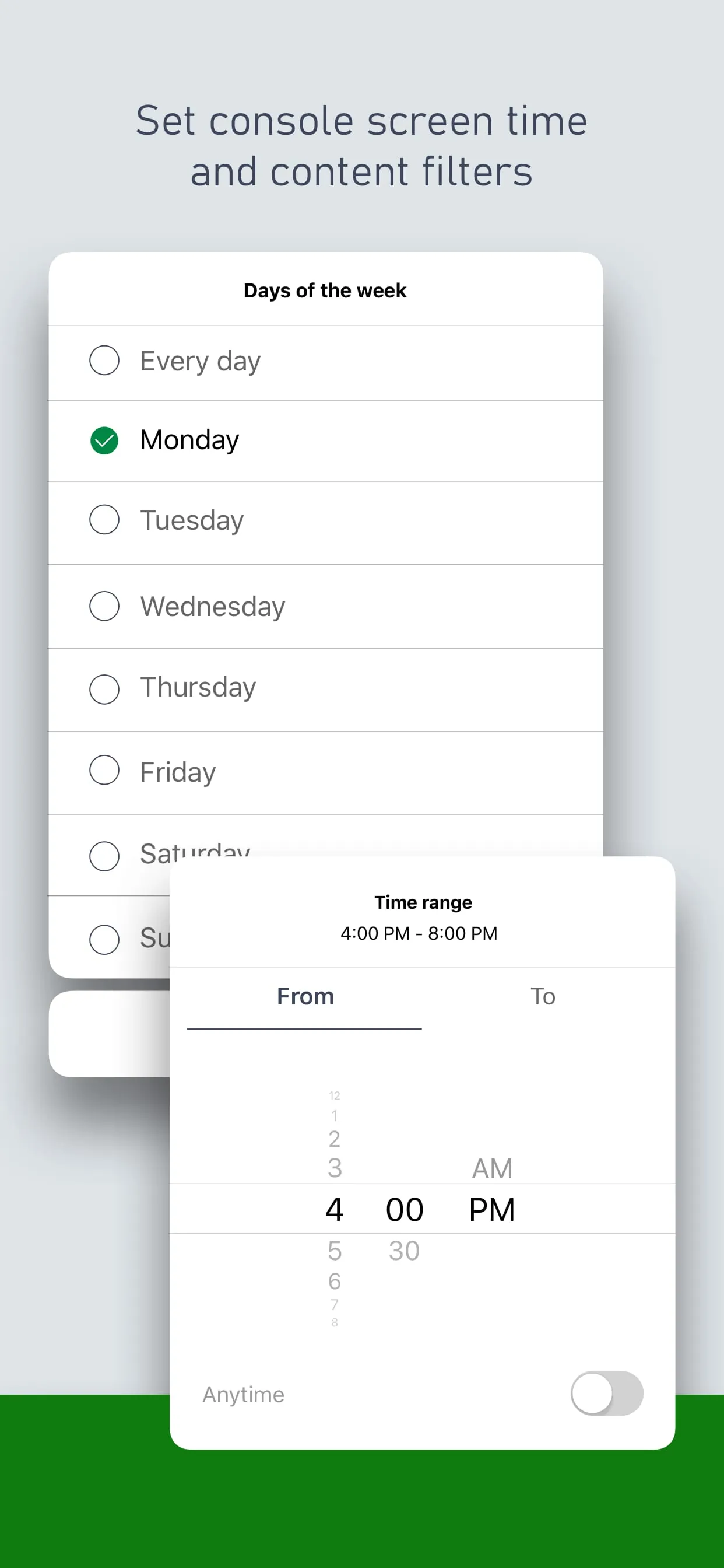
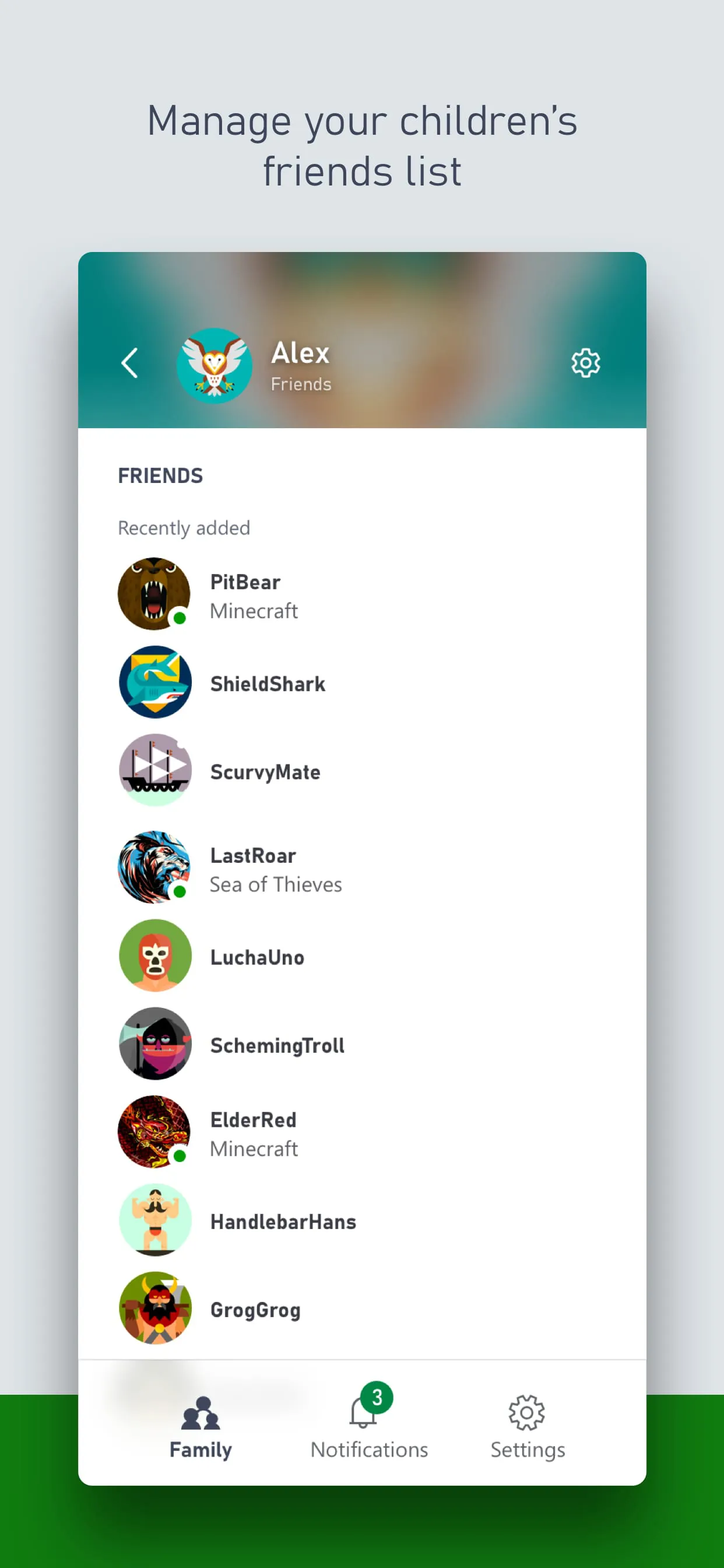
Additional Information
Category
LifestyleVersion
V20240315.240315.1
Tag
settings | xbox | family
Rate
2.90
★★★★★
Reviews
500 +
Installs
1M +
Developer
Microsoft Corporation
Content Rating
Everyone
Simple tools to manage your family’s gaming activities.
ADVERTISEMENT
ADVERTISEMENT
Previous Versions
ZIP files require a Split APKs Installer (e.g., SAI) from Google Play to install. Steps: 1. Download SAI from Google Play; 2. Open SAI and tap "Install APKs"; 3. Select the ZIP file; 4. Complete installation.
V20240315.240315.1

Package Name
com.microsoft.xboxfamily
Version Name
V20240315.240315.1
Version Code
V20240315.240315.1
File Size
131.42 MB
Update time
2024-3-18
V20240130.240130.2
Package Name
com.microsoft.xboxfamily
Version Name
V20240130.240130.2
Version Code
V20240130.240130.2
File Size
133.47 MB
Update time
2024-1-30
V20231101.231101.1
Package Name
com.microsoft.xboxfamily
Version Name
V20231101.231101.1
Version Code
V20231101.231101.1
File Size
133.28 MB
Update time
2023-11-1
V20230831.230831.2
Package Name
com.microsoft.xboxfamily
Version Name
V20230831.230831.2
Version Code
V20230831.230831.2
File Size
113.33 MB
Update time
2023-8-31
V20230811.230811.3
Package Name
com.microsoft.xboxfamily
Version Name
V20230811.230811.3
Version Code
V20230811.230811.3
File Size
113.26 MB
Update time
2023-8-11
V20230803.230803.3
Package Name
com.microsoft.xboxfamily
Version Name
V20230803.230803.3
Version Code
V20230803.230803.3
File Size
113.26 MB
Update time
2023-8-3
V20230606.230606.1
Package Name
com.microsoft.xboxfamily
Version Name
V20230606.230606.1
Version Code
V20230606.230606.1
File Size
47.94 MB
Update time
2023-6-6
V20221104.221101.1
Package Name
com.microsoft.xboxfamily
Version Name
V20221104.221101.1
Version Code
V20221104.221101.1
File Size
45.75 MB
Update time
2022-11-2
V20220204.220204.1
Package Name
com.microsoft.xboxfamily
Version Name
V20220204.220204.1
Version Code
V20220204.220204.1
File Size
45.4 MB
Update time
2022-2-9
V20211112.211215.10
Package Name
com.microsoft.xboxfamily
Version Name
V20211112.211215.10
Version Code
V20211112.211215.10
File Size
31.9 MB
Update time
2021-12-16
V20211112.211124.12
Package Name
com.microsoft.xboxfamily
Version Name
V20211112.211124.12
Version Code
V20211112.211124.12
File Size
31.9 MB
Update time
2021-12-7
V20210927.211004.2
Package Name
com.microsoft.xboxfamily
Version Name
V20210927.211004.2
Version Code
V20210927.211004.2
File Size
31.8 MB
Update time
2021-10-14
V20210809.210809.5
Package Name
com.microsoft.xboxfamily
Version Name
V20210809.210809.5
Version Code
V20210809.210809.5
File Size
31.9 MB
Update time
2021-8-19
ADVERTISEMENT
You Might Like









