



ADVERTISEMENT
ADVERTISEMENT
Microsoft Whiteboard Microsoft Whiteboard
Category
ProductivityVersion
V1.301.0.22101815
Tag
canvas | whiteboard | microsoft
Rate
4.70
★★★★★
Reviews
500 +
Installs
5M +
Developer
Microsoft Corporation
Content Rating
Everyone
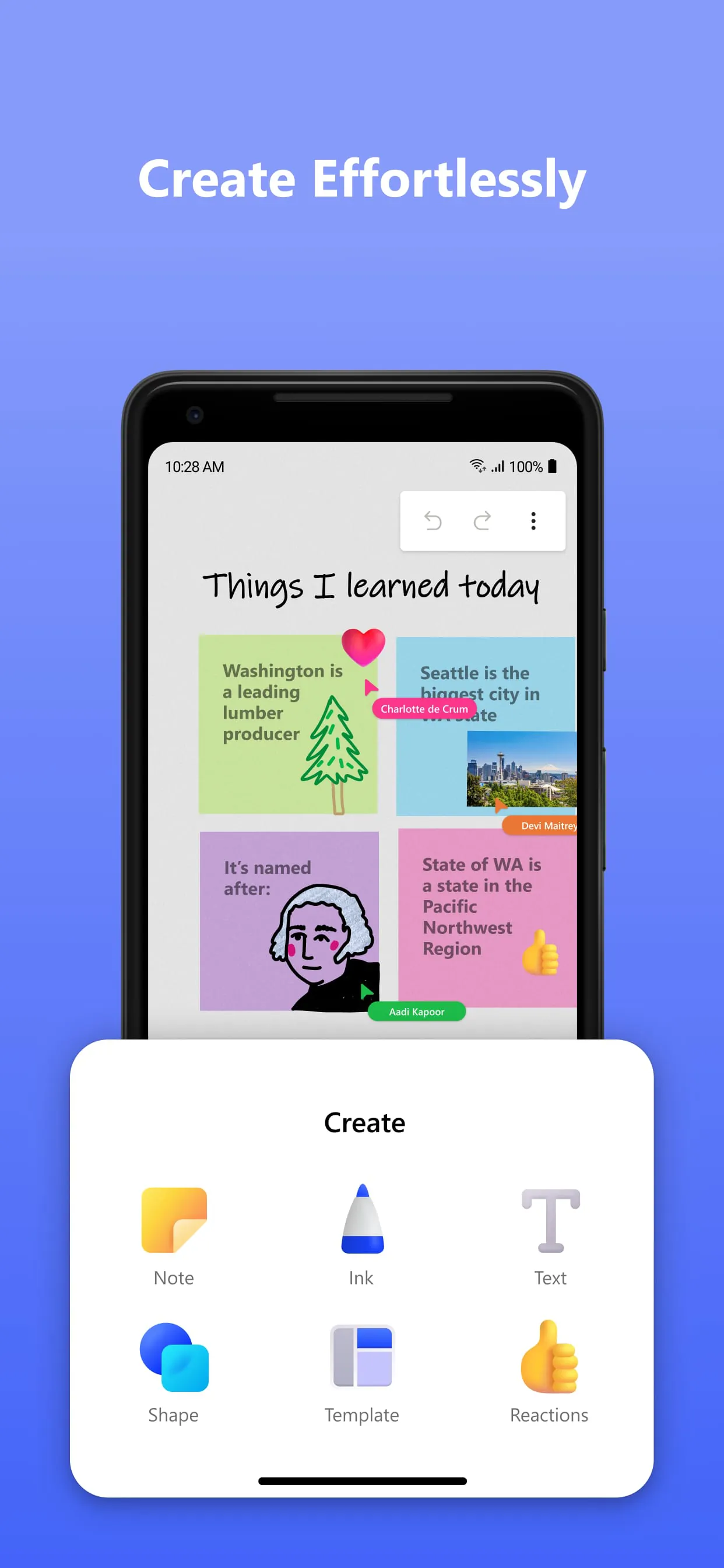
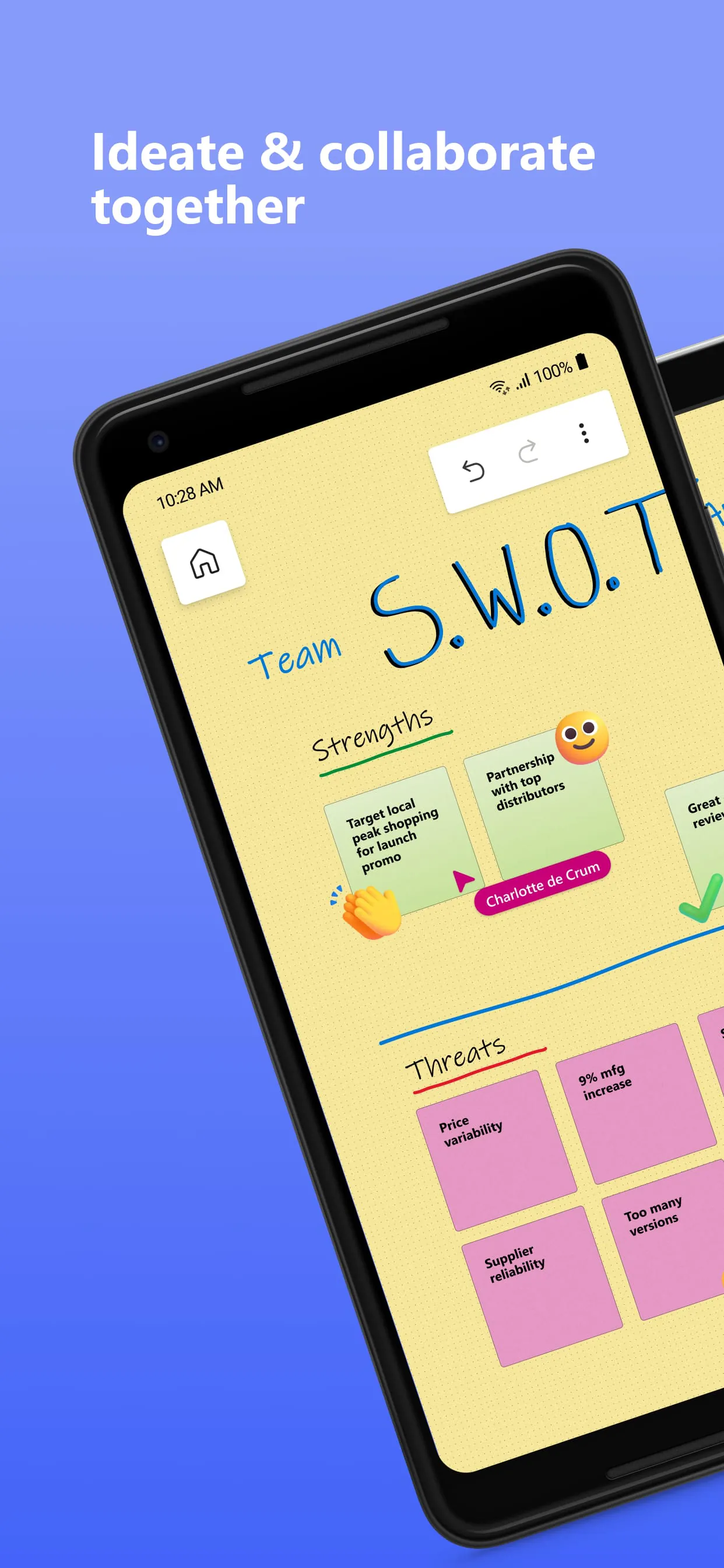
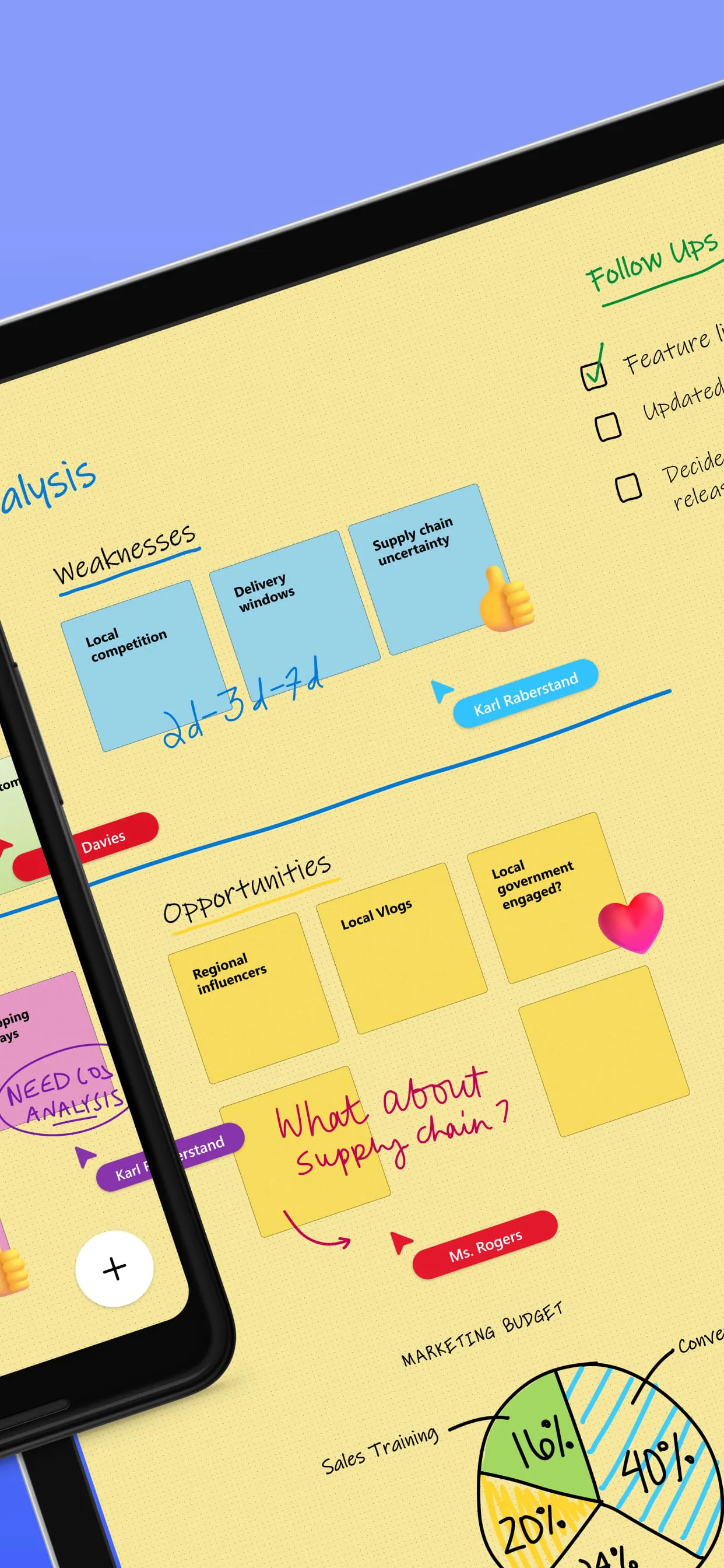
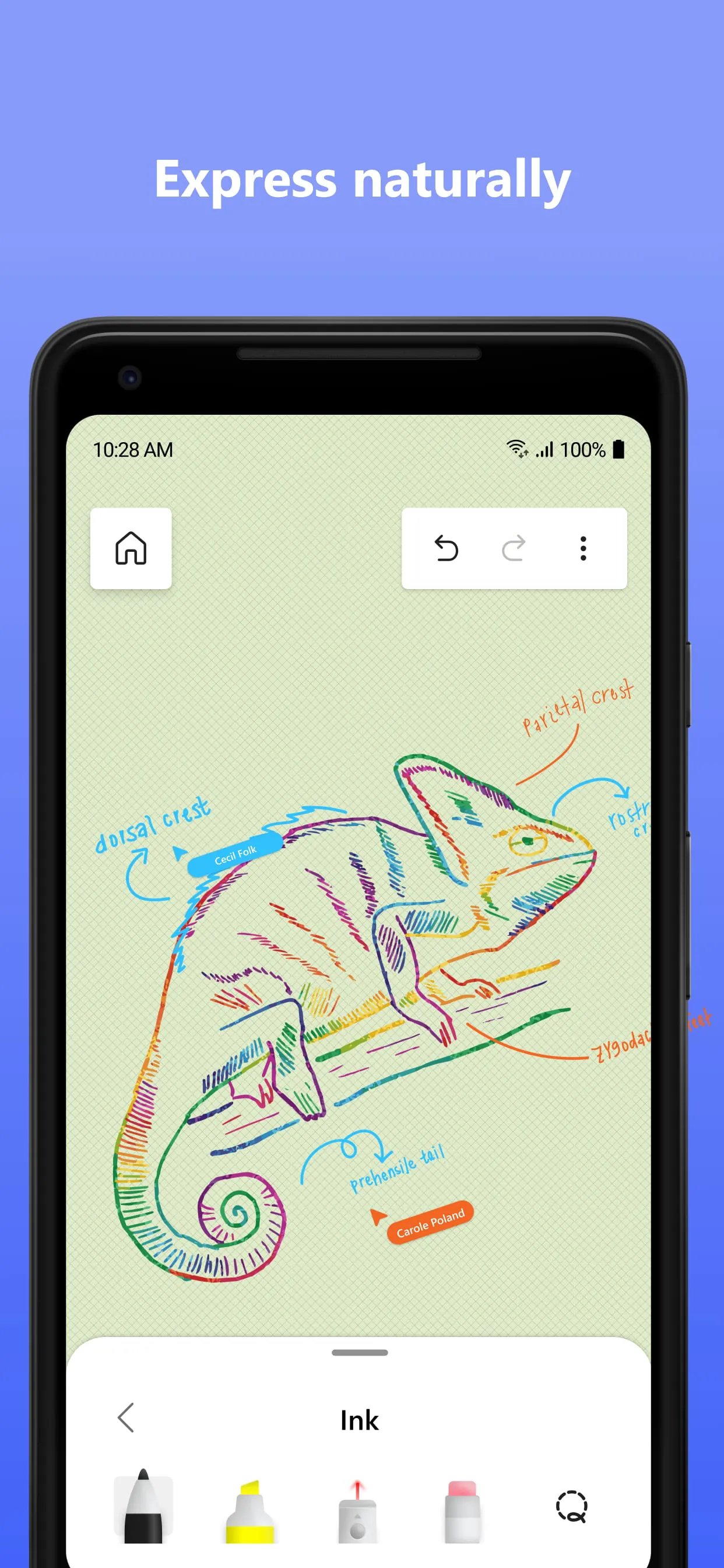
Whiteboard provides an intelligent canvas to create, and collaborate visually.
 APK
APK  Google Play
  iOS
iOS  4.70
4.70ADVERTISEMENT
ADVERTISEMENT
Author's Review
appspicked Review
Screenshots
Additional Information
Category
ProductivityVersion
V1.301.0.22101815
Tag
canvas | whiteboard | microsoft
Rate
4.70
★★★★★
Reviews
500 +
Installs
5M +
Developer
Microsoft Corporation
Content Rating
Everyone
Whiteboard provides an intelligent canvas to create, and collaborate visually.
ADVERTISEMENT
ADVERTISEMENT
Previous Versions
ZIP files require a Split APKs Installer (e.g., SAI) from Google Play to install. Steps: 1. Download SAI from Google Play; 2. Open SAI and tap "Install APKs"; 3. Select the ZIP file; 4. Complete installation.
V1.301.0.22101815

Package Name
com.microsoft.whiteboard.publicpreview
Version Name
V1.301.0.22101815
Version Code
V1.301.0.22101815
File Size
5.47 MB
Update time
2022-10-31
V1.301.0.22021708
Package Name
com.microsoft.whiteboard.publicpreview
Version Name
V1.301.0.22021708
Version Code
V1.301.0.22021708
File Size
5.4 MB
Update time
2022-3-4
V1.301.0.22020809
Package Name
com.microsoft.whiteboard.publicpreview
Version Name
V1.301.0.22020809
Version Code
V1.301.0.22020809
File Size
5.2 MB
Update time
2022-2-18
V1.301.0.22010310
Package Name
com.microsoft.whiteboard.publicpreview
Version Name
V1.301.0.22010310
Version Code
V1.301.0.22010310
File Size
5.2 MB
Update time
2022-1-15
V1.301.0.21112409
Package Name
com.microsoft.whiteboard.publicpreview
Version Name
V1.301.0.21112409
Version Code
V1.301.0.21112409
File Size
5.1 MB
Update time
2021-11-28
V1.301.0.21111012
Package Name
com.microsoft.whiteboard.publicpreview
Version Name
V1.301.0.21111012
Version Code
V1.301.0.21111012
File Size
5.1 MB
Update time
2021-11-17
ADVERTISEMENT
You Might Like









