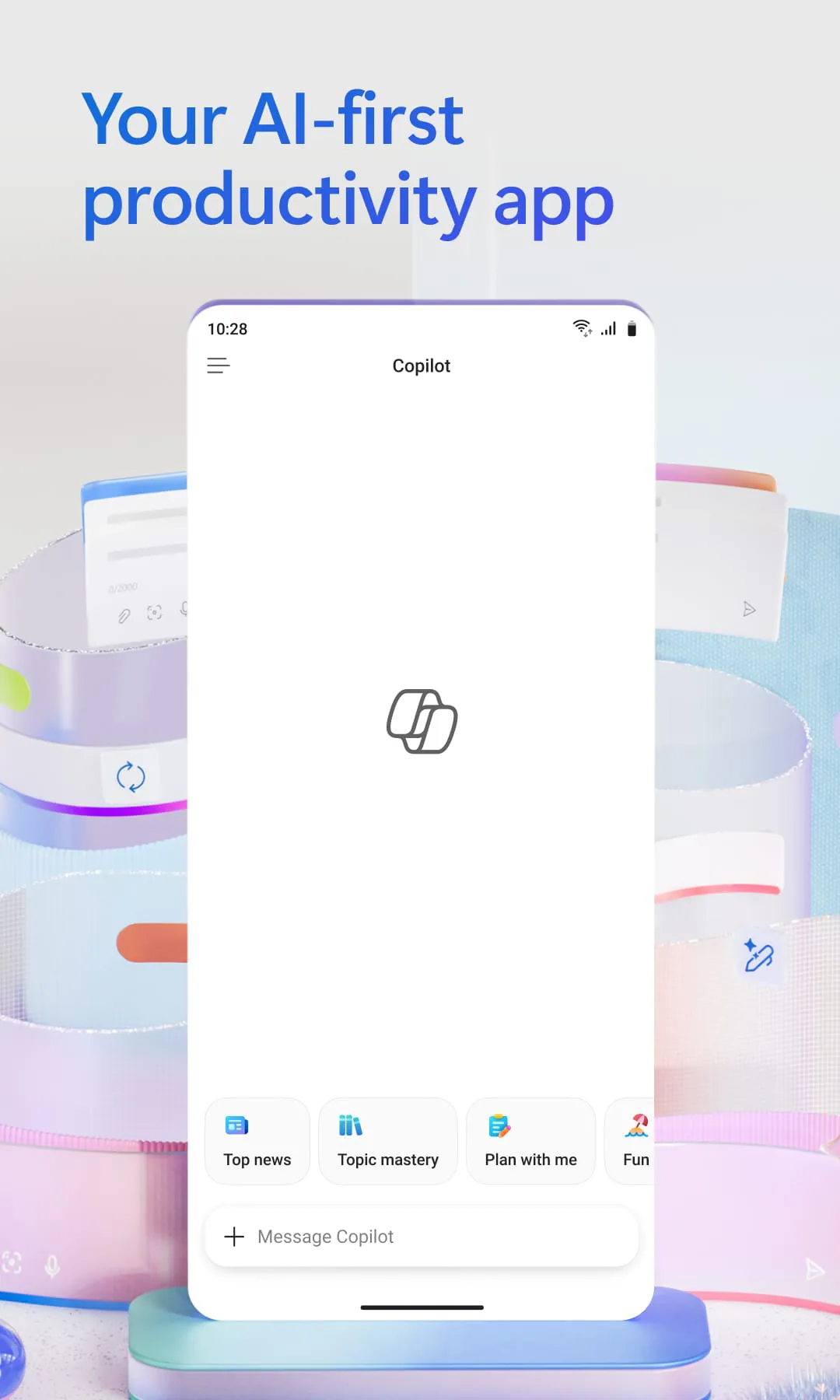
Microsoft 365 Copilot is an AI-powered productivity assistant deeply integrated into the Microsoft 365 ecosystem, including Word, Excel, PowerPoint, Outlook, Teams, and OneNote. It leverages large language models (such as OpenAI's GPT-4) combined with the Microsoft Graph to understand your work context—such as your emails, calendar events, chats, and files—allowing it to provide grounded, personalized assistance right where you are already working, rather than requiring you to switch to a separate AI tool or browser tab.
Key Features
Microsoft 365 Copilot offers a wide array of intelligent features designed to streamline daily workflows across different applications:
- In Word, it helps draft new documents from scratch, summarize lengthy texts, rewrite content for clarity or tone, and answer questions about the document you are working on.
- In Excel, you can ask questions about your data in plain language (e.g., "What were my top expenses last quarter?"), and it will suggest formulas, generate charts, identify trends, and provide data insights without needing to write complex functions manually.
- In PowerPoint, it can create entire presentation decks from a simple outline or a Word document, add speaker notes, summarize slides, and apply organizational branding templates automatically.
- In Outlook, it summarizes long and complex email threads into key points, drafts email replies in your professional voice, coaches you on clarity and tone before sending, and helps prioritize your inbox.
- In Teams, it provides real-time meeting summarization, lists key decisions and action items after a call, allows you to ask questions about what was said during the meeting, and summarizes lengthy chat threads or channels.
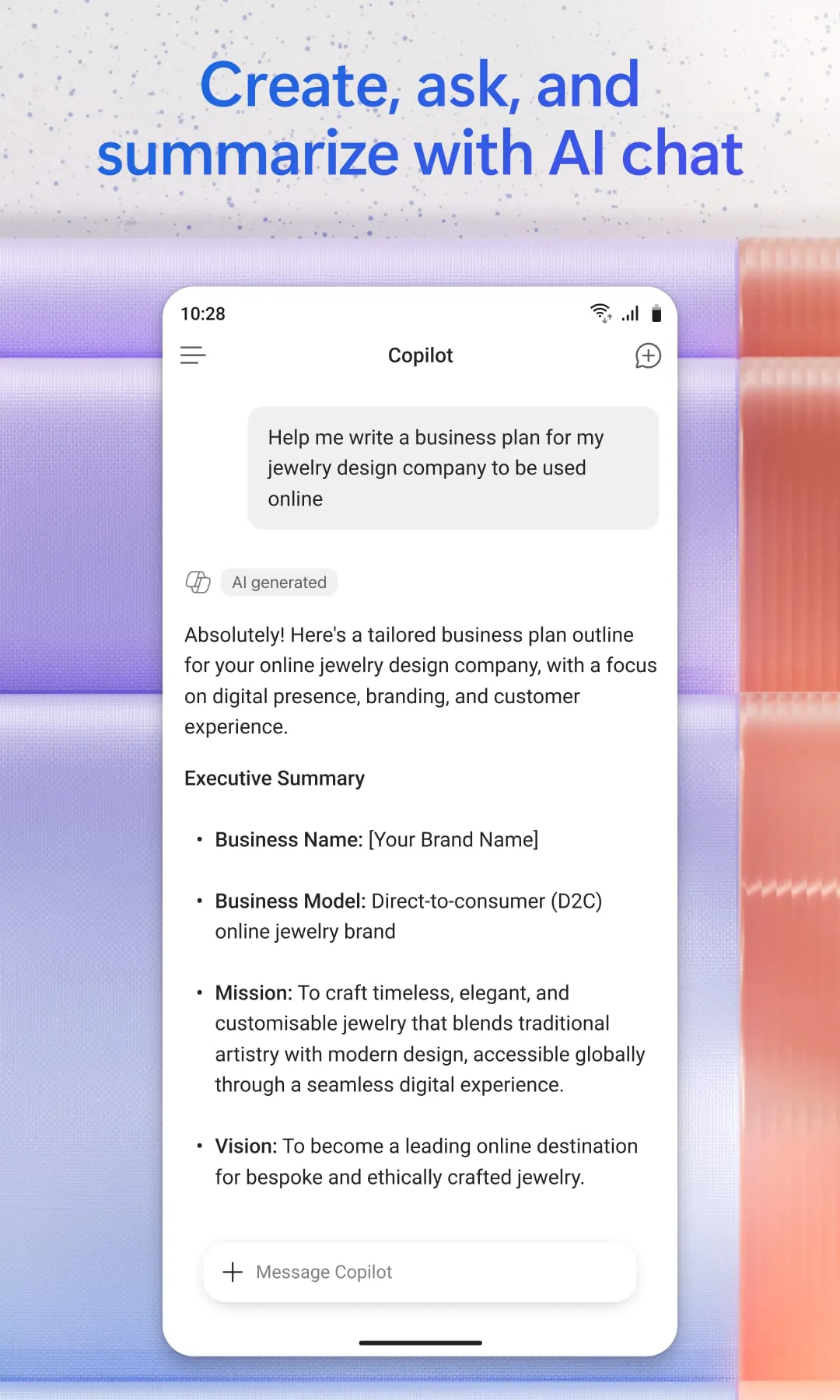
- The standalone Microsoft 365 Copilot app (available on web, desktop, and mobile) provides a centralized place to chat with the AI, create and edit content, scan documents, manage projects via Copilot Notebooks, and build custom AI agents to automate repetitive workflows.
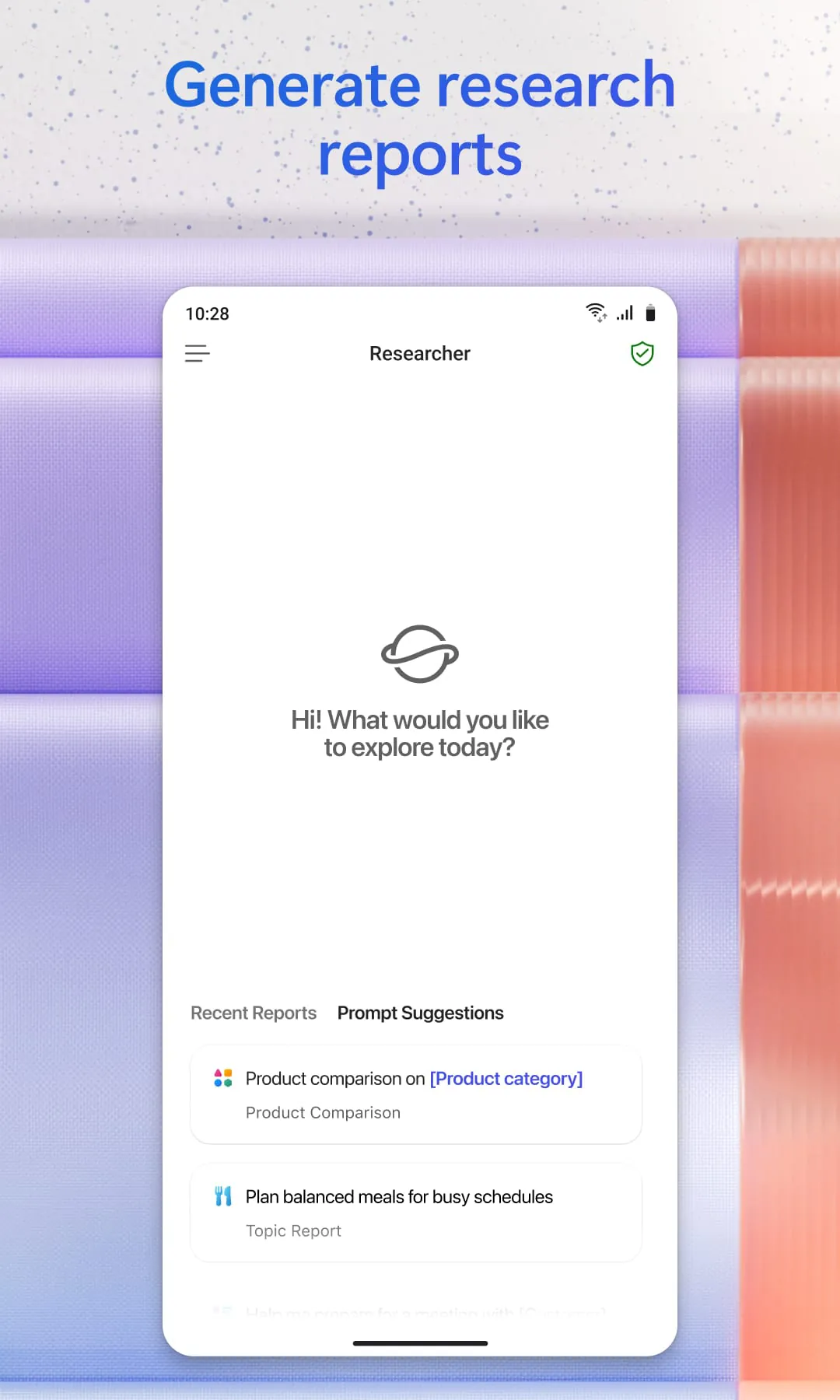
- It also includes advanced tools like Copilot Pages (a collaborative canvas to refine AI-generated content with your team), the Agent Builder (to create specialized AI assistants for specific business tasks), and deep research capabilities to generate comprehensive reports.
Pros & Cons
Like any advanced tool, Microsoft 365 Copilot comes with distinct advantages and trade-offs that users should consider:
Pros:
- Exceptional integration with the Microsoft ecosystem; it seamlessly connects your emails, files, calendar, and chats to provide highly contextual and relevant answers.
- Significant time-saver for tedious tasks such as summarizing meetings, drafting routine emails, formatting Excel data, and overcoming the "blank page" problem in Word.
- Enterprise-grade security and data privacy; it does not use your proprietary work data to train public AI models, and respects existing permission structures (you only see data you already have access to).
- Cross-app functionality, such as drafting a Word document based on a PowerPoint outline, or creating a PowerPoint deck from a Word file, helps maintain consistency across materials.
- The ability to build custom Agents and use Copilot Pages fosters teamwork and allows for the automation of niche business processes.
Cons:
- High cost of entry, particularly for businesses, as it often requires specific licenses (e.g., $30 per user/month for the full enterprise version) and sometimes mandates annual commitments.
- Occasional inaccuracies or "hallucinations," especially in Excel when dealing with complex nested formulas or poorly structured data, requiring users to heavily supervise and verify its output.
- Inconsistent formatting in Word and PowerPoint; generated documents or slides often require manual tweaking to meet specific aesthetic or corporate standards.
- A learning curve exists for prompting; while basic use is intuitive, mastering nuanced prompts to get exactly the desired result takes practice.
- Heavy reliance on data being perfectly organized within the Microsoft 365 environment (e.g., data in Excel must be formatted as an official "Table" for Copilot to analyze it properly).
Functions
The core function of Microsoft 365 Copilot is to act as an intelligent co-pilot that augments human capability within the flow of work. Technically, it operates by combining a large language model (LLM) with the Microsoft Graph—a gateway to user-specific business data like documents, emails, calendar items, and contacts. When a user inputs a prompt (either typed or spoken), Copilot sends this request to the LLM, enriches it with relevant context retrieved securely from the Microsoft Graph, generates a response, and then presents it directly inside the application the user is working in (e.g., a sidebar in Word or Teams). Its functions span content generation (drafting text, code, or slides), content comprehension (summarizing meetings, emails, or long reports), data analysis (finding insights in Excel), task automation (creating Agents to handle repetitive jobs), and universal search (finding a file or piece of information across OneDrive, SharePoint, and emails using natural language). Essentially, it transforms static Microsoft 365 apps into dynamic, conversational, and proactive assistants that help users brainstorm, organize, analyze, and execute tasks faster.
How to Use
Click the button "Check All Versions" below to download and install it.
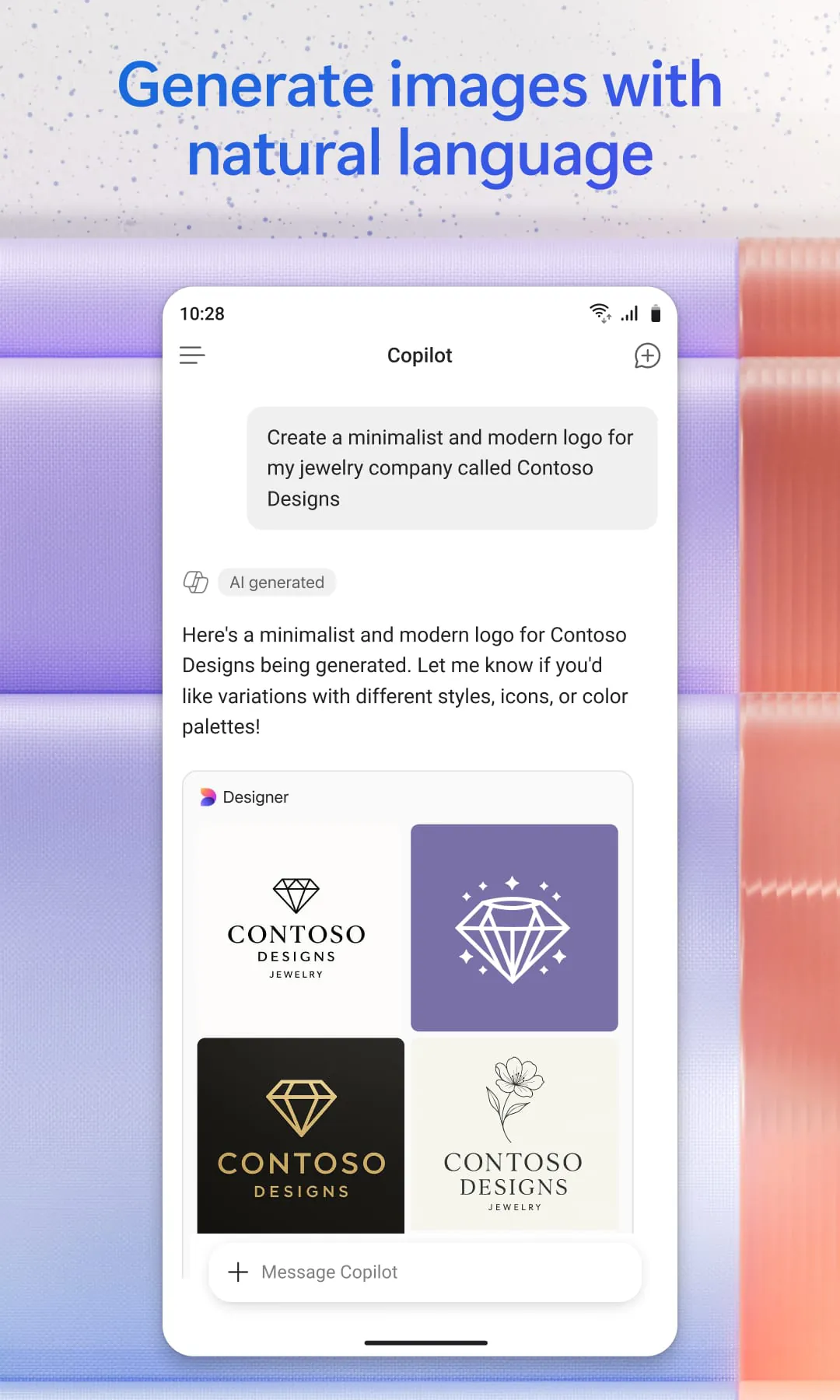
Once installed or accessed via the web, using Microsoft 365 Copilot is straightforward. If you are using the standalone Microsoft 365 Copilot app, simply sign in with your personal, work, or school Microsoft account. From the main interface, you can type or speak a prompt into the chat bar to ask questions, summarize a file (by uploading it or referencing a OneDrive/SharePoint link), or create content like images or lists. To use Copilot inside specific apps like Word or Excel, open the application and look for the Copilot icon (usually a sparkle or chat bubble) in the ribbon or toolbar. In Word, you can click this to open a sidebar where you can type "Draft a project proposal based on the file named 'Q3 Notes.docx'" and it will generate the text for you. In Excel, select your data table, click Copilot, and ask "Show me a bar chart of sales by region" or "What is the average profit margin?". In Teams, during or after a meeting, open the Copilot pane to select "Summarize" to get key takeaways and action items. For the best results, store your files in OneDrive or SharePoint so Copilot can access them, use clear and specific natural language prompts, and always review the AI-generated content for accuracy before finalizing your work.





 APK
APK  Google Play
  iOS
iOS  4.60
4.60