



ADVERTISEMENT
ADVERTISEMENT

Google Wallet Google Wallet
Category
FinanceVersion
V2.197.550603569
Tag
Privacy | gmail | wallet
Rate
4.50
★★★★★
Reviews
500 +
Installs
1B +
Developer
Google LLC
Content Rating
Everyone
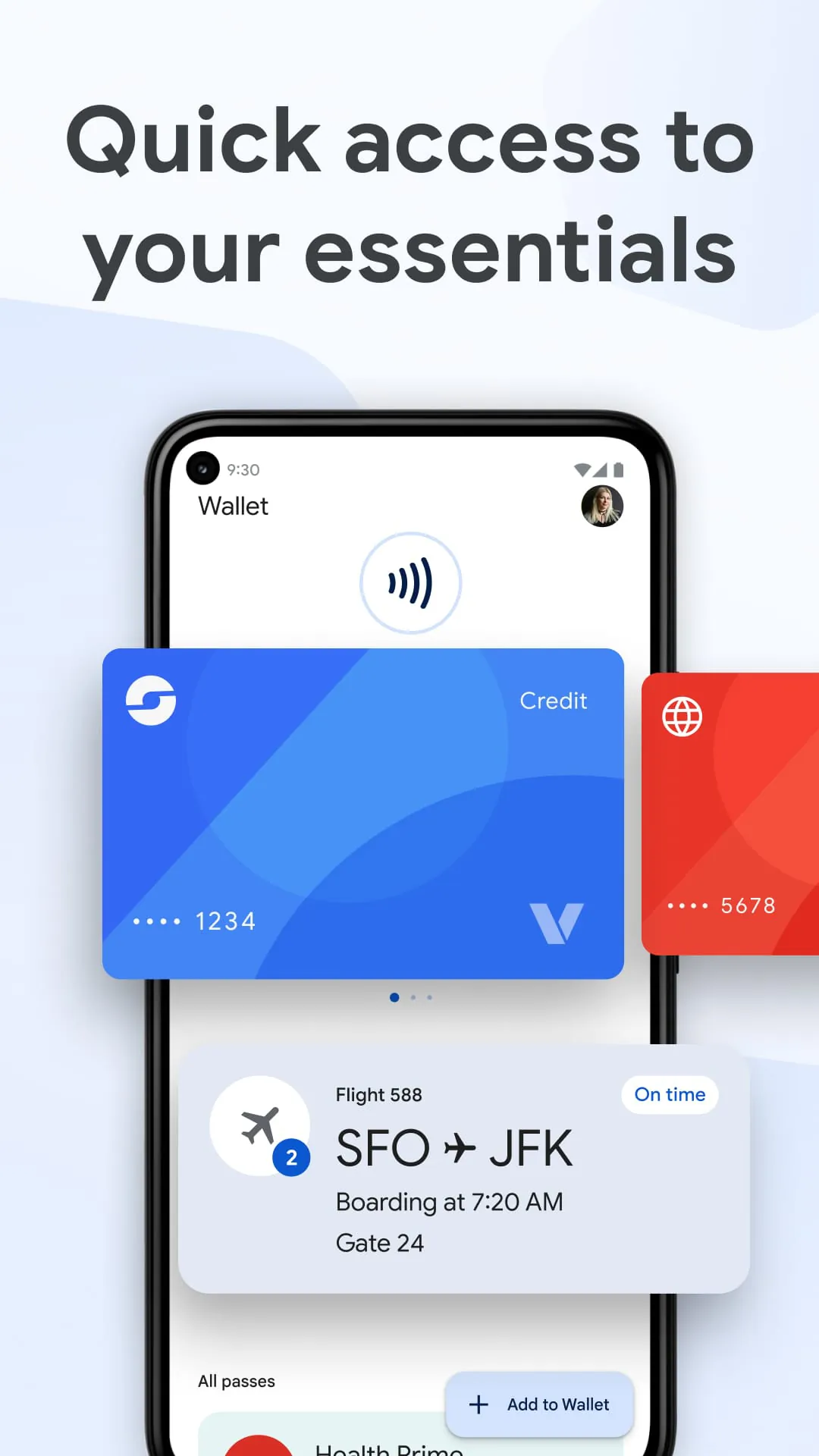
Fast, secure access to everyday essentials like cards, passes or tickets
 APK
APK  Google Play
  iOS
iOS  4.50
4.50ADVERTISEMENT
ADVERTISEMENT
Author's Review
appspicked Review
Screenshots



Additional Information
Category
FinanceVersion
V2.197.550603569
Tag
Privacy | gmail | wallet
Rate
4.50
★★★★★
Reviews
500 +
Installs
1B +
Developer
Google LLC
Content Rating
Everyone
Fast, secure access to everyday essentials like cards, passes or tickets
ADVERTISEMENT
ADVERTISEMENT
Previous Versions
ZIP files require a Split APKs Installer (e.g., SAI) from Google Play to install. Steps: 1. Download SAI from Google Play; 2. Open SAI and tap "Install APKs"; 3. Select the ZIP file; 4. Complete installation.
V25.48.839837006

Package Name
com.google.android.apps.walletnfcrel
Version Name
V25.48.839837006
Version Code
V25.48.839837006
File Size
15.21 MB
Update time
2026-1-6
V2.199.553864662
Package Name
com.google.android.apps.walletnfcrel
Version Name
V2.199.553864662
Version Code
V2.199.553864662
File Size
9.62 MB
Update time
2023-8-8
V2.197.550603569
Package Name
com.google.android.apps.walletnfcrel
Version Name
V2.197.550603569
Version Code
V2.197.550603569
File Size
9.57 MB
Update time
2023-7-26
V2.194.541972663
Package Name
com.google.android.apps.walletnfcrel
Version Name
V2.194.541972663
Version Code
V2.194.541972663
File Size
9.45 MB
Update time
2023-6-20
V2.193.539153788
Package Name
com.google.android.apps.walletnfcrel
Version Name
V2.193.539153788
Version Code
V2.193.539153788
File Size
8.42 MB
Update time
2023-6-9
V2.189.528496136
Package Name
com.google.android.apps.walletnfcrel
Version Name
V2.189.528496136
Version Code
V2.189.528496136
File Size
17.93 MB
Update time
2023-5-3
V2.163.485164435
Package Name
com.google.android.apps.walletnfcrel
Version Name
V2.163.485164435
Version Code
V2.163.485164435
File Size
15.29 MB
Update time
2022-11-10
ADVERTISEMENT
You Might Like









