



ADVERTISEMENT
ADVERTISEMENT

YouCut YouCut
Category
Video Players & EditorsVersion
V1.480.1130
Tag
Video Editing | Video Editor | Video Trimmer | YouCut App | Music Video Maker
Rate
4.80
★★★★★
Reviews
500 +
Installs
100M +
Developer
InShot Video Editor
Content Rating
Everyone
AI Video Editor with Music, Filter, Slideshow, Effect, Merge & Trim Video.
 APK
APK  Google Play
  iOS
iOS  4.80
4.80ADVERTISEMENT
ADVERTISEMENT
Author's Review
appspicked Review
Screenshots

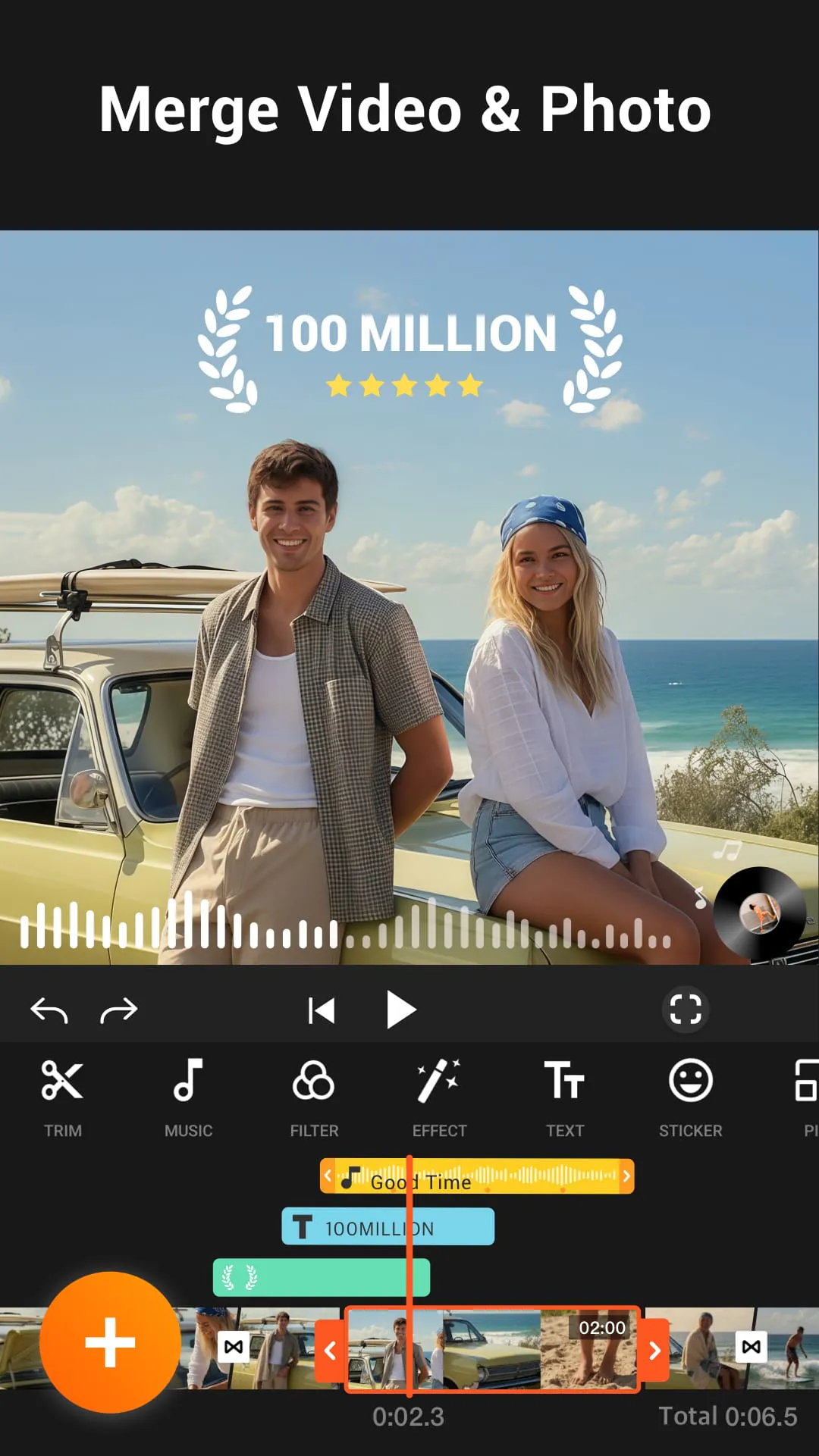
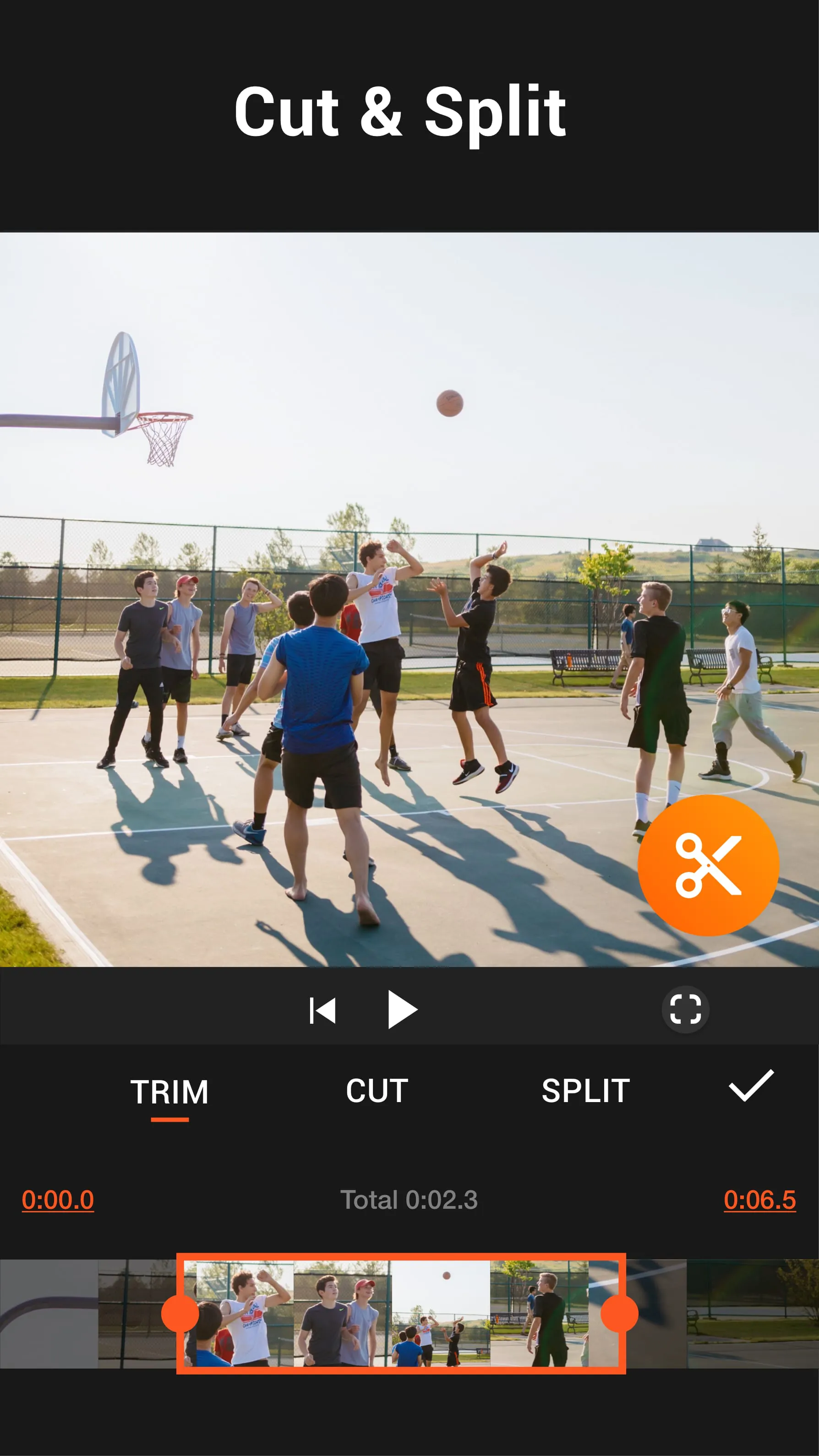
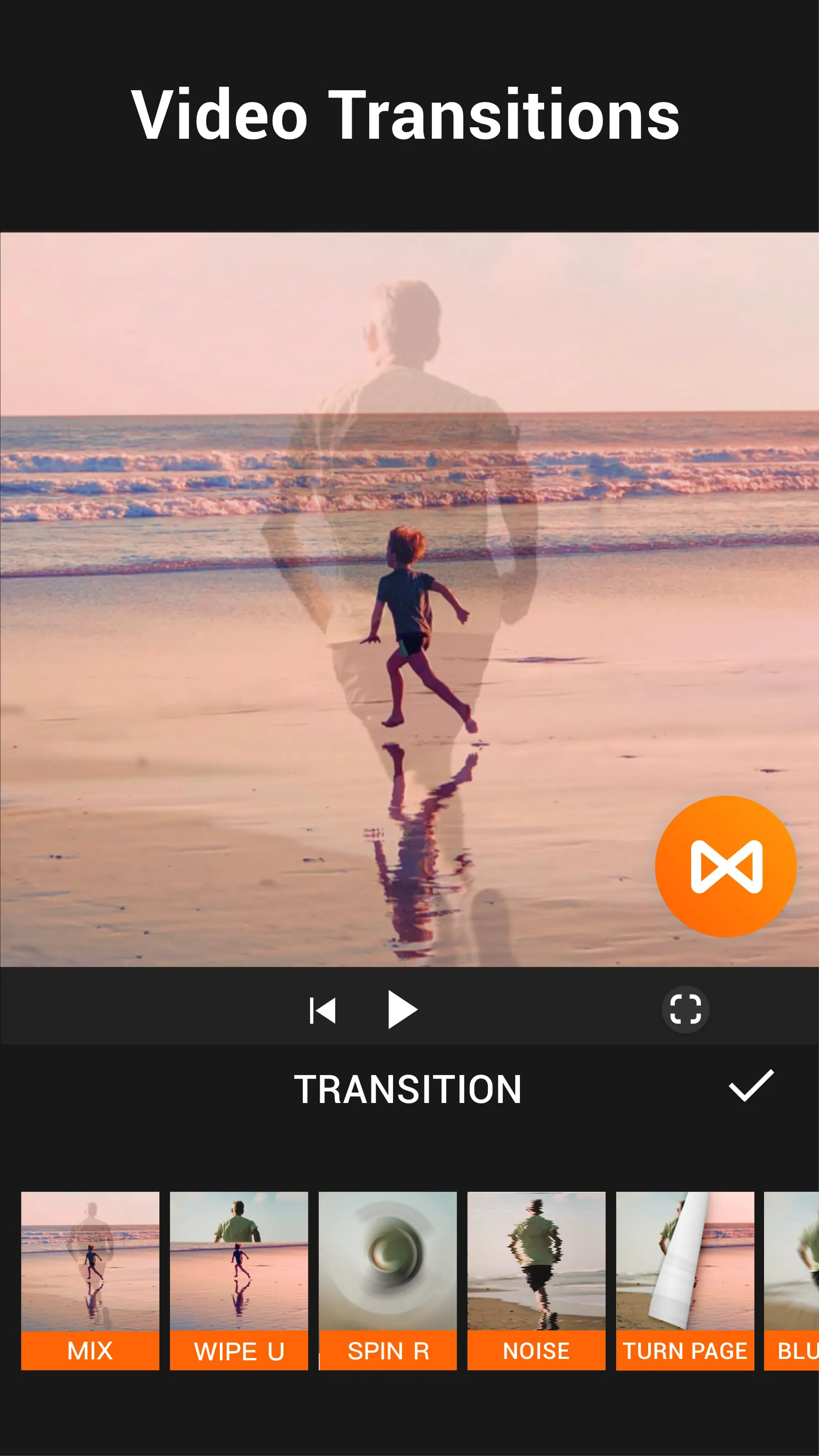
Additional Information
Category
Video Players & EditorsVersion
V1.480.1130
Tag
Video Editing | Video Editor | Video Trimmer | YouCut App | Music Video Maker
Rate
4.80
★★★★★
Reviews
500 +
Installs
100M +
Developer
InShot Video Editor
Content Rating
Everyone
AI Video Editor with Music, Filter, Slideshow, Effect, Merge & Trim Video.
ADVERTISEMENT
ADVERTISEMENT
Previous Versions
ZIP files require a Split APKs Installer (e.g., SAI) from Google Play to install. Steps: 1. Download SAI from Google Play; 2. Open SAI and tap "Install APKs"; 3. Select the ZIP file; 4. Complete installation.
V1.524.2147.WDJ

Package Name
com.camerasideas.trimmer
Version Name
V1.524.2147.WDJ
Version Code
V1.524.2147.WDJ
File Size
56.41 MB
Update time
2026-1-6
V1.621.1186
Package Name
com.camerasideas.trimmer
Version Name
V1.621.1186
Version Code
V1.621.1186
File Size
44.73 MB
Update time
2024-3-4
V1.594.1177
Package Name
com.camerasideas.trimmer
Version Name
V1.594.1177
Version Code
V1.594.1177
File Size
42.93 MB
Update time
2023-9-27
V1.583.1172
Package Name
com.camerasideas.trimmer
Version Name
V1.583.1172
Version Code
V1.583.1172
File Size
44.1 MB
Update time
2023-6-29
V1.573.1167
Package Name
com.camerasideas.trimmer
Version Name
V1.573.1167
Version Code
V1.573.1167
File Size
43.5 MB
Update time
2023-5-25
V1.572.1166
Package Name
com.camerasideas.trimmer
Version Name
V1.572.1166
Version Code
V1.572.1166
File Size
41.5 MB
Update time
2023-5-9
V1.554.1158
Package Name
com.camerasideas.trimmer
Version Name
V1.554.1158
Version Code
V1.554.1158
File Size
38.04 MB
Update time
2022-11-28
V1.551.1155
Package Name
com.camerasideas.trimmer
Version Name
V1.551.1155
Version Code
V1.551.1155
File Size
38.02 MB
Update time
2022-11-8
V1.492.1133
Package Name
com.camerasideas.trimmer
Version Name
V1.492.1133
Version Code
V1.492.1133
File Size
51.5 MB
Update time
2021-12-22
V1.480.1130
Package Name
com.camerasideas.trimmer
Version Name
V1.480.1130
Version Code
V1.480.1130
File Size
49.2 MB
Update time
2021-11-8
ADVERTISEMENT
You Might Like









