



ADVERTISEMENT
ADVERTISEMENT

Microsoft Authenticator Microsoft Authenticator
Category
BusinessVersion
V6.2404.2872
Tag
authenticator | password | authentication
Rate
4.70
★★★★★
Reviews
500 +
Installs
100M +
Developer
Microsoft Corporation
Content Rating
Everyone
No more passwords, easier sign-in, and greater protection for your accounts.
 APK
APK  Google Play
  iOS
iOS  4.70
4.70ADVERTISEMENT
ADVERTISEMENT
Author's Review
appspicked Review
Screenshots
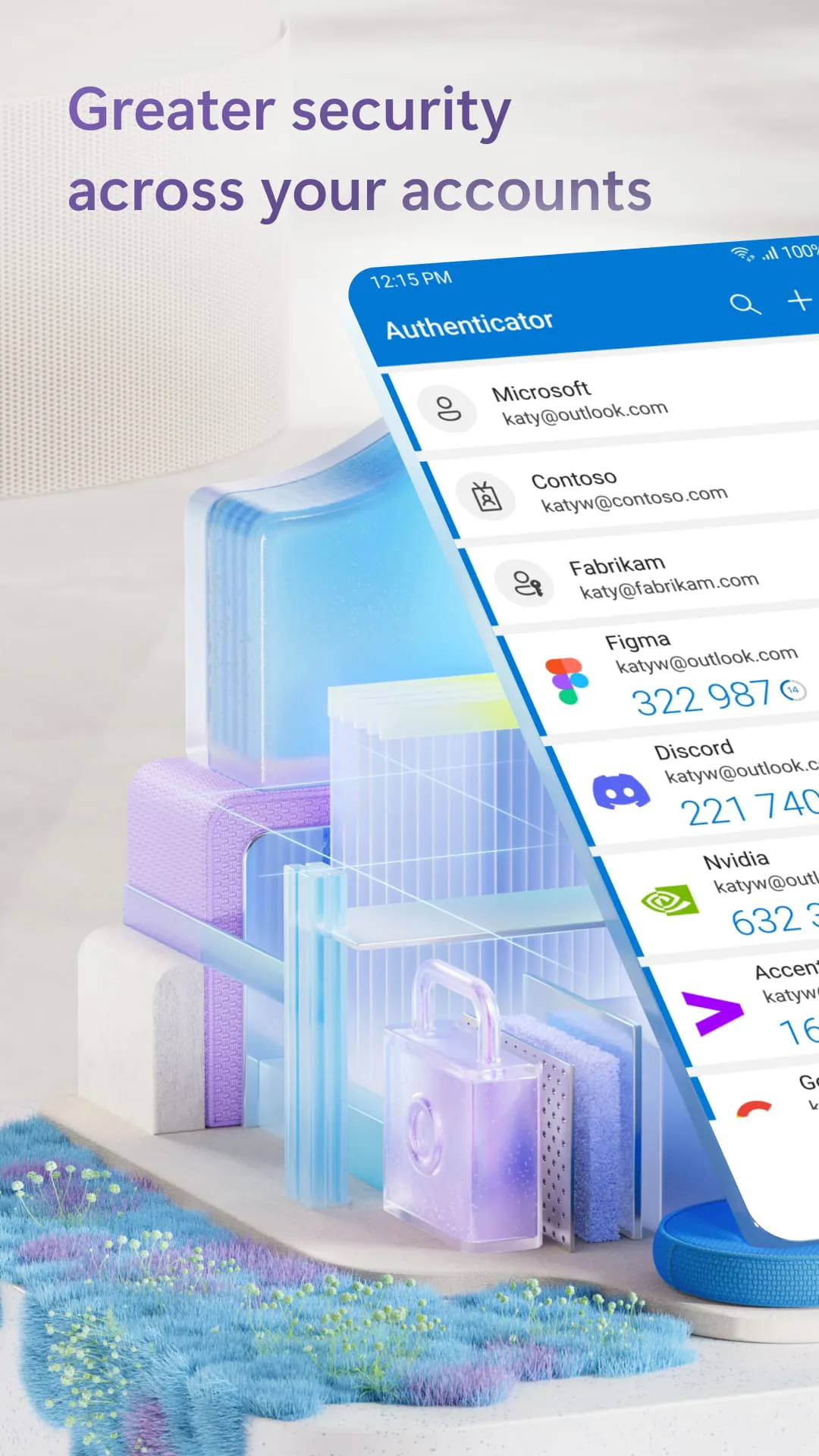
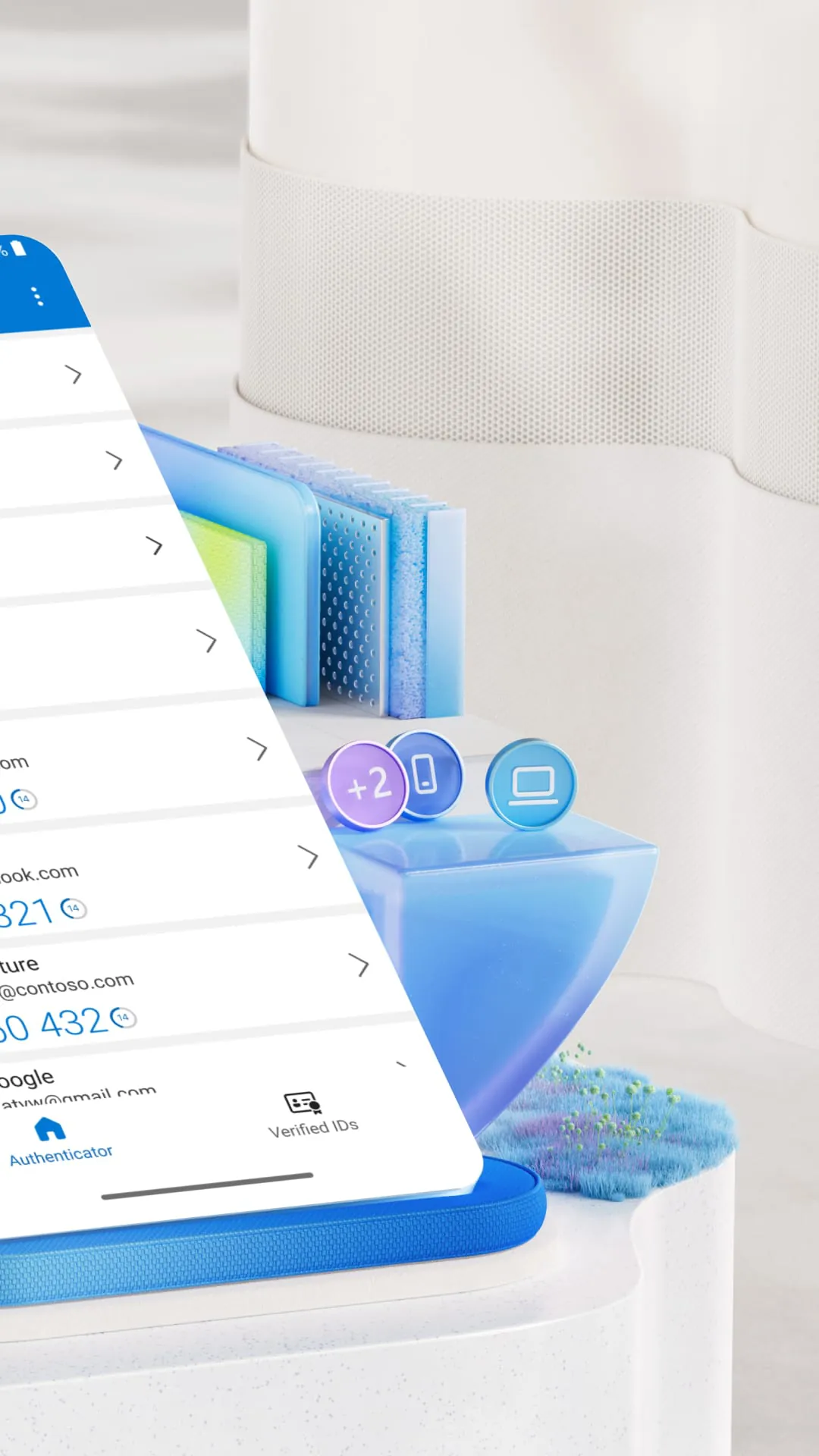
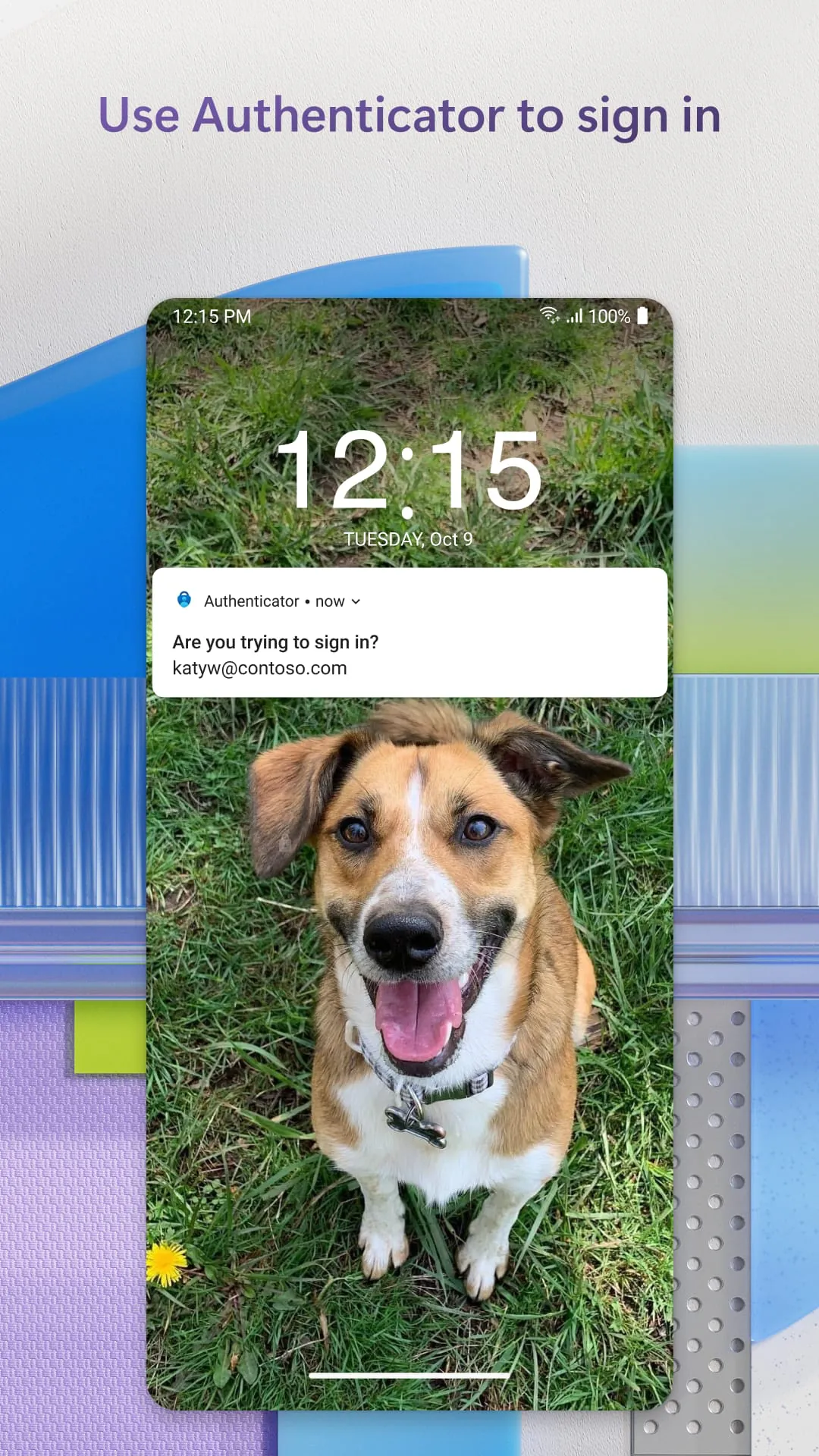
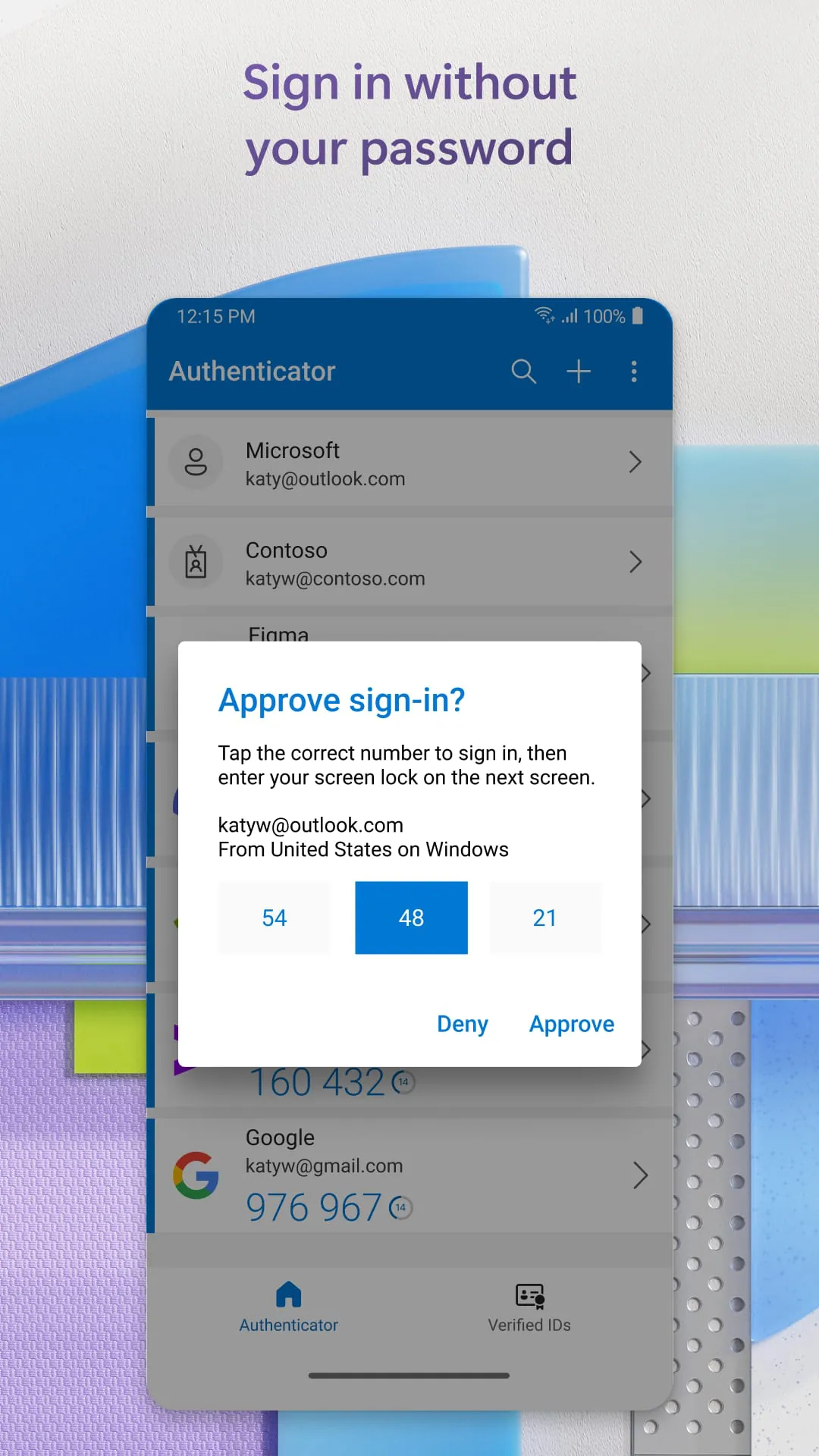
Additional Information
Category
BusinessVersion
V6.2404.2872
Tag
authenticator | password | authentication
Rate
4.70
★★★★★
Reviews
500 +
Installs
100M +
Developer
Microsoft Corporation
Content Rating
Everyone
No more passwords, easier sign-in, and greater protection for your accounts.
ADVERTISEMENT
ADVERTISEMENT
Previous Versions
ZIP files require a Split APKs Installer (e.g., SAI) from Google Play to install. Steps: 1. Download SAI from Google Play; 2. Open SAI and tap "Install APKs"; 3. Select the ZIP file; 4. Complete installation.
V6.2512.8111

Package Name
com.azure.authenticator
Version Name
V6.2512.8111
Version Code
V6.2512.8111
File Size
39.13 MB
Update time
2026-1-6
V6.2501.0191
Package Name
com.azure.authenticator
Version Name
V6.2501.0191
Version Code
V6.2501.0191
File Size
105.59 MB
Update time
2025-1-13
V6.2404.2872
Package Name
com.azure.authenticator
Version Name
V6.2404.2872
Version Code
V6.2404.2872
File Size
107.13 MB
Update time
2024-4-29
V6.2404.2444
Package Name
com.azure.authenticator
Version Name
V6.2404.2444
Version Code
V6.2404.2444
File Size
106.82 MB
Update time
2024-4-4
V6.2402.0907
Package Name
com.azure.authenticator
Version Name
V6.2402.0907
Version Code
V6.2402.0907
File Size
105.9 MB
Update time
2024-2-7
V6.2308.5514
Package Name
com.azure.authenticator
Version Name
V6.2308.5514
Version Code
V6.2308.5514
File Size
98.93 MB
Update time
2023-8-21
V6.2307.4942
Package Name
com.azure.authenticator
Version Name
V6.2307.4942
Version Code
V6.2307.4942
File Size
97.3 MB
Update time
2023-7-26
V6.2306.4121
Package Name
com.azure.authenticator
Version Name
V6.2306.4121
Version Code
V6.2306.4121
File Size
96.95 MB
Update time
2023-6-21
V6.2305.3477
Package Name
com.azure.authenticator
Version Name
V6.2305.3477
Version Code
V6.2305.3477
File Size
96.87 MB
Update time
2023-5-25
V6.2305.3262
Package Name
com.azure.authenticator
Version Name
V6.2305.3262
Version Code
V6.2305.3262
File Size
92.63 MB
Update time
2023-5-18
V6.2211.7348
Package Name
com.azure.authenticator
Version Name
V6.2211.7348
Version Code
V6.2211.7348
File Size
95.33 MB
Update time
2022-11-3
V6.2208.5297
Package Name
com.azure.authenticator
Version Name
V6.2208.5297
Version Code
V6.2208.5297
File Size
90.28 MB
Update time
2022-8-24
V6.2203.1651
Package Name
com.azure.authenticator
Version Name
V6.2203.1651
Version Code
V6.2203.1651
File Size
73.5 MB
Update time
2022-3-15
V6.2202.0982
Package Name
com.azure.authenticator
Version Name
V6.2202.0982
Version Code
V6.2202.0982
File Size
69.5 MB
Update time
2022-2-18
V6.2202.0924
Package Name
com.azure.authenticator
Version Name
V6.2202.0924
Version Code
V6.2202.0924
File Size
70.2 MB
Update time
2022-2-10
V6.2201.0239
Package Name
com.azure.authenticator
Version Name
V6.2201.0239
Version Code
V6.2201.0239
File Size
70.3 MB
Update time
2022-1-14
V6.2112.8250
Package Name
com.azure.authenticator
Version Name
V6.2112.8250
Version Code
V6.2112.8250
File Size
70.3 MB
Update time
2021-12-27
ADVERTISEMENT
You Might Like









